16
4.2.2 Taskbar
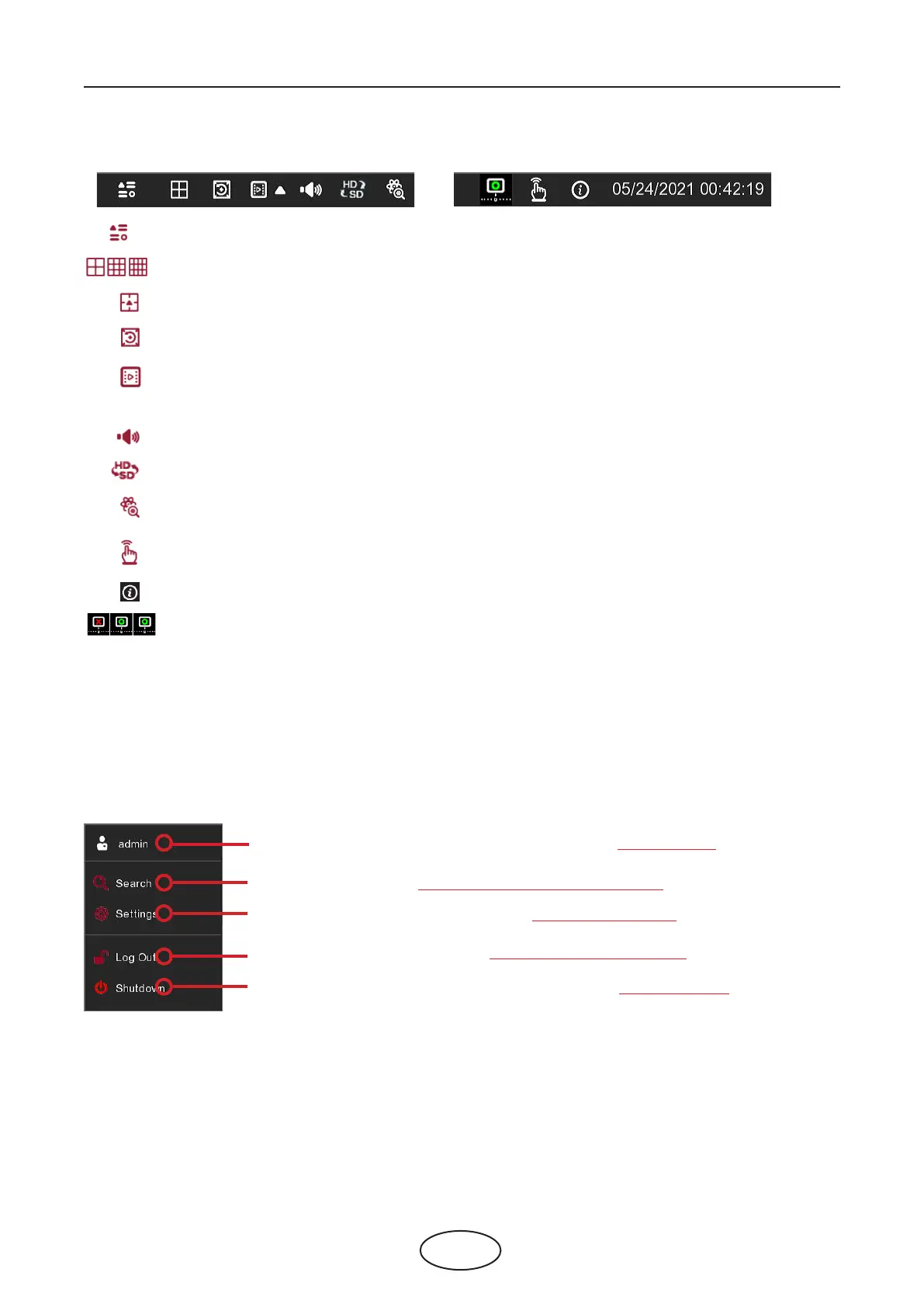
Click to open the Start Menu.
Click to choose a dierent layout for live view.
Click to choose more layouts for live view.
Click to start viewing channels in a sequence.
Quick playback. You can choose to play the latest recording for all channels from the beginning
of the day, or you can choose the playback from the latest 5s, 10s, 30s, 1Min, or 5Min.
Click to adjust audio volume.
Click to switch all IP channels between mainsteam and substream (for live view resolution).
Click to switch among real-time, balanced, or smooth view. The view eect modes aect onlthe
live view video quality by bitrate and frame rate. They do not aect the recording quality.
To start or stop Manual Record and Manual Alarm.
To view the system information, channel information, record info, and network state.
This icon will appear if the network is disconnected.
4.2.3 Start Menu
With the start menu, you can switch users, search and playback, enter the system setup menu, lock & unlock the
screen, shut down, reboot, logout of the system.
To switch users. To enable multi-user, please view on 5.6.3 Multi-user.
Search. View more on Chapter 6 Search: Playback & Backup.
Settings for NVR System Setup. View on Chapter 5 NVR System.
Log Out of the Recorder. View on 4.2.3.1 Unlock and Lock Screen. -X
Shutdown, reboot, and logout of the system. View on 4.2.3.2 Shutdown.
4 NVR Starting Up



 To Next Page