151
6.1.2.1 Event Playback Control
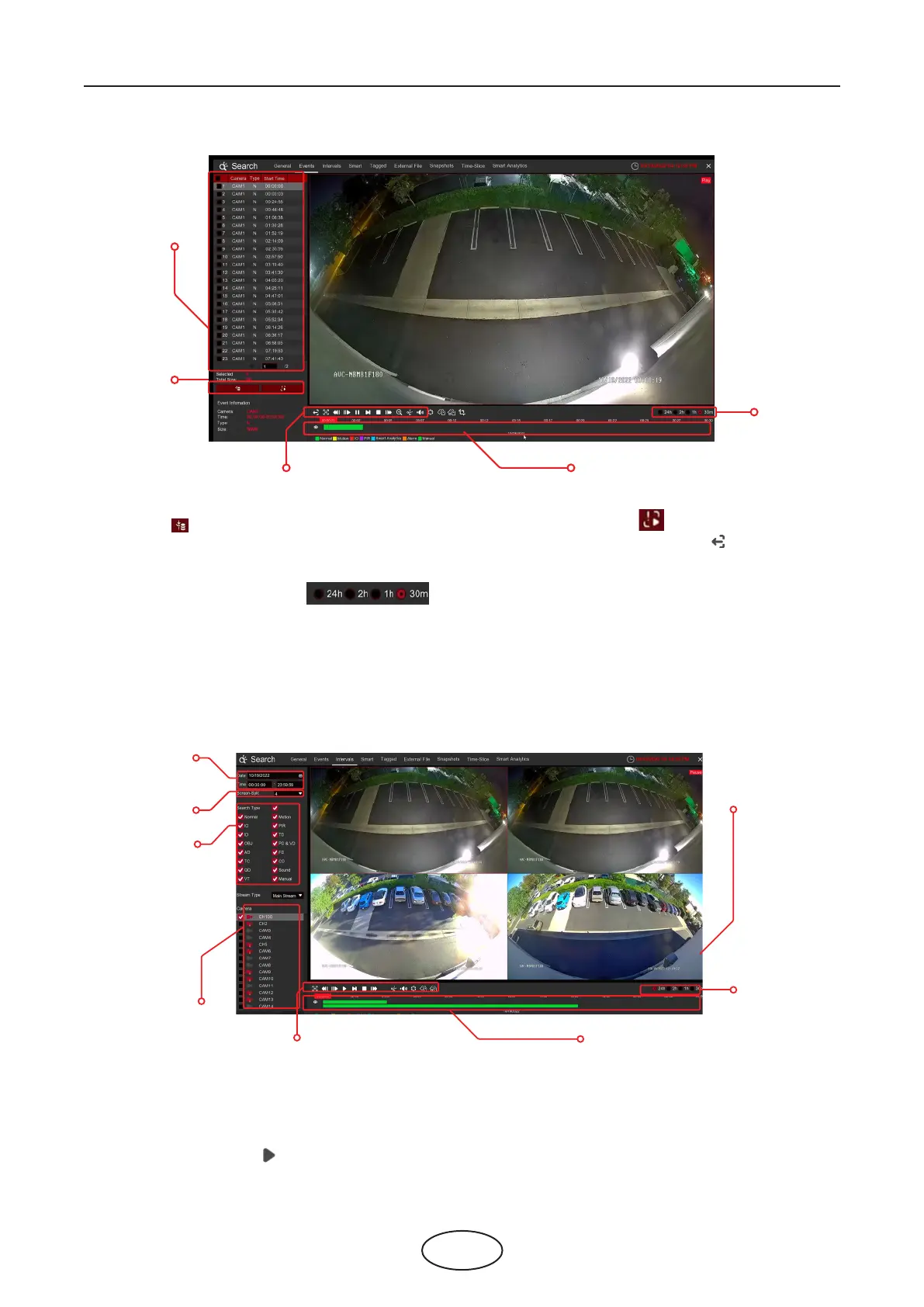
1. Event List, you can select the events here.
2. Click the icon to save your selected event videos to USB ash drive. Click to play video.
3. Control the playback with buttons on the Video Playback Controls. You can click the icon or right
click on your mouse to exit the playback and return to the event search window.
4. The event you are playing now will be displayed on the timeline.
5. Use the timeframe options ( ) to view a smaller or larger time period.
Sub-periods playback allows you to play multiple normal recordings and motion events simultaneously
from a single camera. With normal and event recordings, the video is divided evenly depending on the
split-screen mode that has been selected. For example, if the video is an hour long and you have
selected Split-screens x 4, each split-screen will play for 15 minutes.
6.1.3 Sub-periods Playback
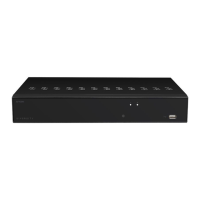
To Search & Play video in sub-periods:
1. Choose the date and time you want to search.
2. Choose the split-screens you want the videos to be played in.
3. Check the recording types you want to search, or check Search Type to choose all.
4. Choose the cameras you want to search. Please note that this function only supports Search & Play
one camera at a time.
5. Click the play button to start playing. Control the playback with buttons on Video Playback
Controls.
6 Search, Playback & Backup
1
2
3
4
5
1
2
3
4
5
7
8
6



 To Next Page