15
4.2.1 Camera Quick Toolbar
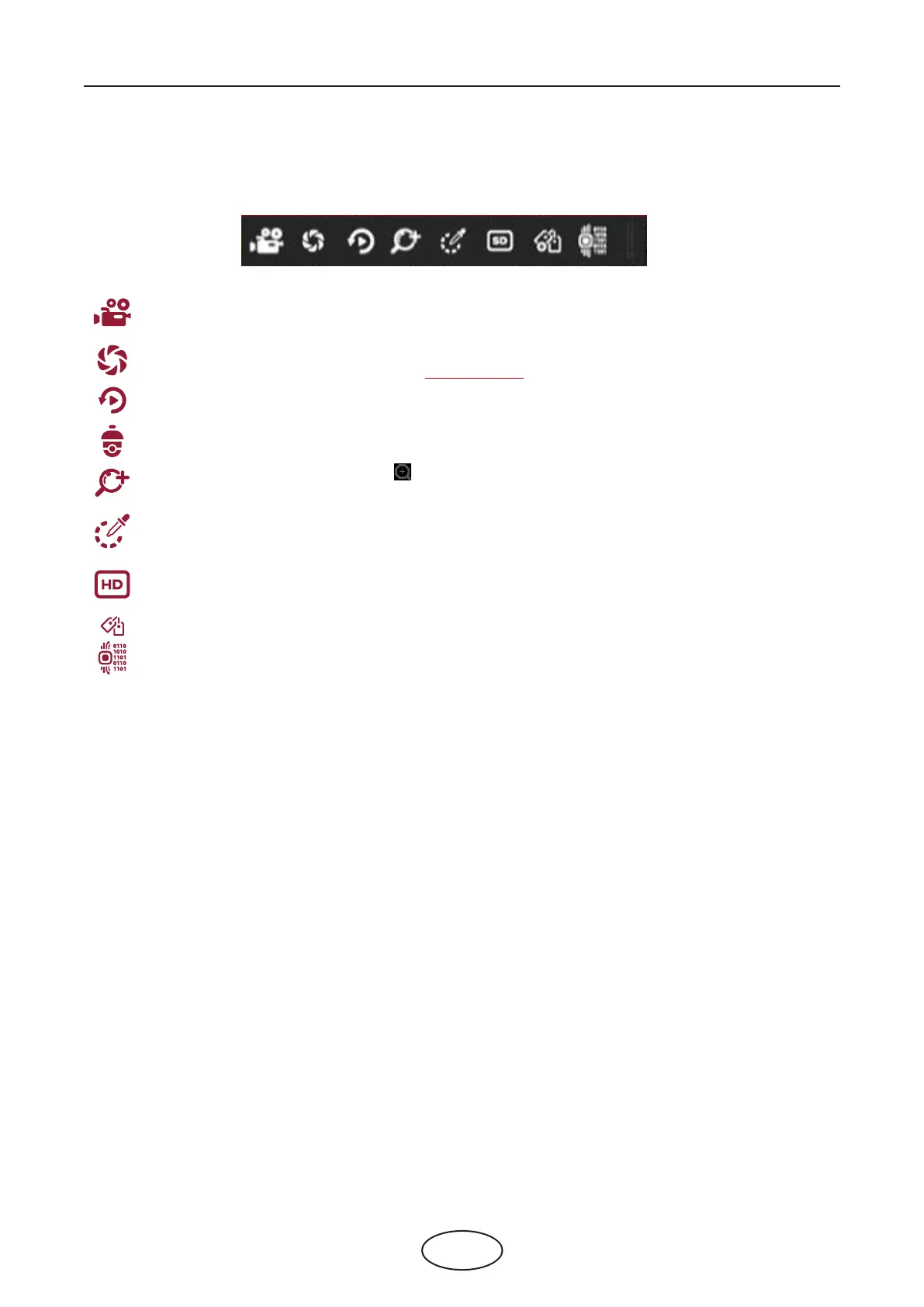
In live viewing, click the left button of your mouse on a connected camera to display the Camera Quick Toolbar.
Click to manually record the channel immediately. If the manual recording is in process, the icon will be a
red color. Click one more time to stop manual record.
Click to save a snapshot of the current camera image. Manual Capture must be enabled to use this feature.
For details on enabling Manual Capture, see 5.2.3.1 Capture.
Click to play the most recent 5 minutes of recording of this channel.
Click to enter the PTZ control panel.
Click to zoom-in the channel. When the icon appears, press and hold the left button of your mouse to drag
the area you want to zoom in.
Click to adjust the image color of the channel. You can adjust the HUE, BRIGHT, CONTRAST, & SATURATION
of the image.
Click to switch between the HD & SD live view video stream.
HD is mainstream live view, SD is substream live view.
Click to add customize tag. It supports to fast search by adding a tag in live view. See more on 6.6 Tag Search.
Smart Analytics: Hover the mouse upon the icon to view Smart Analytics when the AI function is activated in
your NVR.
4 NVR Starting Up



 To Next Page