172
7 Remote Access via Web Client
7.3.2.1 Playback Control Buttons
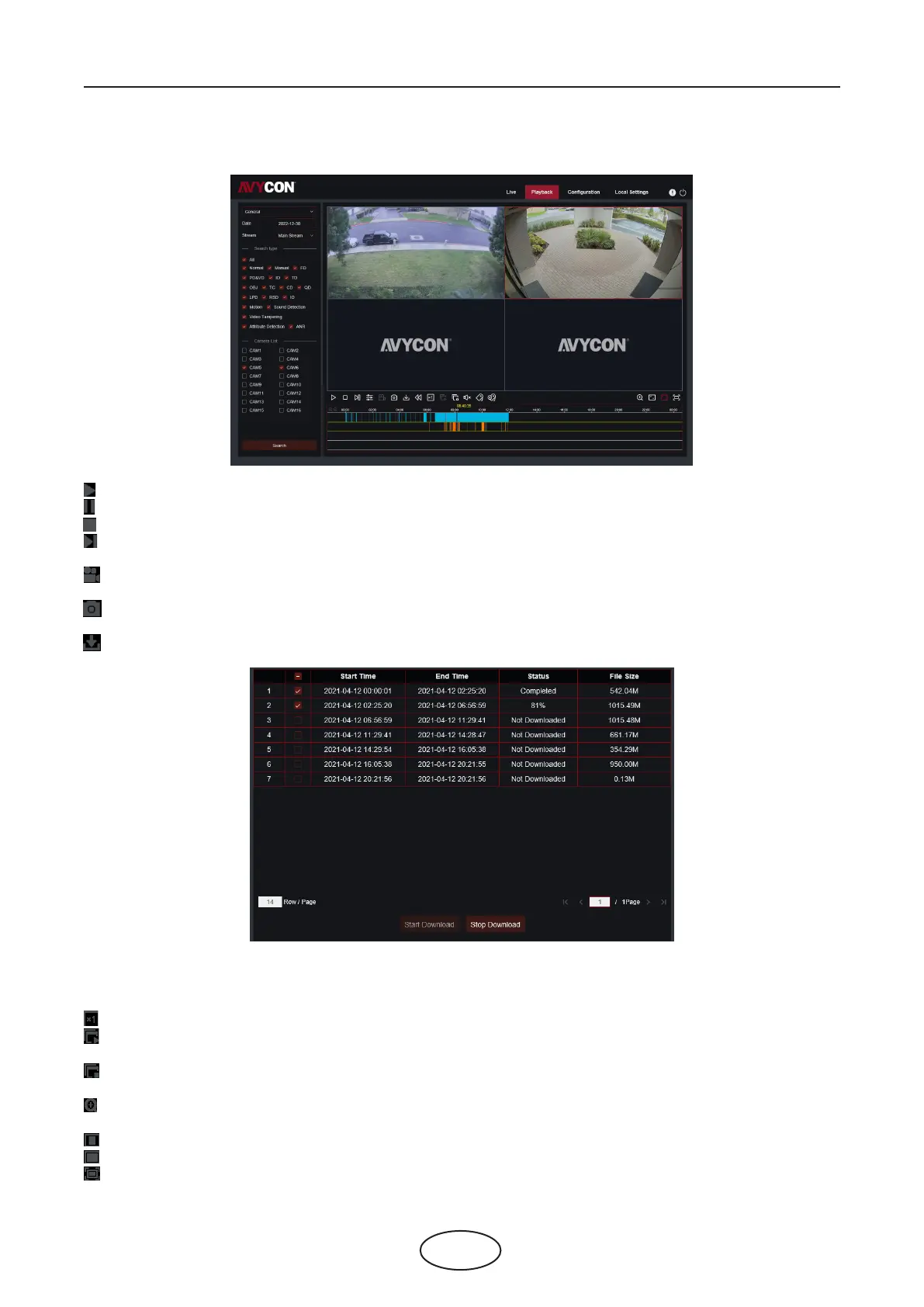
Play the recordings
Pause
Stop
Go Forward One Frame: Move frame-by-frame through playback. Only available when the
Synchronous playback option is not checked.
Click upon one of the cameras which is being played and then click the record button to record current
video to your computer. Click again to stop recording.
Click upon one of the cameras which is being played and then click the capture button to take a snap-
shot and save to your computer.
Opens the Download menu, which allows you to download several video recordings at once.
Choose the les you want to download, press the Start Download button to begin, you will see the
download status. Press the Stop Download button to stop.
Playback Speed: Click to choose the playing speed.
Play All Cameras: Click to play all cameras you have chosen to search. Only available when the
Synchronous playback option is not checked.
Stop All Cameras: Click to stop playing all cameras. Only available when the Synchronous playback
option is not checked.
Digital Zoom: Click upon a playing video, then click-and-drag over an area of the video to enlarge.
Right-click to return to the normal display.
Original Proportions: Shows the playing video at the original proportions.
Stretch: Stretch the playing video to t the full area for each channel on screen.
To enlarge the web client to full screen.



 To Next Page