152
6.1.4 Smart Search
With Smart search function, you will be able to quickly search and play the motion recording videos which
were triggered by human beings.
To search & play video in Smart Search:
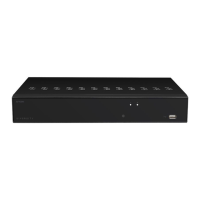
1. Choose the date & time you want to search.
2. Check the recording types you want to search, or check Search Type to choose all.
3. Choose the camera you want to search. Smart Search supports to search & play one camera only at a
time.
4. The Smart Search result will be displayed in the time slot in blue color.
5. Click the play button to start playing. Control the playback with buttons on Playback Controls.
6. It supports to narrow the search by selecting a certain area in the images. Click the icon on the Play-
back Controls bar, the aera selection page will be displayed.
6. Videos are being played in split-screens.
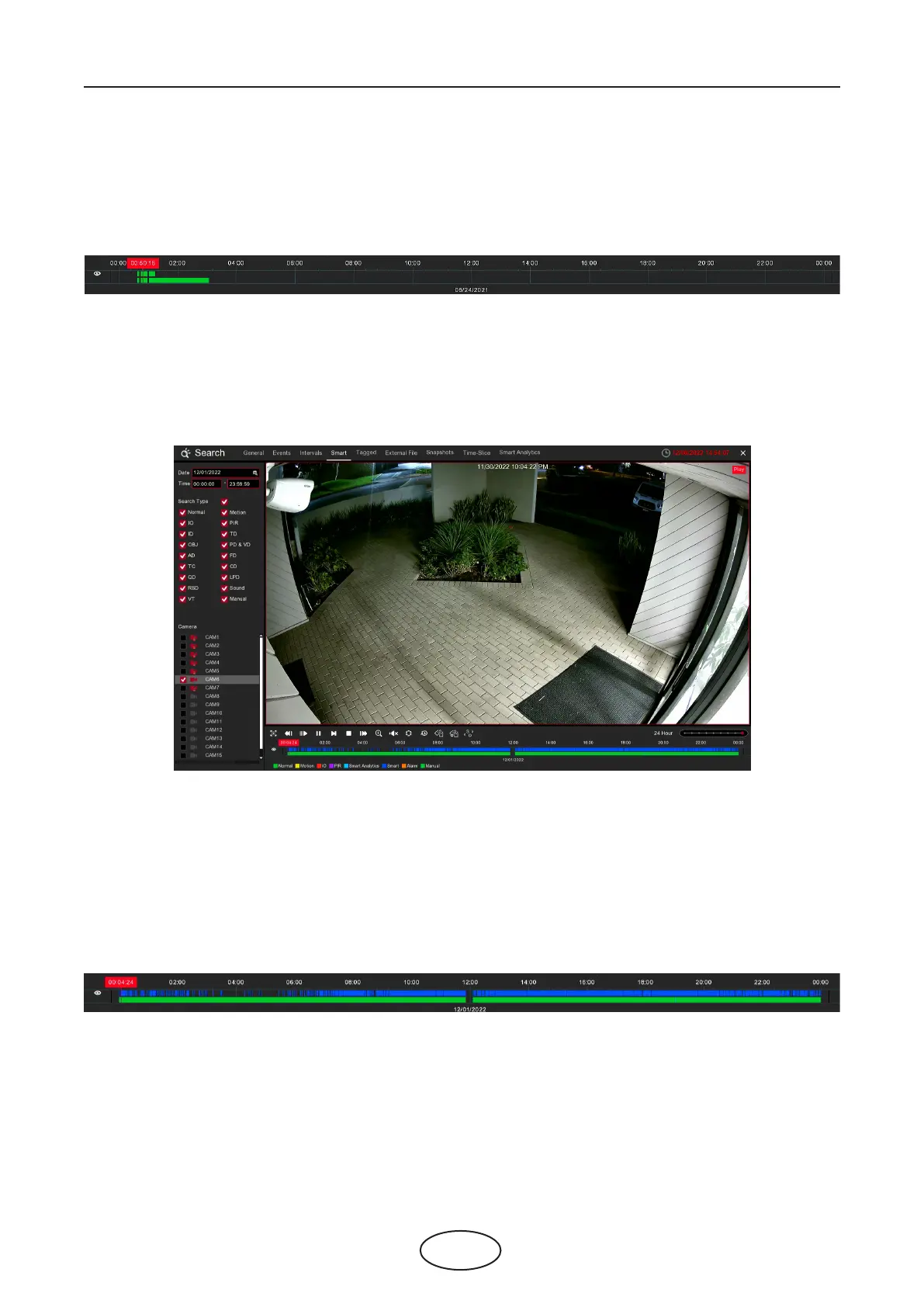
7. Click the left button of your mouse upon a particular split-screen, the time period of the video split-
screen will be displayed on the timeline. The color bar on the top of the timeline indicates the time
span of the video split-screen you have clicked. The color bar on the bottom of the timeline indicates
the time span for the whole videos you have searched.
6 Search, Playback & Backup



 To Next Page