150
6.1.2 Event Search, Playback, & Backup
Event search lets you view a list of video recordings with the camera, start and end time, and recording
type conveniently summarized. You can also quickly back up events to a USB ash drive.
To search, play, and back up for events:
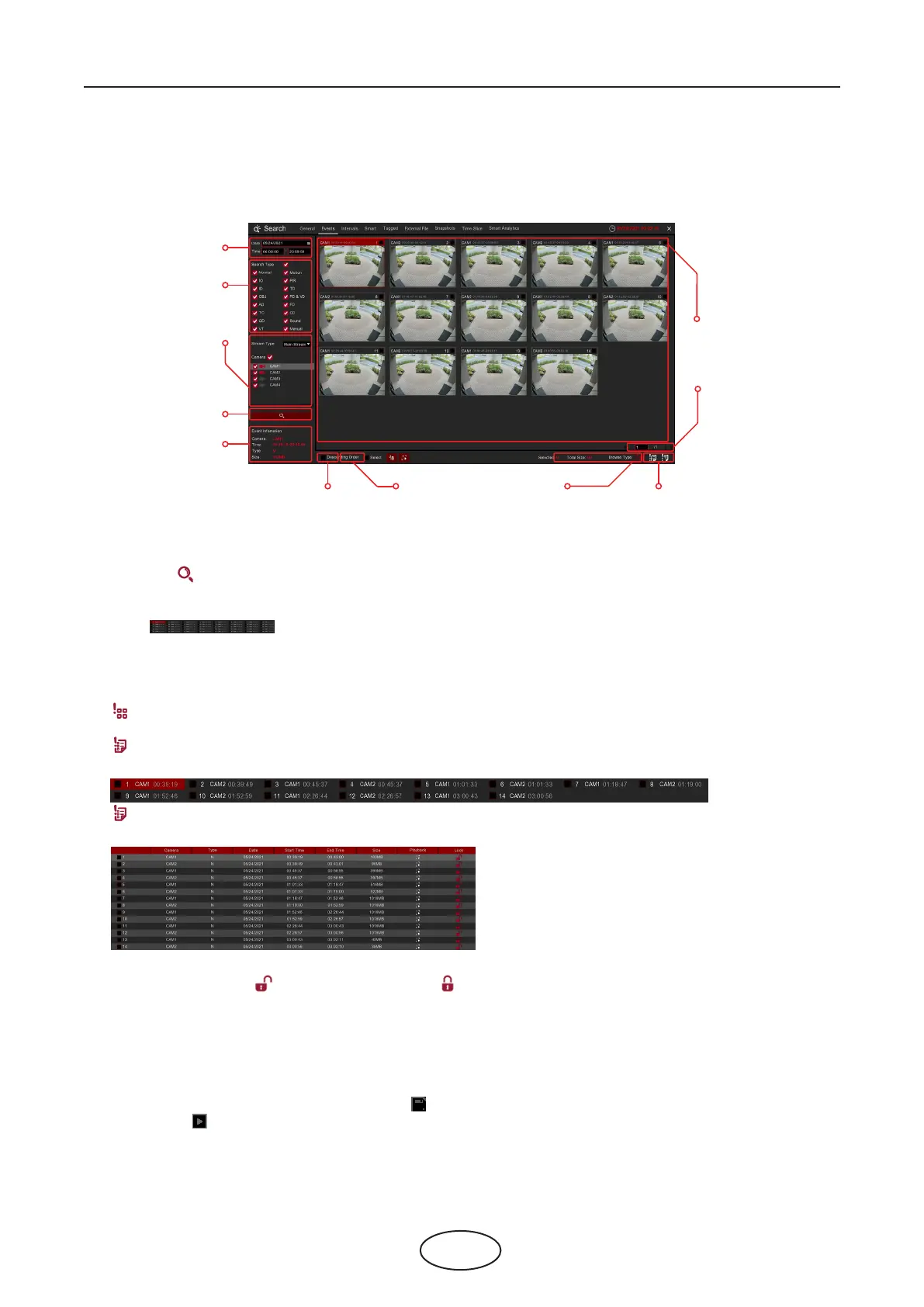
1. Choose the date and time you want to search.
2. Check the recording types you want to search, or check Search Type to choose all.
3. Choose the cameras you want to search, or check Camera to choose all cameras.
4. Click the icon to start search.
5. Events tting your search criteria are displayed in list form. You can double-click the left button of your
mouse upon one of the events to play the video immediately.
6. Click icons in the bottom-right corner of the menu to browse between pages of
events, or input the page you want to browse.
7. You can switch the view of the list form by clicking the icons below which is located at the bottom right
corner of the screen:
Thumbnails view. You can view the snapshots of the events.
List view. The events will be displayed in a list.
Detailed view. You can view the details of the events.
In the detailed view mode, you can lock the video events to keep events from being overwritten in the
hard drive. Click the icon to lock or click the to unlock the events.
8. When you click the left button of your mouse on one of the events, the system will show the event
information on the bottom left corner of the screen.
9. Check the box next to the number of the event to select les, or check the box next to Select to select
all events in the page.
10. The number of selected les and total size information will be displayed at the bottom right of the
screen.
11. After selecting the le(s), you can click the icon to save the video to a USB ash drive,
or click the icon into the event playback control window to play the video.
6 Search, Playback & Backup
1
2
3
4
8
9 11 10 7
6
5



 To Next Page