Some configuration wizards will change the automatic screens. For example, the SPS wizard will
change the Prepare2Start automatic screen from blank to a screen that displays the SPS startup
sequencing information.
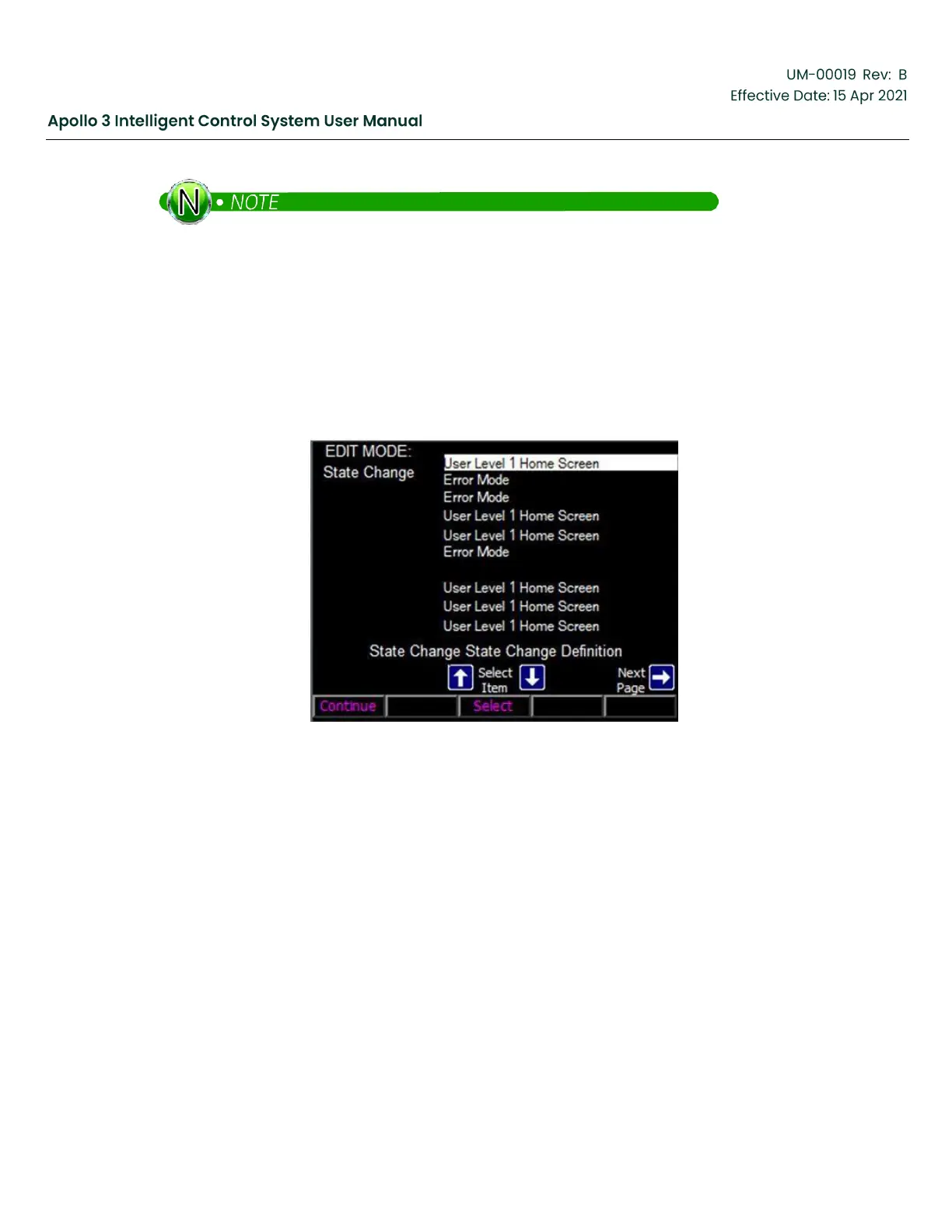
Level 2 and Level 3 users can change the automatic screens using the Edit Mode Change Screens wizard.
1.
Log on as level 2 or level 3.
2.
Navigate to the Edit Mode Change Screens wizard.
a.
Home Screen -> Settings -> Menu -> Other Initial Setup -> Right Arrow -> Right Arrow ->
Configuration Wizards -> Edit Mode Change Screens.
Figure 146: Edit Mode Change–Screen 1
3.
Select the line associated with the drive state shown in the table above. In this example, the Running
automatic screen will be changed to the Pump Curve screen.



 To Next Page