Copyright 2020 Baker Hughes Company. All rights reserved.
F3: “Settings” – Display the next setting that can be changed.
F5: “Menu” – If Logged-in or “Login” If Logged-out.
Arrows:
•
Up, Down – Change the digit to the right of the flashing insertion point.
•
Right, Left – Move the insertion point.
3.9.2
Color Scheme
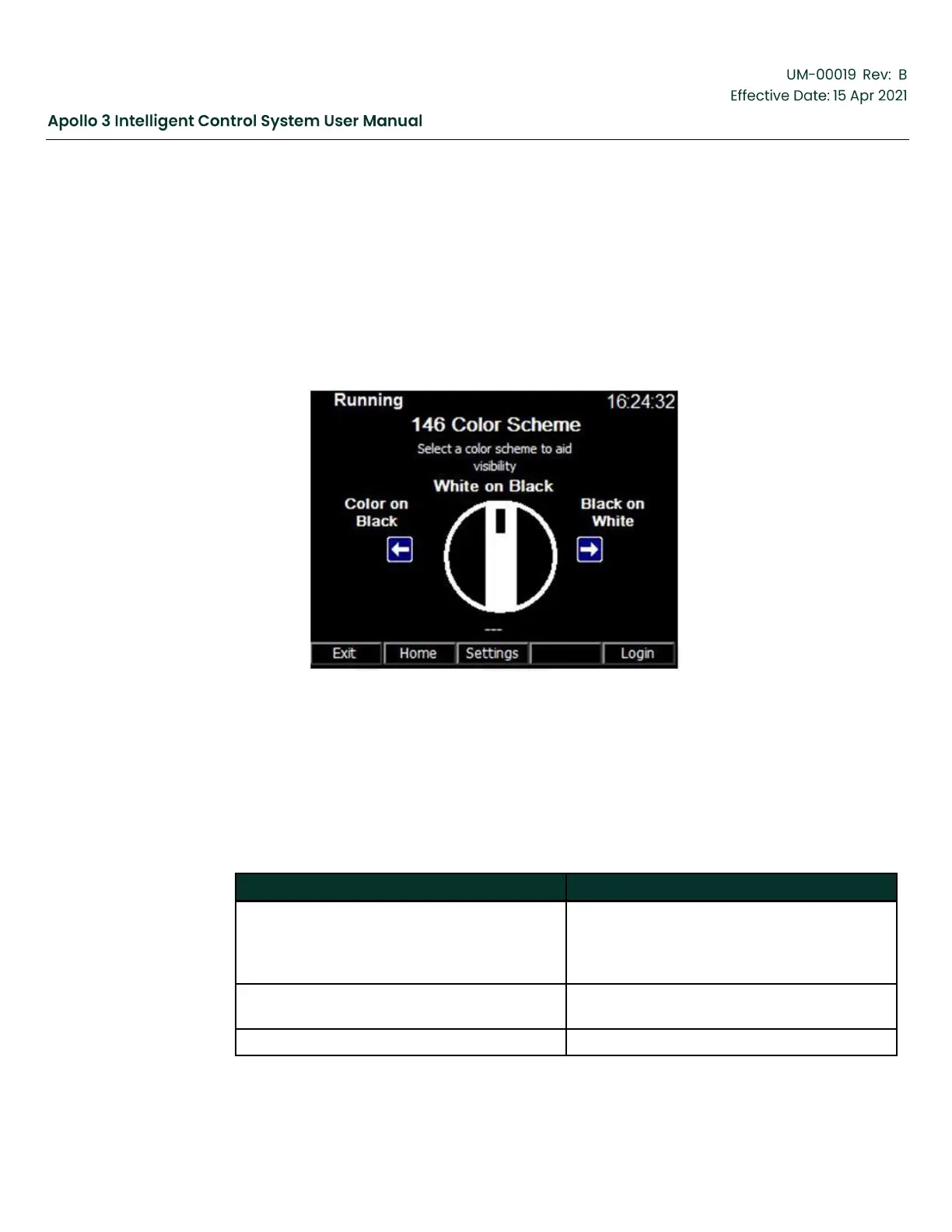
Figure 45: Color Scheme Setting Screen
Function:
The Color Scheme settings screen allows the user to change display’s color scheme. Choosing
a different color scheme may make the display easier to read in bright sunlight.
Screen Data:
Table 20: Color Scheme
Different system structures are displayed in
different colors on a black background. The
colors provide additional information, but the
screen is harder to read in direct sunlight.
White text appears on a black background.
This is the default setting.
Black text appears on a white background.



 To Next Page