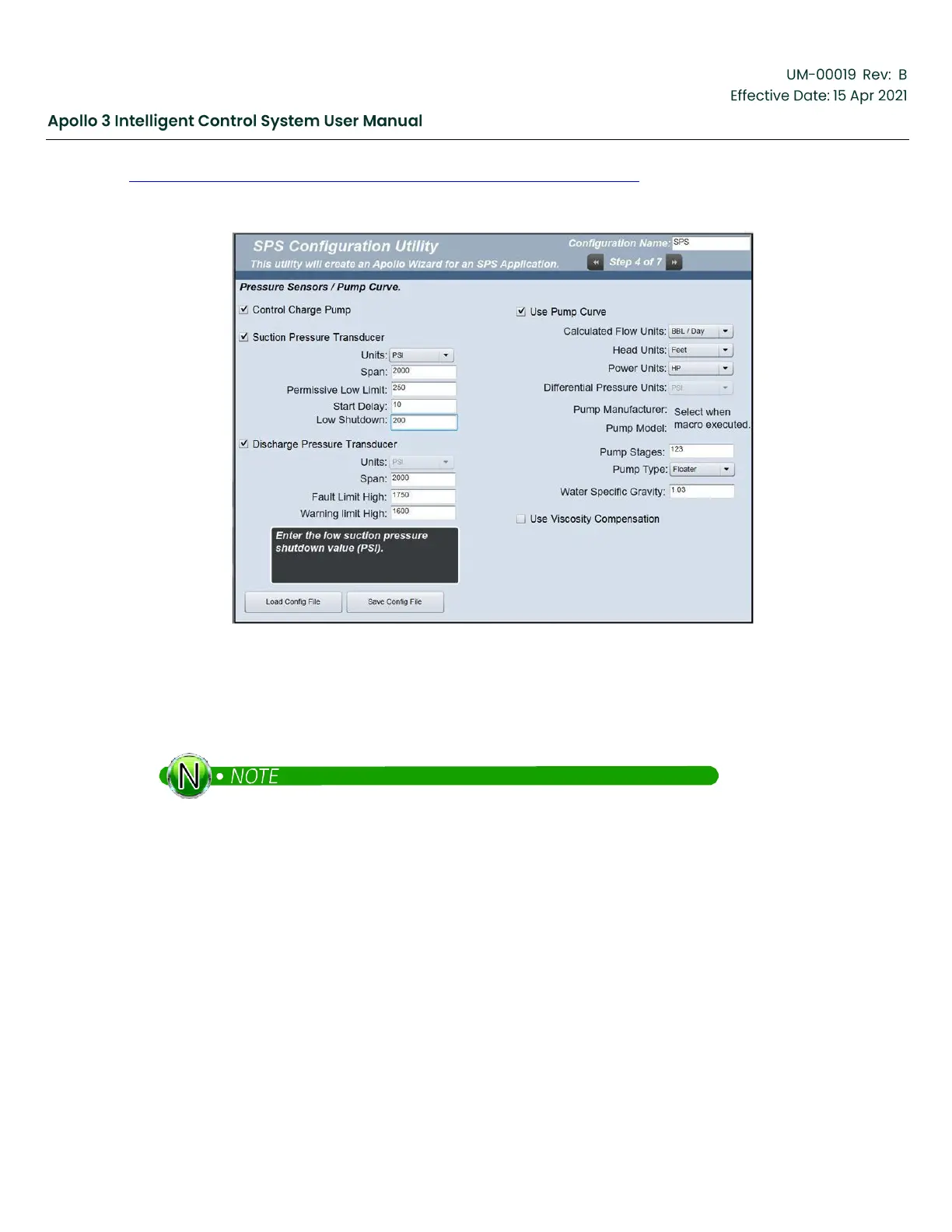
The SPS Configuration Utility is available on the GE Support Central Drives & Controls Support page
(http://supportcentral.ge.com/products/sup_products.asp?prod_id=264489). Download the latest version.
Unzip. Double-click SPSConfig.exe to run.
Figure 163: SPS Configuration Utility
Proceed through the screens activating the features used in your system. When a feature is activated, the
fields required for that feature appear. On the final screen of the SPS Configuration Utility, press the Build
Wizard button to create the wizard. Copy the wizard file to the \WCS\Shortcuts folder on a USB flash drive.
Proceed through the screens activating the features used in your system. When a feature
is activated, the fields required for that feature appear. On the final screen of the SPS
Configuration Utility press the Build Wizard button to create the wizard. Copy the wizard file to the
\WCS\Shortcuts folder on a USB flash drive.
To install the configuration on an Apollo system, insert the USB flash drive into the Apollo user interface.
Activate the Run Config Wizard function (second page of the USB Menu) and select the wizard file you
created. Note that you will be asked to enter a few values (Motor Overload, Pump Type, ManualStartOnly)
and do any necessary sensor calibrations when the wizard is executed. All other information will be filled
in automatically.



 To Next Page