C8000 Battery Testing System User Manual
3 Cadex BatteryLab 89
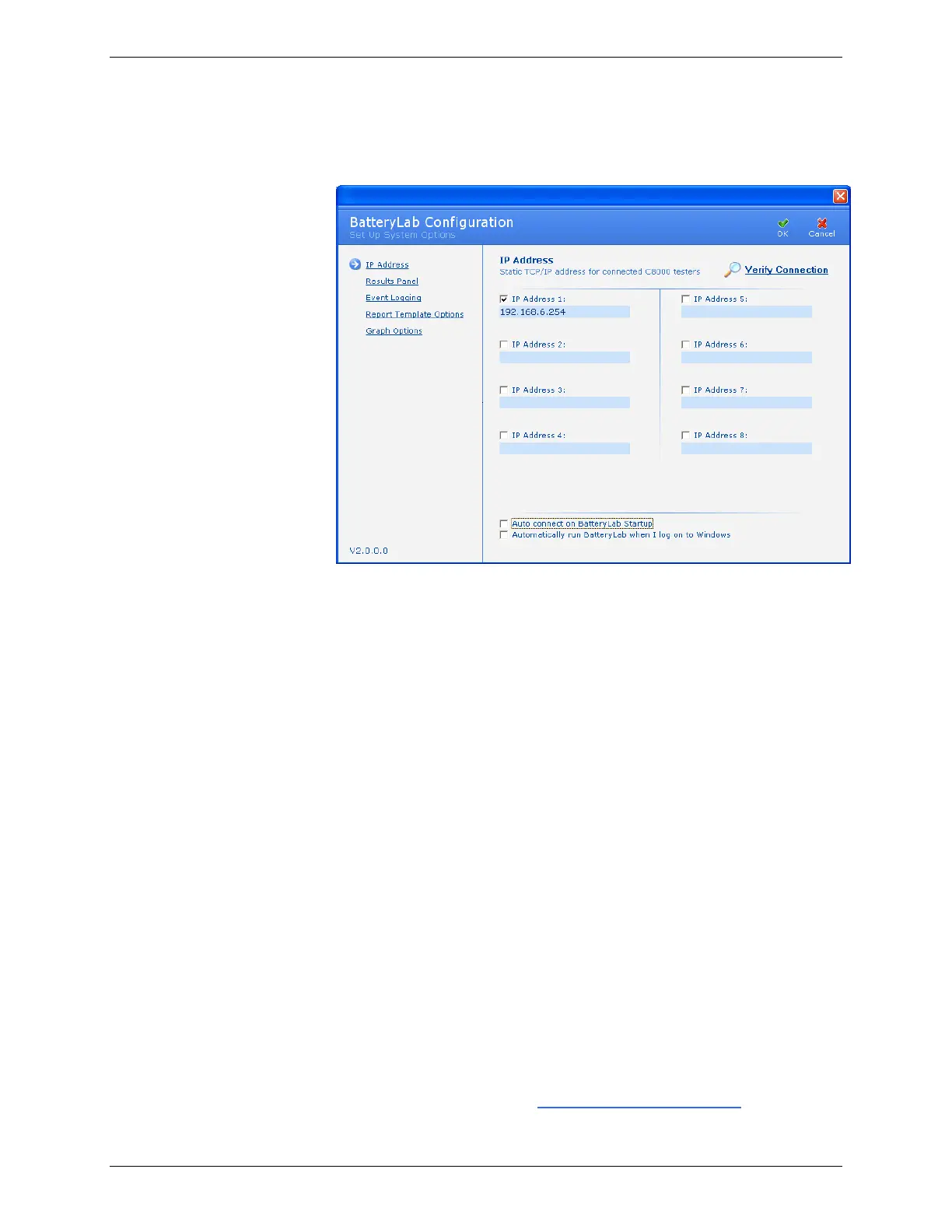
1. From the Tools menu, select BatteryLab Configuration.
The Set Up System Options window appears.
2. In the IP Address fields, enter the IP Address for each
C8000 and select the Enabled check box. Do not enter
leading zeros in any of the four parts of an IP address.
3. If you want to verify that a C8000 is available and online,
click Verify Connection. The firmware version number for
each connected C8000 appears in green type below the IP
Address field.
4. To configure BatteryLab to automatically establish
connections with C8000s on startup, select the Auto
Connect on BatteryLab Startup check box.
5. To automatically execute BatteryLab on logon, select the
Automatically run BatteryLab when I log on to Windows check
box. In case of a power loss, the PC can be forced to restart
and resume logging the service (test). First, configure the
PC’s BIOS to auto-resume on power loss (see the PC’s
Motherboard manual on how to set the BIOS). Note: Not
all BIOS are capable of auto-power on AC power loss.
Next, configure the Windows operating system to
automatically log on using the same user profile as
BatteryLab (see the Windows technical guides for
information on configuring Windows). When used in
conjunction with the C8000’s Automatic Resume on Power
Loss function, BatteryLab can resume logging data after an
AC power loss (see 2.11 Specify System Options).


 To Next Page