C8000 Battery Testing System User Manual
3 Cadex BatteryLab 101
5. To select the order the fields appear in the Results
window, select the fields in the Display Fields column and
click Up and Down. Note: The first field listed will appear
on the left side of the Results panel.
6. Click OK to save the field changes.
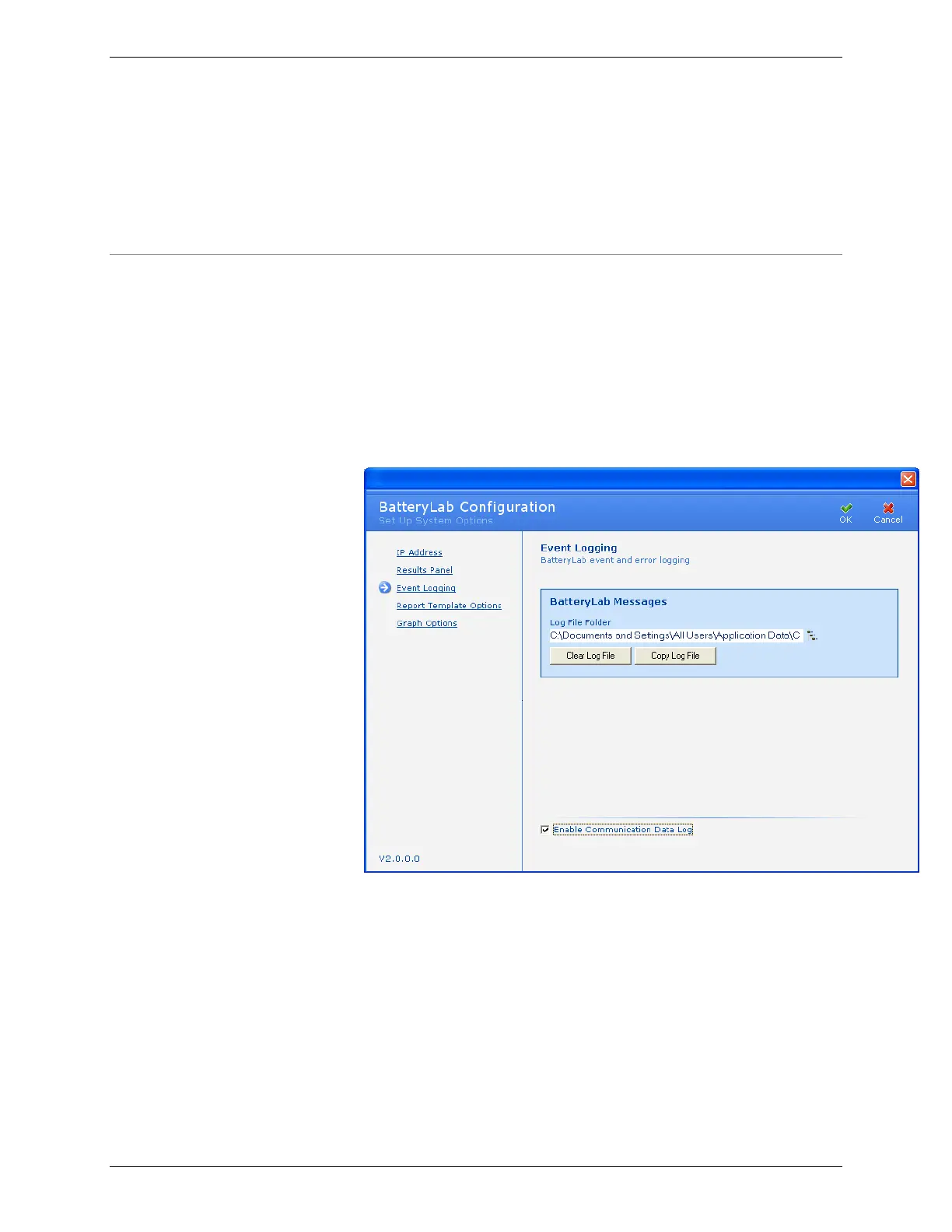
3.2.2 Event Logging
BatteryLab creates log files for events occurring in BatteryLab and
for real-time status events in C8000s.
To select the location of the log file and Enable:
1. From the Tools menu, select BatteryLab Configuration.
The BatteryLab Configuration window appears. Click
Event Logging. The Event Logging window appears.
2. Click the Browse icon to select the location to store the log
file.
3. Click Clear Log File to delete the events in the selected log
file. By default, the log file is always the same file – only
the location can be changed.
4. Click Copy Log File to create a back up copy of the
selected log file. By default, the backup log file is always
the same file – only the location can be changed.


 To Next Page