C8000 Battery Testing System User Manual
104 3 Cadex BatteryLab
3.3 View Battery Status in Real-Time
When BatteryLab successfully connects to one or more batteries,
select a channel and click the Real-Time icon in the C8000 Result
Panel or right-click the channel, to view the status of a battery.
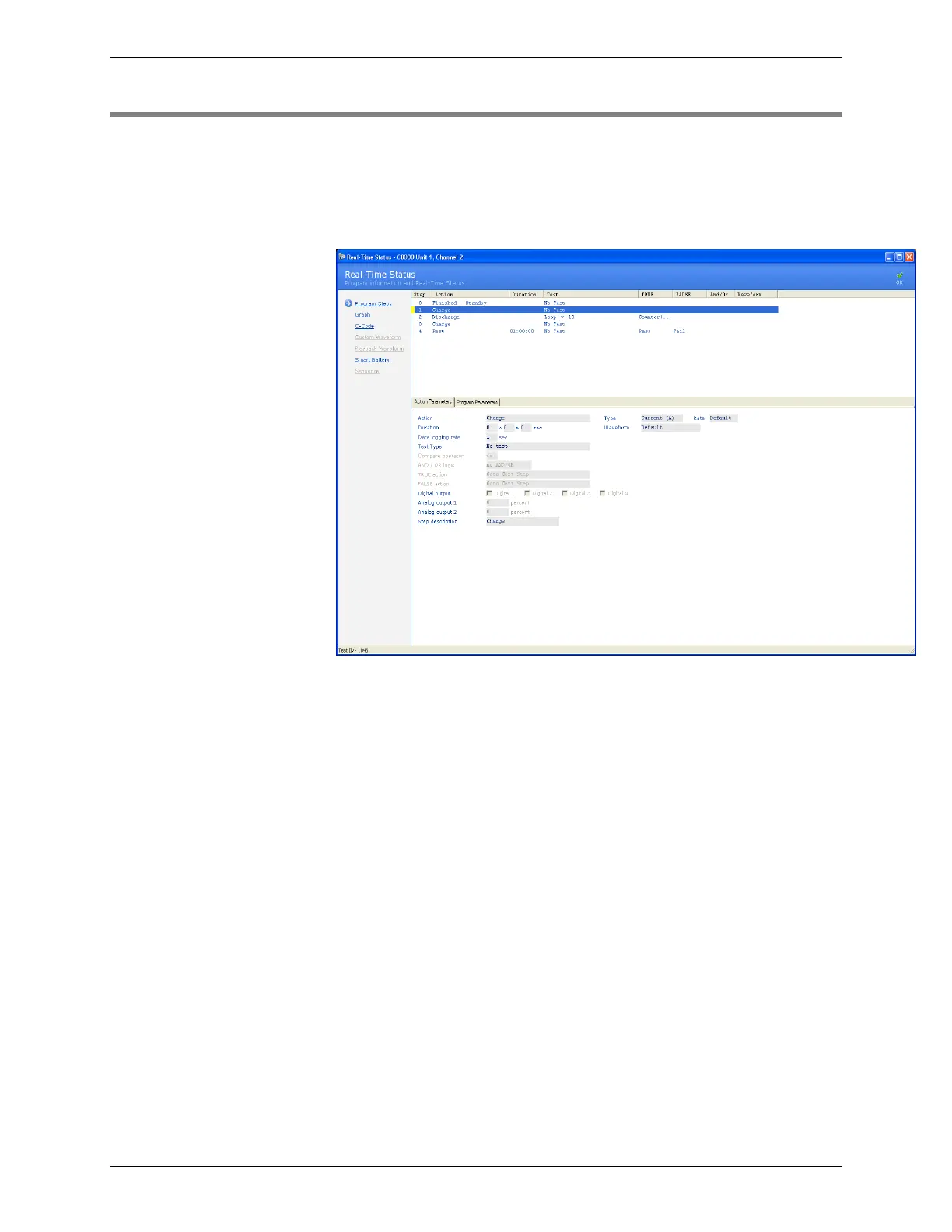
The Real-Time Status window appears.
The Real-Time Status window defaults to the “program steps”
being currently executed for this battery channel.
Program Step – shows all the steps within the program being
currently run. Selecting a step will display all the parameters of the
step, within the Action Parameters sub-window. The parameters
for the entire program can be found in the Program Parameters sub-
window.
To view a real-time graph for the selected channel, click Graph.
The Real-Time Graph window appears. Note: If the service on the
C8000 was started before BatteryLab was connected, the graph
will not appear. In this case, the message No Data appears.
BatteryLab will create a service record if the service on the C8000
was started before BatteryLab was connected.


 To Next Page