C8000 Battery Testing System User Manual
128 3 Cadex BatteryLab
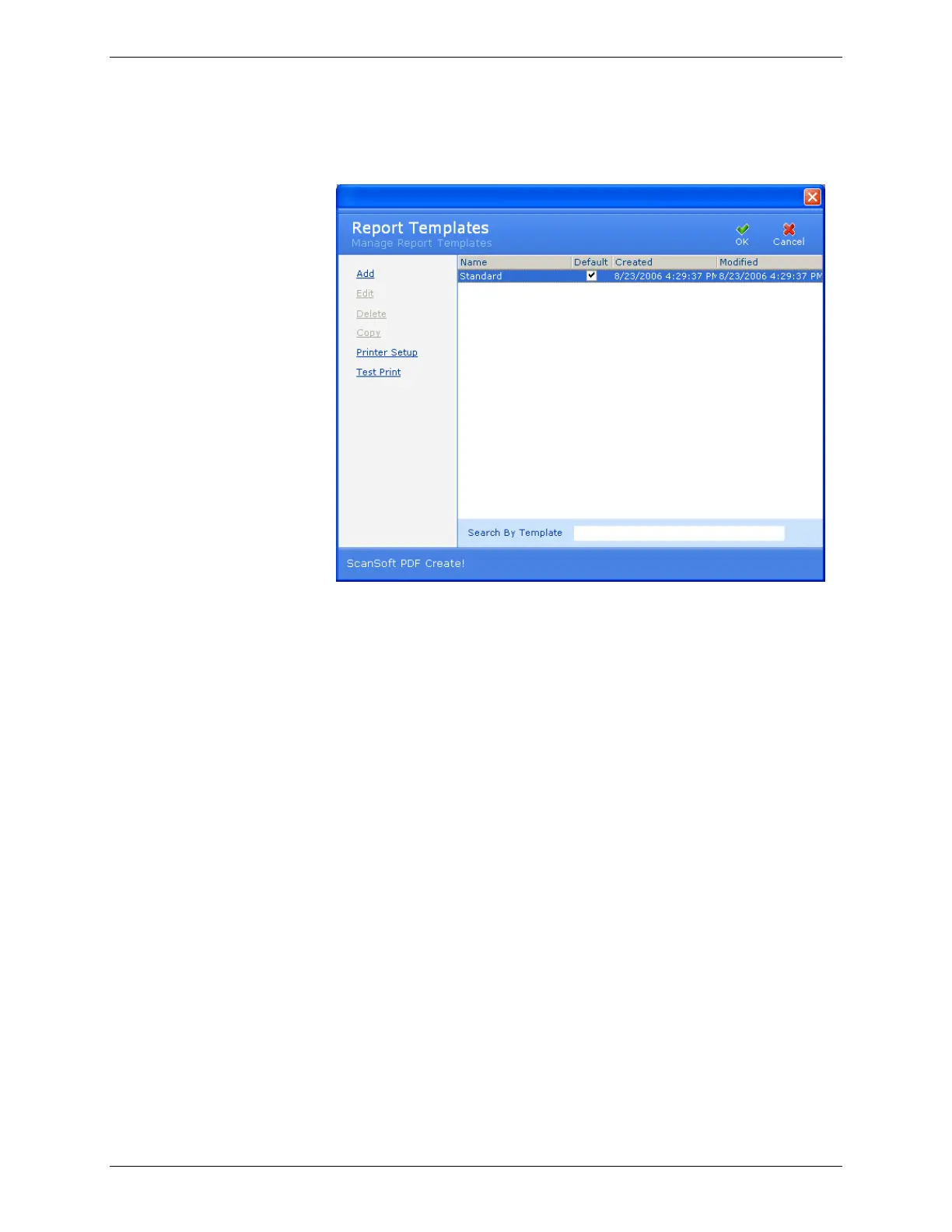
1. From the Tools menu, click Report Templates.
The Report Template window appears.
2. From the list of templates, select the template you want to
edit.
3. Click Edit. If security is enabled, a password prompt
appears. Specify the correct password to continue with edits
to the report template.
4. Clear the check box next to a field’s name to exclude that
field from the report. Select the check box next to the field’s
name to include that field in the report that will be created
from this report template. To quickly select all fields for
inclusion in the report template, click Select All; to exclude
all fields from the report template, click Clear All.
5. To move the position of a field up or down in the report,
click the field name and then click Move Up or Move Down.
This sets the order that the fields will appear in reports using
this template.
6. Click OK to save the changes you have made to this report
template.
3.7.2.3 Set the Default Report Template
When you print a report, it will be printed based on the default
template. The first report template you create is automatically set
as the default template. You can select which template is to be the
default template.


 To Next Page