C8000 Battery Testing System User Manual
148 3 Cadex BatteryLab
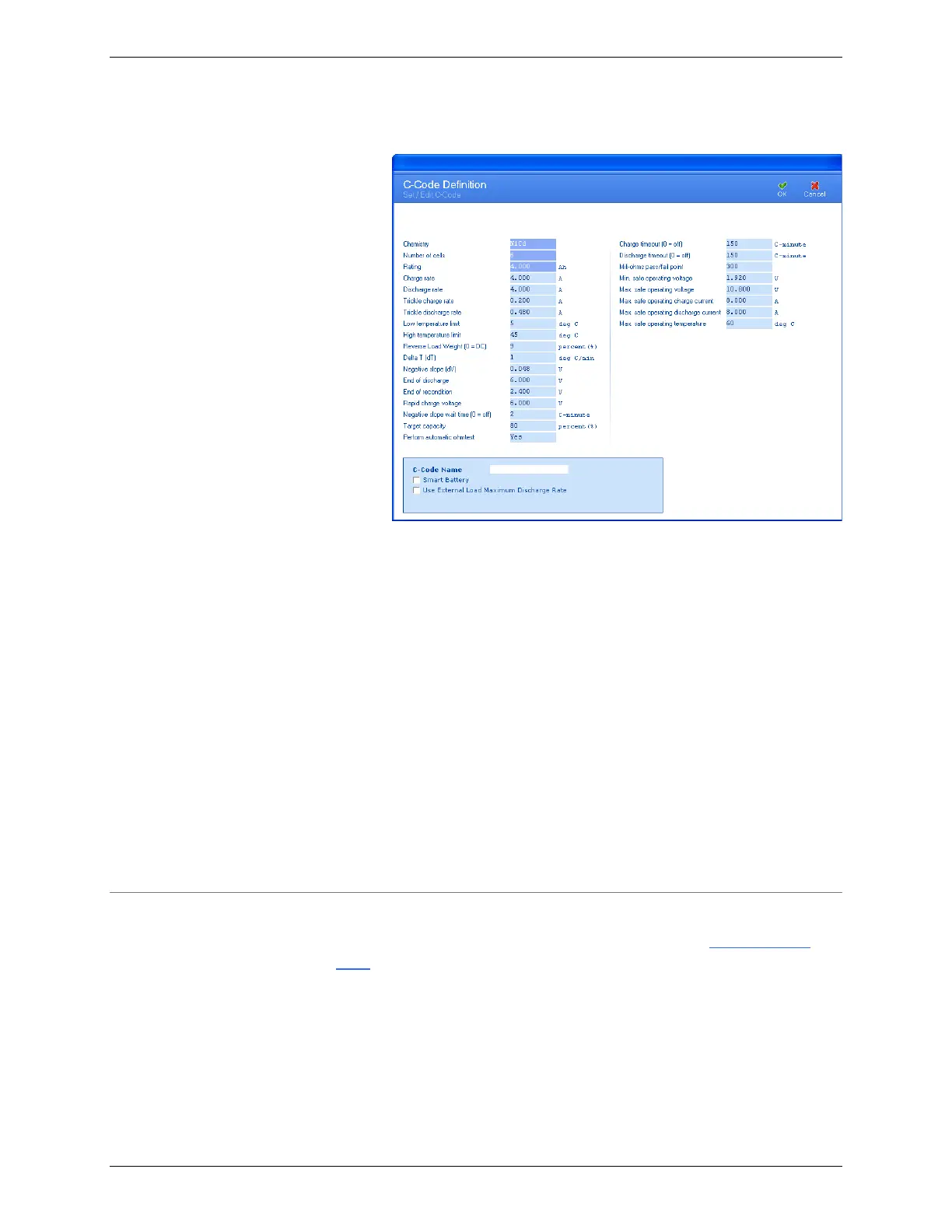
2. Click Add. The C-Code Definition window appears.
3. If required, edit the detail fields in the C-Code Definition
window to describe the new c-code.
4. Type a name for the new c-code in the C-Code Name field.
5. Select the Smart Battery check box to convert the C-Code
into an SM-Bus compatible C-Code to be used with smart
batteries.
6. Select the Use External Load Maximum Discharge Rate check
box to bypass the parameter Max. safe operating discharge
current and use the maximum discharge current of the
external load. Bypass only occurs if the Discharge Playback
action is used in a program and is currently active.
7. Click OK. The new c-code appears in the C-Code
Database window.
3.9.2 Add a SM-BUS (Smart Battery) C-Code
To manually create a SM-BUS C-code see section 3.9.1 Add a C-
Code and to automatically create a SM-BUS C-code continue with
this section.
Note: All SM-BUS functions require that additional lines to be
attached to the SM-BUS battery, from the Auxillary I/O port
cable. Attach the purple/white wire (pin number nine (9)) to the
Clock line and the brown/white wire (pin number ten (10)) of the
data line of the SM-BUS battery. Also, ensure that one of the


 To Next Page