C8000 Battery Testing System User Manual
3 Cadex BatteryLab 261
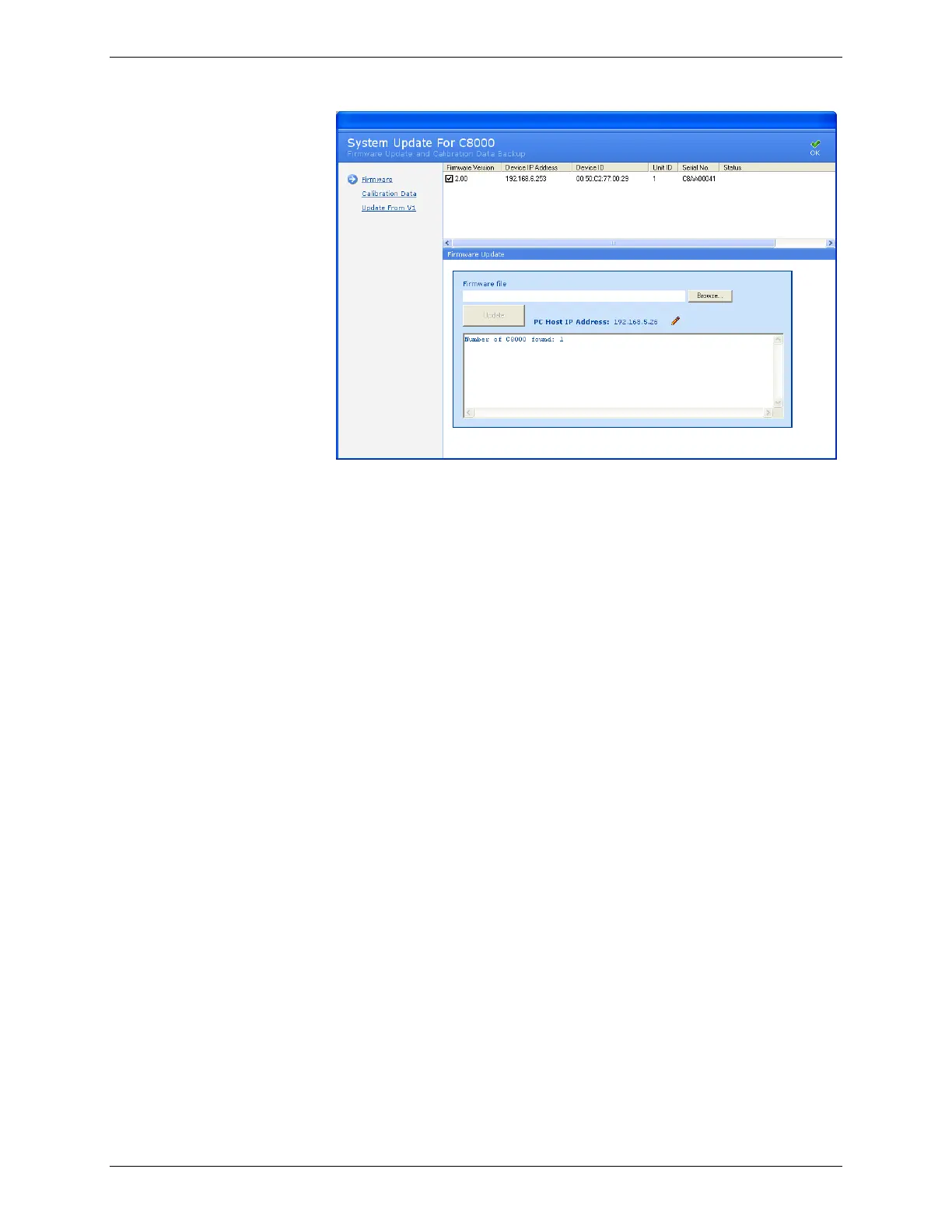
Ensure that all connected C8000s are powered on and are
properly configured.
2. Click Firmware.
3. Select the check box for each C8000 to update.
Note: Only a single C8000 can be updated at any given time.
4. Click Browse to find the folder containing the new
firmware file on your hard drive. (The firmware files have
a .c8u extension; you can obtain these from Cadex
Electronics Inc.).
5. Select the new firmware file.
6. Click Update to send the firmware to the connected
C8000s.
Battery Lab must remain open while the C8000s are updated,
which takes several minutes. When the update is complete, the
Status will show Update Completed.
The Update button is enabled only if the selected file (with a .c8u
extension) is valid.


 To Next Page