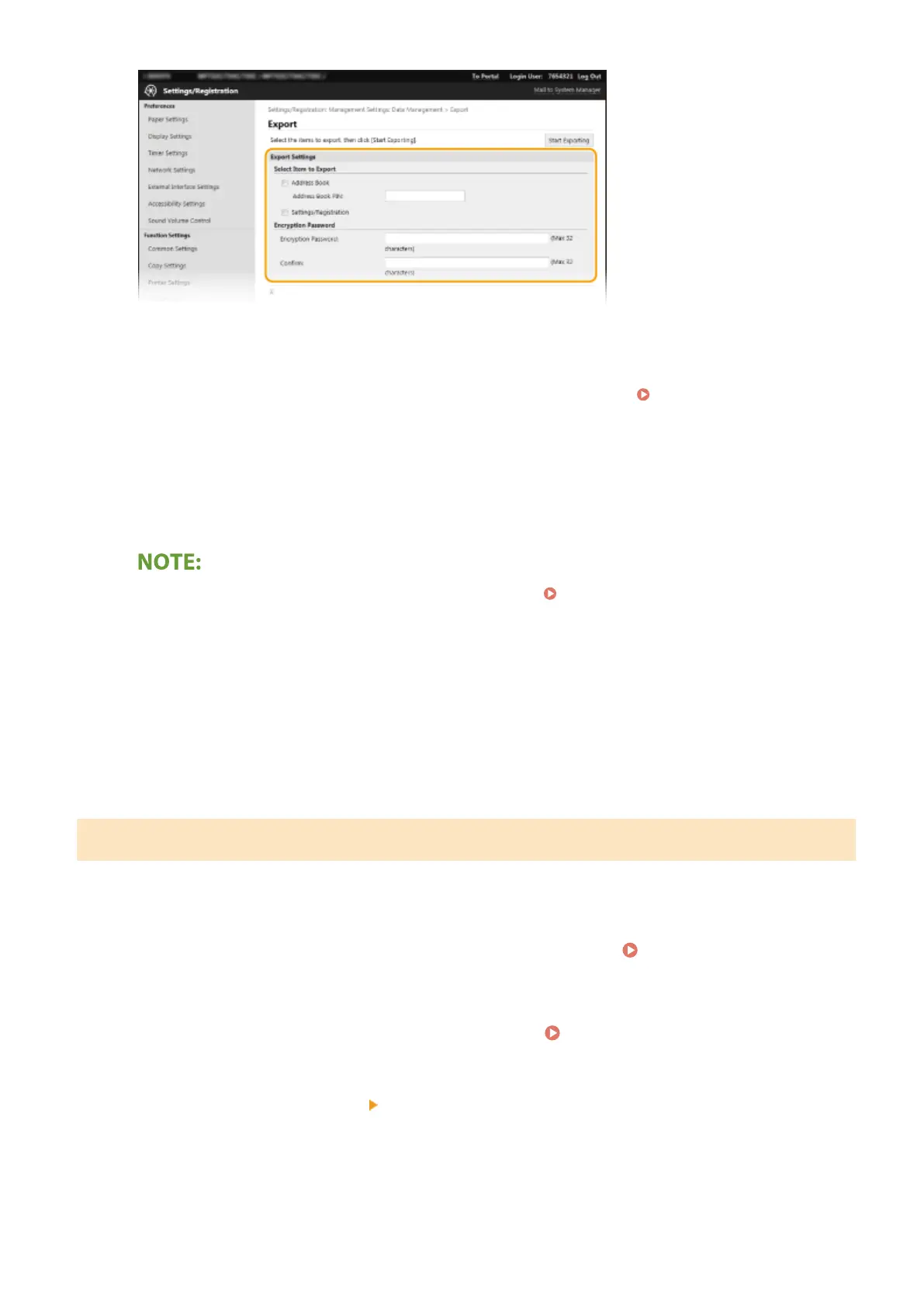
[Address Book]
Select the check box to export Address Book data.
[Address Book PIN]
If the Address Book is code-protected, enter the code for the Address Book.
Restricting Use of the
Address Book(P. 405)
[Settings/Registration]
Select the check box to export machine settings data.
[Encryption Password]
Enter a password to encrypt the export data using alphanumeric characters. Enter the same password in
[Conrm]. To export the data, you must set an encryption password.
● The password is required when exported data is imported. Importing the Setting Data(P. 435)
5
Click [Start Exporting].
6
Follow the on-screen instructions to specify the location where the exported setting
data is saved.
➠
The setting data will be saved.
Importing the Setting Data
Load (import) data that was exported from the machine. You can also import machine settings data from another
machine to your machine if the models are the same.
1
Start the Remote UI and log in to System Manager Mode. Starting Remote
UI(P. 419)
2
Click [Settings/Registration] on the Portal page. Remote UI Screen(P. 420)
3
Select [Data Management] [Import].
4
Specify the le, enter the password, and select the settings to import.
Managing the Machine
435









 To Next Page