Bluetooth phone
Before use a Bluetooth phone, please ensure
that the Bluetooth function of the system and
mobile phone is normally turned on and
connected.
● When establishing Bluetooth connection
between your mobile phone and the
WindLink, please turn on the Bluetooth
detection switch via Settings>Bluetooth in
your mobile phone.
● The effective coverage of Bluetooth is 5m.
When the Bluetooth is disconnected, the
onboard system will not display Call Log
and Contacts any more. When the
Bluetooth is reconnected, the IHU will
display the call log after the most recent
phone connection to the IHU.
● Deleting contacts or call log is only valid
for the IHU system.
● When the Bluetooth Phone is being used,
the media or radio is paused; and when
the Bluetooth Phone call ends, the media
or radio continues to play.
● When you make Bluetooth connection for
the first time, you need to click on the
mobile phone to confirm the connection.
● The Bluetooth connection has a memory
function. After the first connection is
successful, and if both the mobile phone
and the IHU terminal Bluetooths are
turned on next time, they will be
automatically connected.
Click the “ ” icon in the bottom menu bar or
the “Call” icon in the App menu bar to open the
call interface.
If the mobile phone Bluetooth is not connected,
the screen will prompt that the Bluetooth device
is not and needs to be connected; if Bluetooth is
connected and the call log synchronization is
authorized, the call log will be displayed by
default:
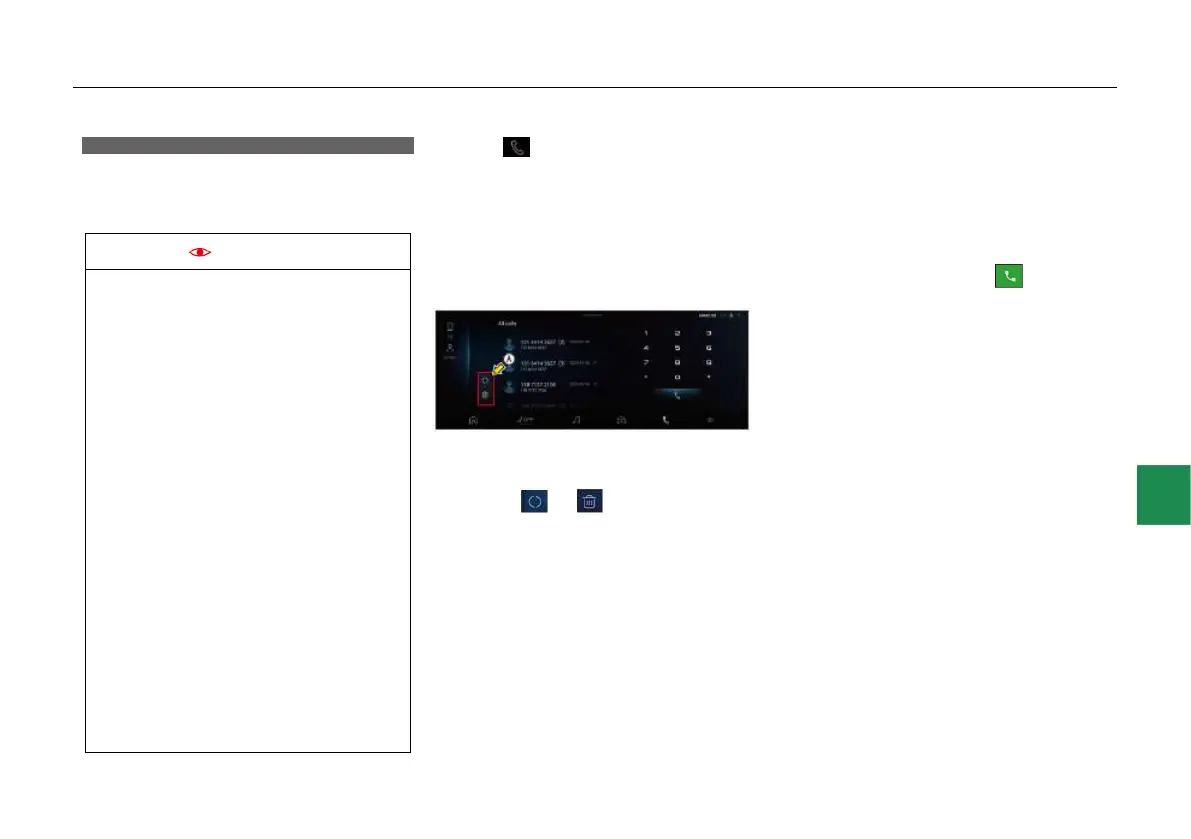
● Enter the Bluetooth connection setting in this
interface, restore the main call interface after
the Bluetooth connection is successful, and
click the or icon at the lower left
corner ○
A
in the interface to synchronize or
delete the call log.(Note: For some mobile
phones, synchronization can be
performed only after “Synchronize
contacts” is agreed on the mobile phone.)
Recent calls
● The main interface of Bluetooth phone
displays the contacts of recent calls by time.
Swipe up and down the screen to view more
contacts.
● Touching the corresponding contact can call
out the phone number.
Dialpad
● In the main interface of Bluetooth call, click
any number button on the dial on the right
side of the interface to display the
corresponding number. At the same time, the
contacts corresponding to related telephone
numbers in fuzzy matching are displayed
below. Click the call icon “ ” at the left
bottom of the dial, or click the avatar of any
contact to make an outgoing call.
Search for contacts
● In the main interface of Bluetooth call, click
the “Address book” column on the left side of
the interface to enter the address book
interface, and enter the contact keyword or
phone number to search for the contact in the
search box. The corresponding contacts in
fuzzy matching will be displayed. Select a
contact and enter the contact details, which
display one or more phone numbers of a
single contact. Click any phone number to
call it.



 To Next Page