CR Console Operation Manual
4 - 18 2009. 09 897N0519H
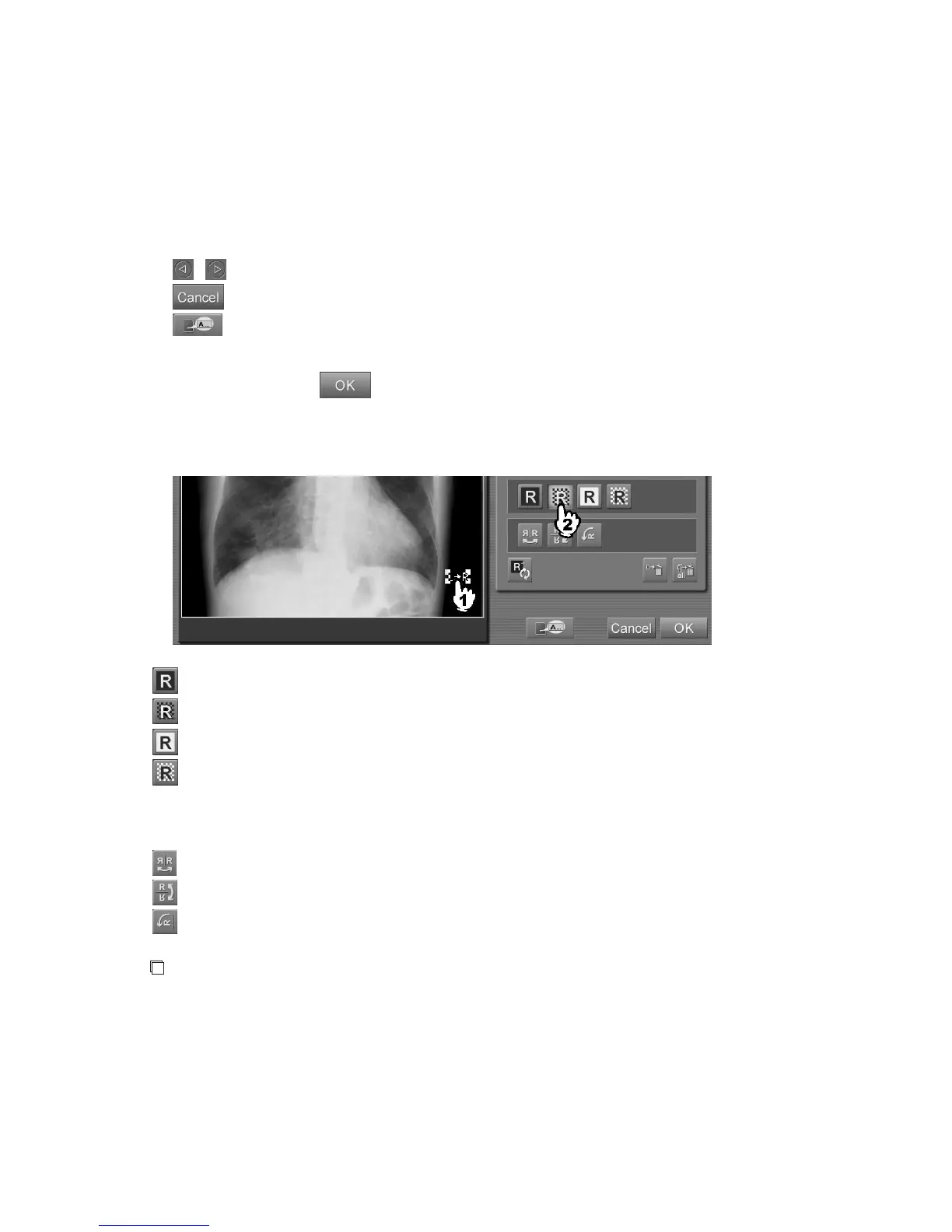
Immediately after the marker is input, it is still selected and can be switched to be selected/unselected
by selecting it each time.
When changing the marker position, move the marker while it is selected properly. The marker
cannot be positioned to the region other than the image. Note, however, that for an image that has
been subjected to trimming processing, the marker positioned outside the trimming frame will not be
output.
/ : Turns page if there are multiple pages.
: Cancels operation.
: Displays the annotation character input box.
For the “Annotation character input box”, see [(
11) Inputting annotation
characters
].
Selecting
in the annotation character input box will complete the marker
input as well.
When changing the character color/background color for the marker, select the marker and select one
of the following icons.
: White characters/black background
: White characters/transparent background
: Black characters/white background
: Black characters/transparent background
When changing a display direction of the marker, select the marker and select one of the following
icons.
: Flips the marker horizontally.
: Flips the marker vertically.
: Rotates the marker 90 degrees to left.
NOTE
When inputting a marker on a flipped image, make sure that the marker does not overlap the flip marker.


 To Next Page
 Loading...