CHAPTER 6
103
Routine Printer Maintenance
4/29/10 Rev G
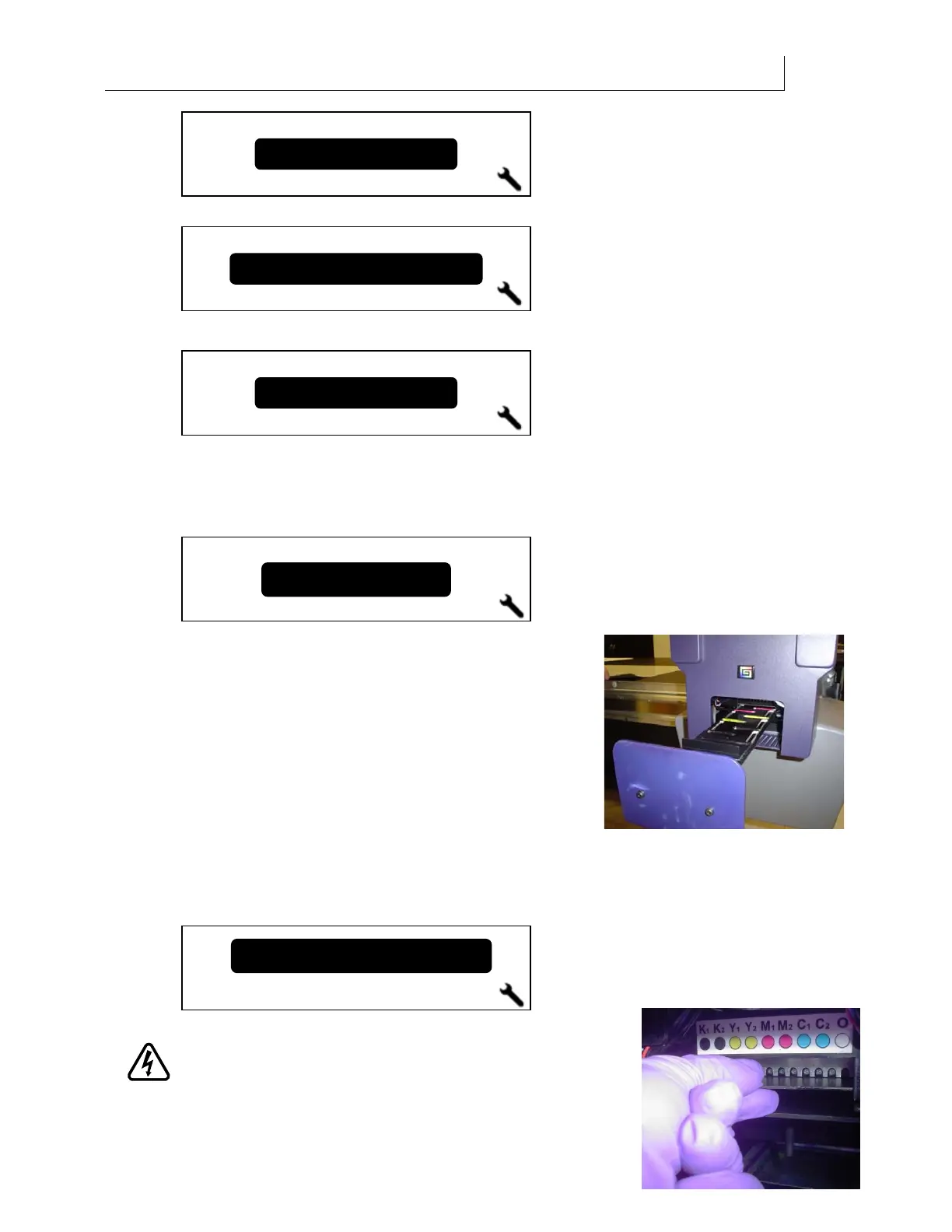
3 Press ENTER to display the
End of Day Clean screen.
4 Press the or key until the
Purge screen displays.
5 Press ENTER to display the Choose Color screen. Use the keys to select the
printhead color that you wish to purge. You may also select
All Colors to purge all of the
printheads during one procedure. When purging all colors, the messages differ
slightly from those shown in this procedure.
6 Press ENTER to begin purging that color printhead.
This procedure will push a large quantity of ink
through the printhead to clear air from the nozzles.
The printhead carriage moves to the maintenance
location and the screen prompts you to
Remove the
Head Access Door. Press ENTER when done. Set the door
aside on a disposable wipe and press ENTER.
7 The printer prompts you to
Check the Ink Waste Tray.
Remove the waste ink tray, empty it if necessary, and
replace the two all-purpose wipes if they are saturated (see page 93).
8 Slide the waste ink tray
back in place. A
Please wait… message and progress bar
displays for approximately 1 minute. The printer then prompts you to
Open “INK
COLOR” Purge Valve 1. Press ENTER when done.
WARNING: Use care when opening the ink valves as it
is easy to push the printhead carriage away from the
waste ink tray causing ink to drip on the printer
electronics and cause damage. The carriage should not
End of Da
Clean
Cyan
Choose Color:
Maintenance
Purge
Open CYAN Purge Valve 1
Press ENTER when done


 To Next Page