CHAPTER 6
107
Routine Printer Maintenance
4/29/10 Rev G
CAUTION: During maintenance procedures, always wait for printer prompts
before lowering the maintenance shelf or opening the head access door. Performing
either of these actions prior to the prompts will cause an emergency stop and
require you to redo maintenance procedures from the beginning.
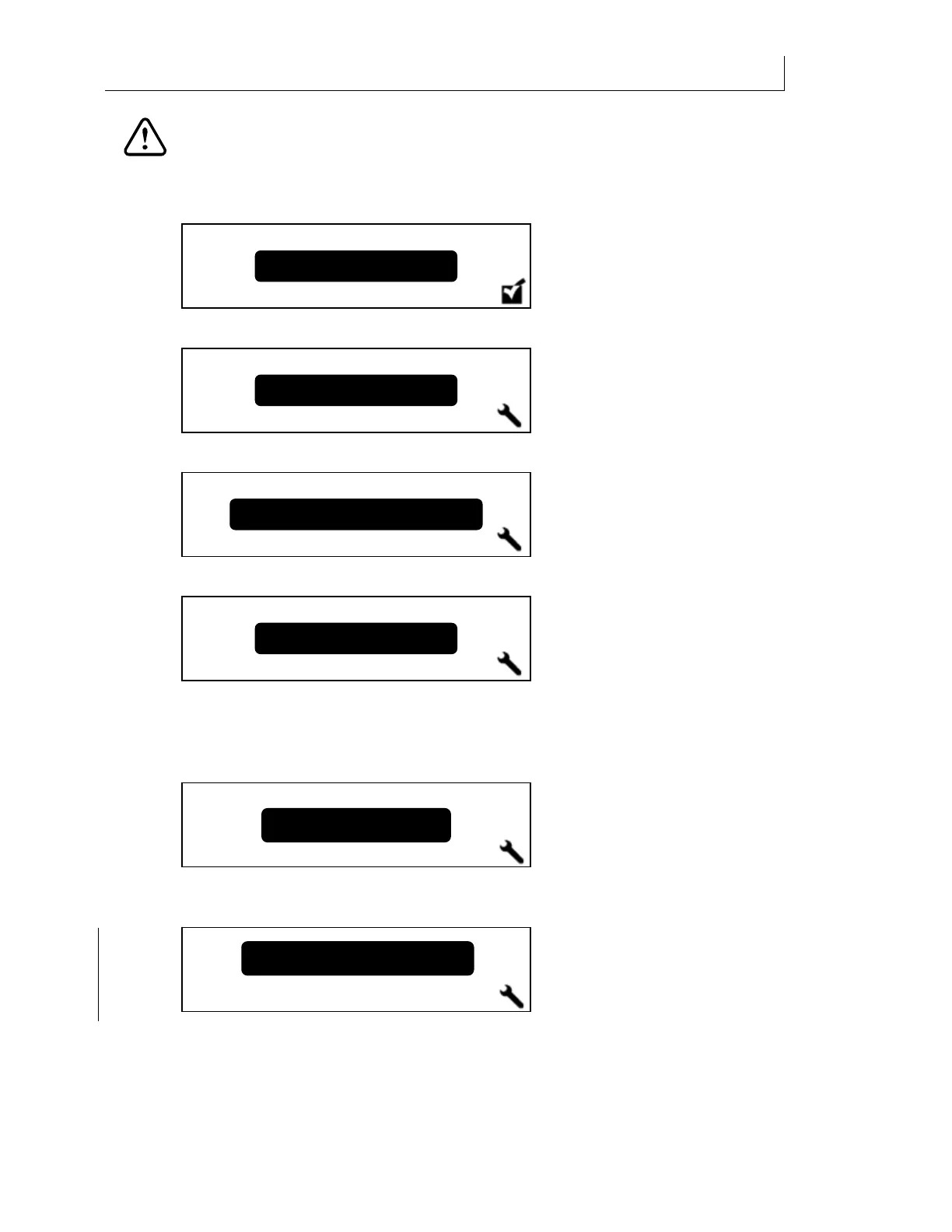
1 From the main control panel press the MENU key. The
Status screen displays.
2 Press the or key until the
Maintenance screen displays.
3 Press ENTER to display the
End of Day Clean screen.
4 Press the or key until the
Clear Ink Line screen displays.
5 Press ENTER to display the
Choose Color screen. Use the keys to display the color
ink line to clear. You may also select
All Colors to clear all of the ink lines during one
procedure. When clearing all ink lines, the messages differ slightly from those shown
in this procedure.
6 Press ENTER to select the ink color and the
Remove “INK COLOR” Ink Pouch screen
displays. Remove the pouch, shut the ink drawer, and then press ENTER.
7 The printer prompts you to Close Any Open Ink Drawers.
8 After closing any open ink drawers, the printer prompts you to
Remove the Head Access
Door. Press ENTER when done. Set the door aside on a disposable wipe and press ENTER.
End of Da
Clesn
Cyan
Choose Color:
Status
Maintenance
Clear Ink Line
Remove CYAN Ink Pouch
Press ENTER when done.


 To Next Page