CHAPTER 6
116
Routine Printer Maintenance
4/29/10 Rev G
Note: The Front Panel may display Depressurizing, please wait... depending upon how quickly
valves are closed/opened and ENTER is pressed.
13 The printer prompts you to
Check the Ink Waste Tray. Empty tray as necessary, replace
two all-purpose wipes, and reinstall tray (see page 93).
14 The printer displays
Another Color? Yes No. You must choose Yes and repeat steps #8-13
until all of the colors have been chosen and cleared.
When you choose Yes, use the or keys to select the next color.
When all colors are cleared, choose
No, and continue with the next step below.
15 When all line clearing is complete, the system prompts you to
Clean the Purge Block. Press
ENTER when done.
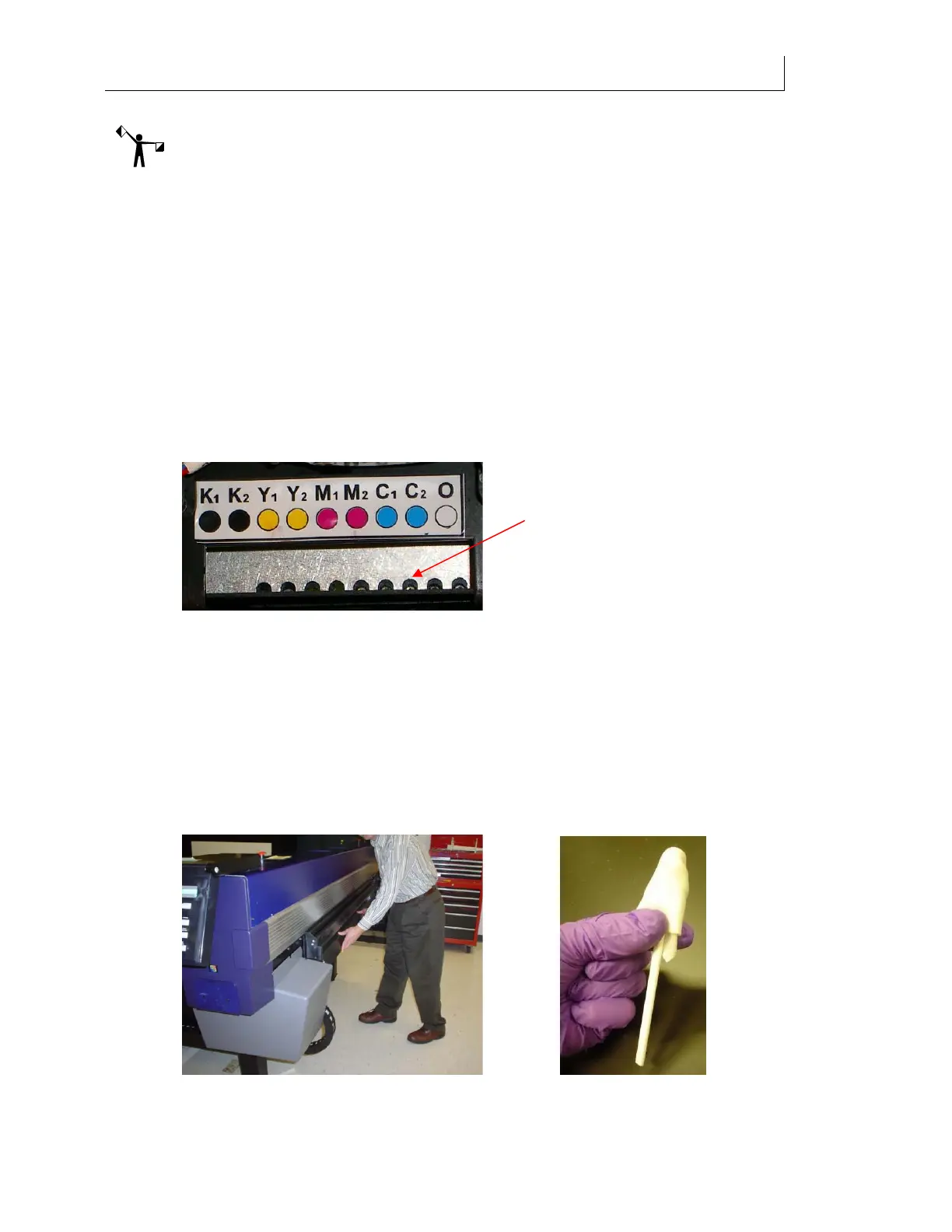
Moisten a swab by applying 1 drop per side of Daily Maintenance
Solution to clean the purge block, which is located directly under the purge valves. Be
sure to swab the entire underside, not just the outer edge. Do this to remove any
remaining ink and prevent it from dripping during printing and/or curing on the
Purge Block. Press ENTER when done.
16 Dispose of swab according to state and local laws and regulations.
17 The printer begins automatic maintenance of the ink delivery system. This process
takes two to three minutes and a progress bar displays.
18 When finished, the system prompts you to
Replace Head Access Door.
19 After the head access door is installed the screen prompts you to Lower shelf and swab
printheads
.
20 Lower the Maintenance Shelf by pushing down in the middle of the shelf. Do not push
on either end of the shelf as it causes the shelf to twist.
After purging, use a Daily
Maintenance Solution-moistened
swab to wipe the Purge Block


 To Next Page