Chapter 8: Utilities & Preferences
Lock (Password Protection)
Eclipse User Guide 2.0 433/ 526
5. Retype your password to confirm it, and press OK.
The selected functions are now locked. Let’s assume you
selected all the options.
If someone attempts to make adjustments, then a “NOT
AVAILABLE” pop-up warns them.
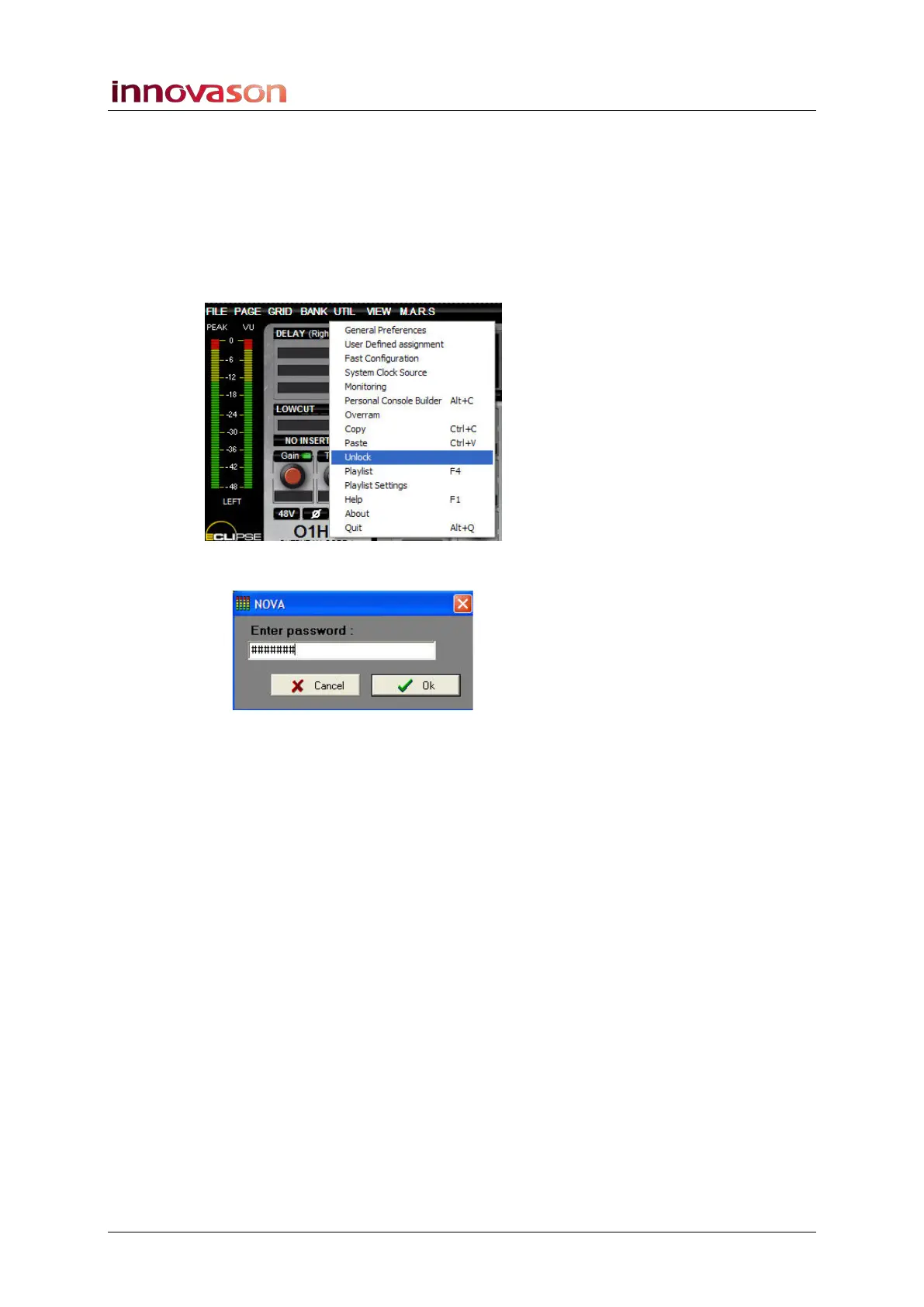
When you return to the console, you can unlock it as follows:
1. Using the trackball, select “UTIL -> Unlock”:
2. Type in your password:
3. And press OK.
The console unlocks.



 To Next Page