Chapter 8: Utilities & Preferences
Request Mode
406/ 526 2.0 Eclipse User Guide
Request Mode
This button turns on Request mode which can be used to turn
the channel select (SEL) buttons into on/off buttons for a
requested parameter. This is a great way to view the status of a
parameter across the console (e.g. 48V), or to change a
parameter across multiple channels (e.g. EQ on).
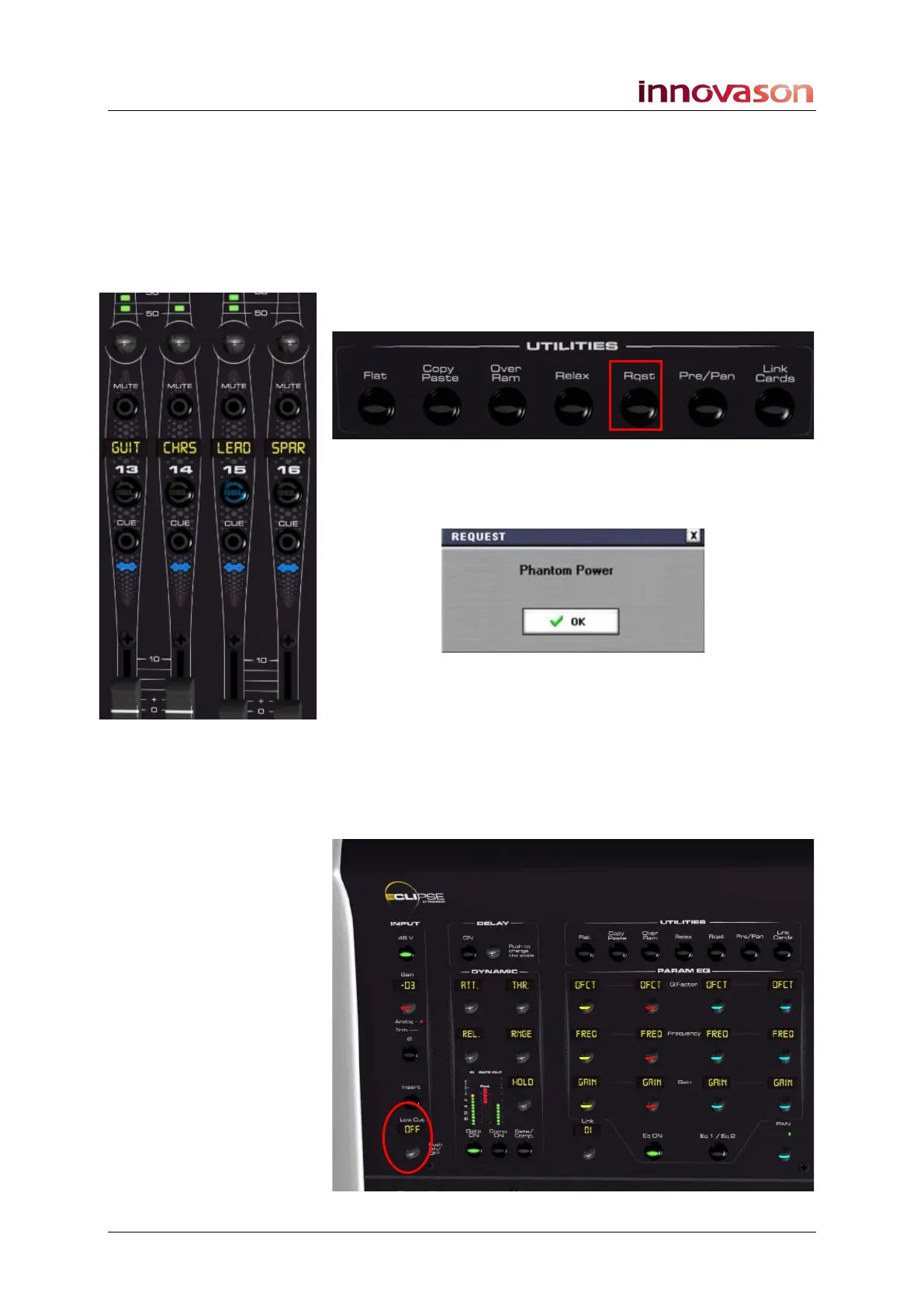
1. Press the Rqst button on the UTILITIES panel to turn on
Request mode:
The SEL buttons across the console update to reflect the status
of the pop-up window parameter – in our example, 48V
phantom power:
2. Press a SEL button to turn phantom power on or off.
You can use SEL buttons on Fader strips and Smart Panel
controllers. Note that the functionality depends on the type of
channel assigned to the strip; for example, you cannot select
phantom power on an output channel!
3. To change a parameter, press the on/off button – for
example, press Low Cut on/off:



 To Next Page