Chapter 4: Getting Started (The Standard Template)
Your First Mix
100/ 526 2.0 Eclipse User Guide
Your First Mix
By loading the Templ1 File, you have loaded a console
configuration, input and output patching, and some default bus
routing. This means you can get mixing immediately as follows:
1. Press SEL on any input channel (with a blue ID).
The SEL button and Label will flash. All input channel faders will
now control the main channel level (not the Aux send).
2. Open up some input faders.
3. Open up the Master fader (red ID).
You will now have audio on the stereo Master outputs patched
to the UM8-PO card at the rear of the console!
Note that it is important that you select an input channel while
setting up your initial mix. This ensures that your faders are
controlling main channel levels and not Aux send levels. See
Page 74 for details.
Microphone Preamp Settings
To adjust mic preamp gains for several input faders:
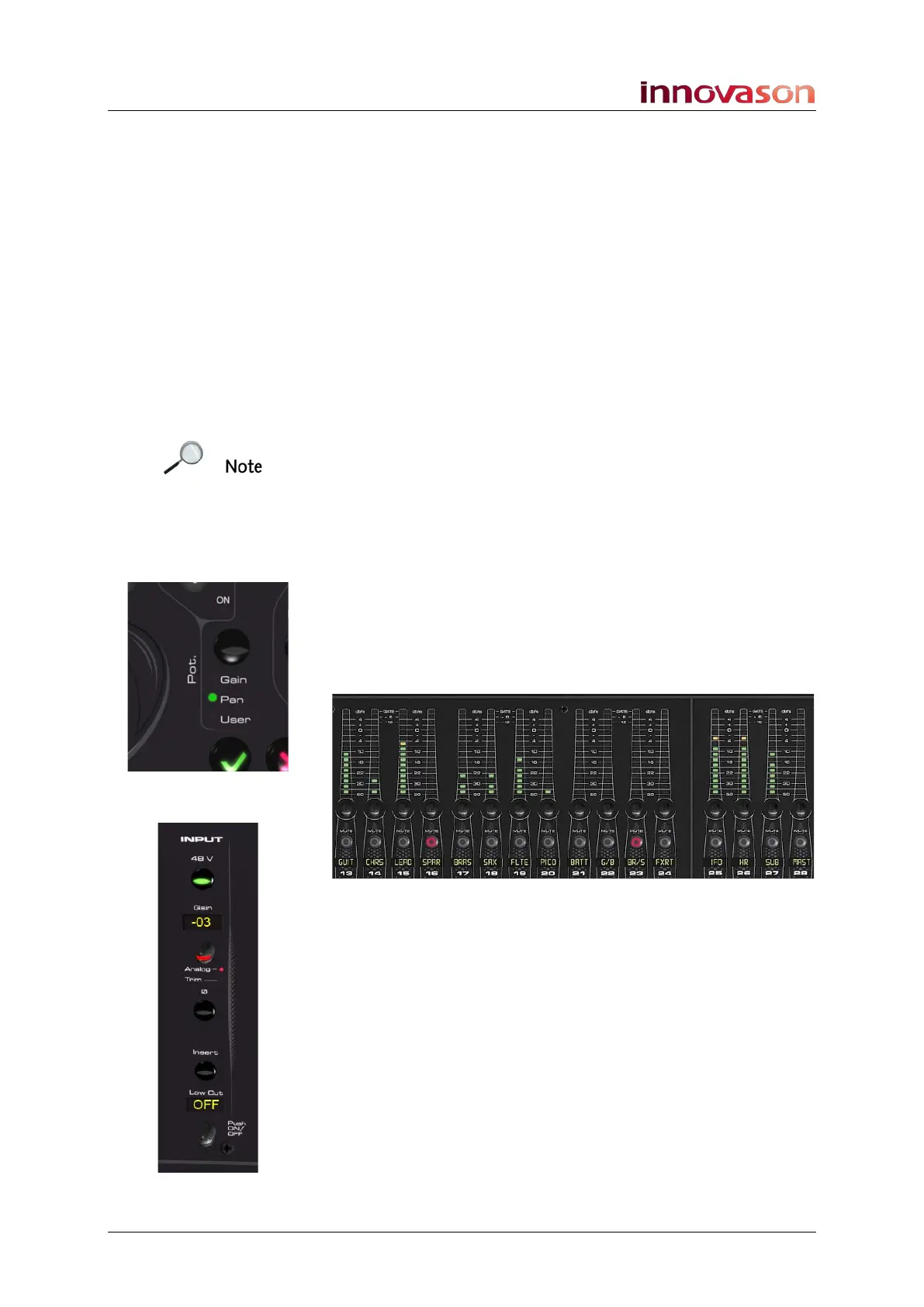
1. Press the Pot. Button beside the trackball until the Gain
LED lights.
2. Turn the rotary controls to remotely adjust analogue
preamp gain for each input:
An INFO pop-up appears on the Main Mix display, and gain is
displayed in the fader Label (in dB) when you move a control.
Note that the rotary control may be configured to adjust either
analogue Gain or digital Trim from the Pot configuration
window, see Page 123 for details.
If you need to turn on phantom power:
3. Press SEL on the input channel.
This assigns the channel to the INPUT, DYNAMIC, DELAY and
PARAM EQ panels.
4. Then press the 48V button on the INPUT panel.
You can also adjust analogue gain, digital trim or phase.



 To Next Page