Chapter 2: Installation
Switching on the Power
Eclipse User Guide 2.0 55/ 526
Switching on the Power
The console and DioCore may be powered in any order:
1. Power on the DioCore – the unit does not have an
overall power switch so turn on each of the mains leads
connected to the A and B power supplies.
The PSU status LEDs at the front of the unit will turn green for
correct operation.
2. Power on the console using the two switches on the rear
panel.
Warning
When the console powers on, settings from the last File are
loaded to the Nova mix management software. This may cause
audio to pass through the console, so make sure that any
devices connected to the system (e.g. amplifiers, headphones,
etc.) are turned off or at a safe level.
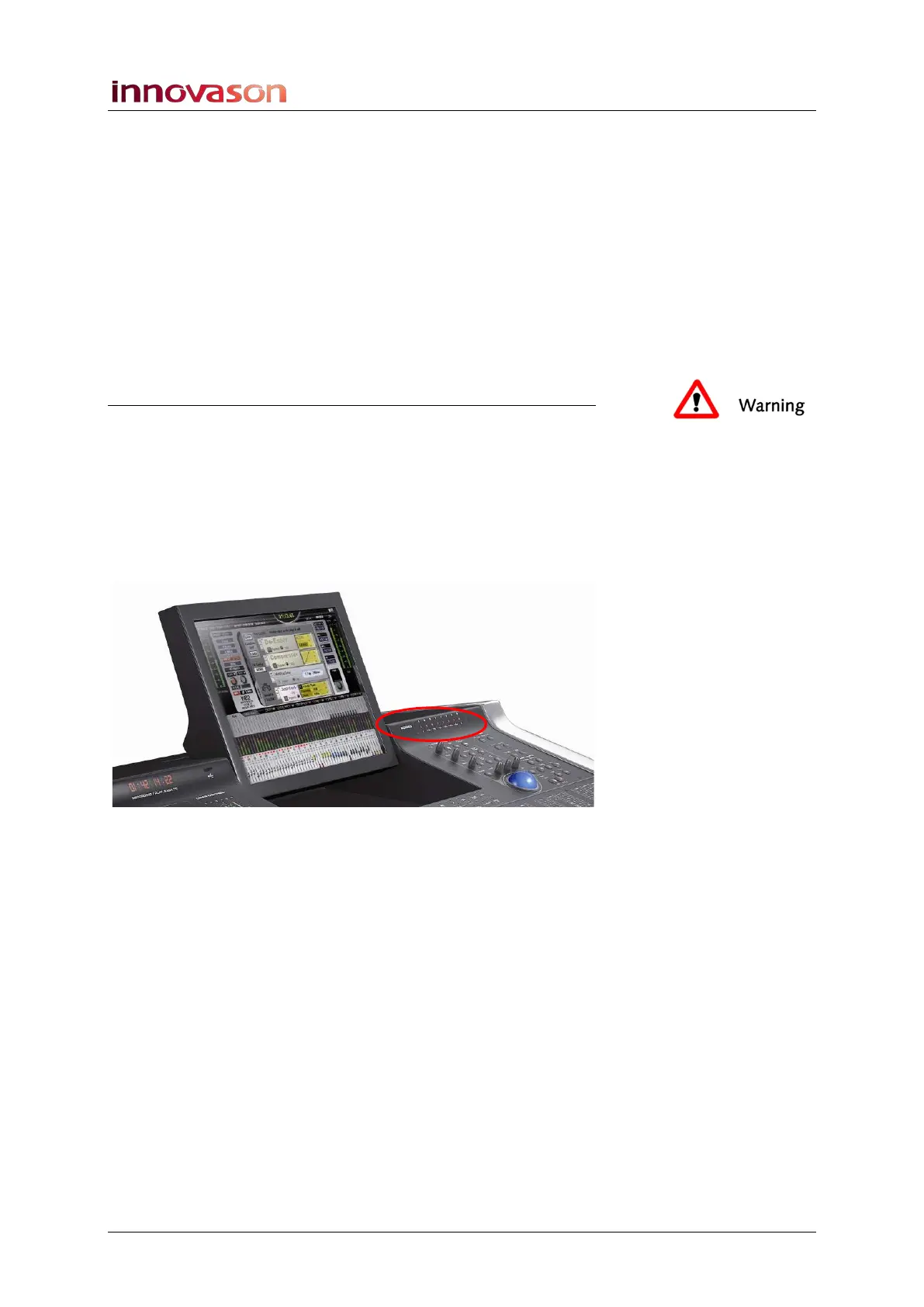
The POWER status LEDs on the front panel of the console
should turn green for correct operation:
If an LED is red, then the power supply or voltage rail has
failed. Please consult the “Eclipse Technical Manual” for further
details.
The console may take between 30-60 seconds to boot,
depending on the last File loaded and I/O configuration. During
this time you will see the boot-up progress on the Nova display,
and periodically the console’s VU meters flicker.
Applying power to the console also boots the M.A.R.S. control
computer. M.A.R.S. boots with the MT128 Project Manager
window open. See Chapter 10 for details on loading and playing
back a project.



 To Next Page