Chapter 9: Offline Configuration
Adjusting Mix Parameters
442/ 526 2.0 Eclipse User Guide
Adjusting Mix Parameters
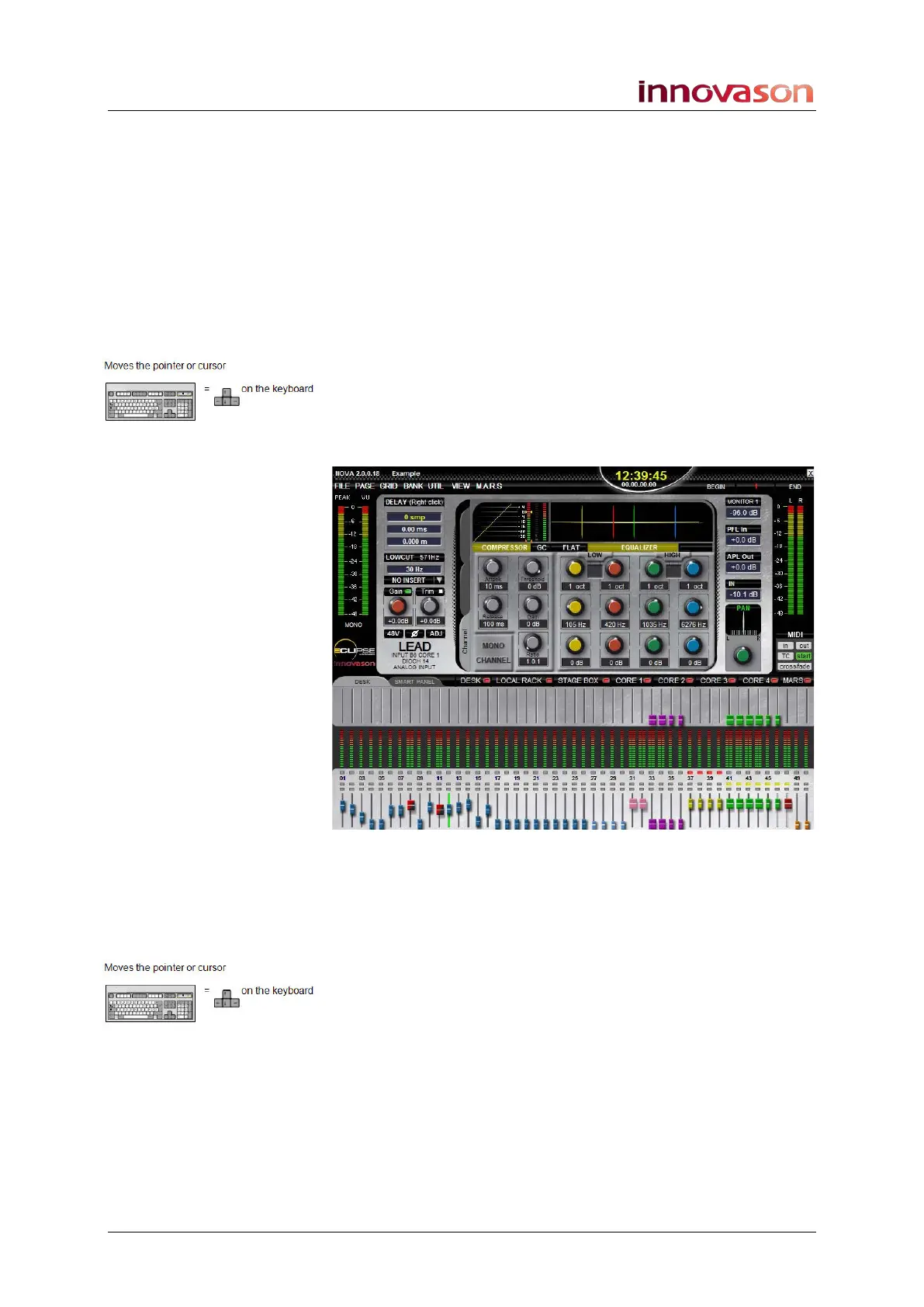
The Main Mix display is your mix! This means you can
configure fader levels, mutes, routing, EQ, Dynamics, Effects,
etc. just as if you were sitting in front of the console, all using a
keyboard and mouse.
For full details on this display, see Page 67. Here are a few tips
when working with a mouse and keyboard:
1. Left-click on a fader to select a channel.
This is equivalent to pressing the SEL button on the console.
2. Or press the Left/Right arrow buttons on the keyboard to
cursor left or right.
The selected channel is shown with a green fader track – in our
example, input Fader 12 is the selected channel:
Remember that the faders are colour coded to help identify their
type: blue faders are inputs, yellow faders are VCAs, etc. For a
list ID colours, see Page 58.
3. Right-click and drag on a fader to change its level.
This is equivalent to moving a fader on the console.
If you need finer control, select the channel, and press the
Up/Down arrow buttons on the keyboard.
Note that because you can see both main and send levels on
the Nova display, right-click and drag on the lower row to adjust
main levels, and upper row to adjust send levels. There is no
need for different fader modes as used on the console surface.
See Page 74 for more details.



 To Next Page