Chapter 3: Operating Principles
Routing, Sends and the SEL Button
74/ 526 2.0 Eclipse User Guide
Routing, Sends and the SEL Button
Eclipse uses a reciprocal routing system. Both bus routing and
sends are set in one operation. This means that the faders (or
Smart Panel controllers) can be operating in one of two modes:
• Controlling the main level of the input channel or mix
bus master.
• Controlling the send level from the input channel or mix
bus master to an Aux or Matrix send.
The mode of each fader depends on which type of channel is
currently selected (SEL) so let’s take a couple of examples.
Note that this default fader mode (Dual) can be altered from the
“Util -> General Preferences” window, see Page 428.
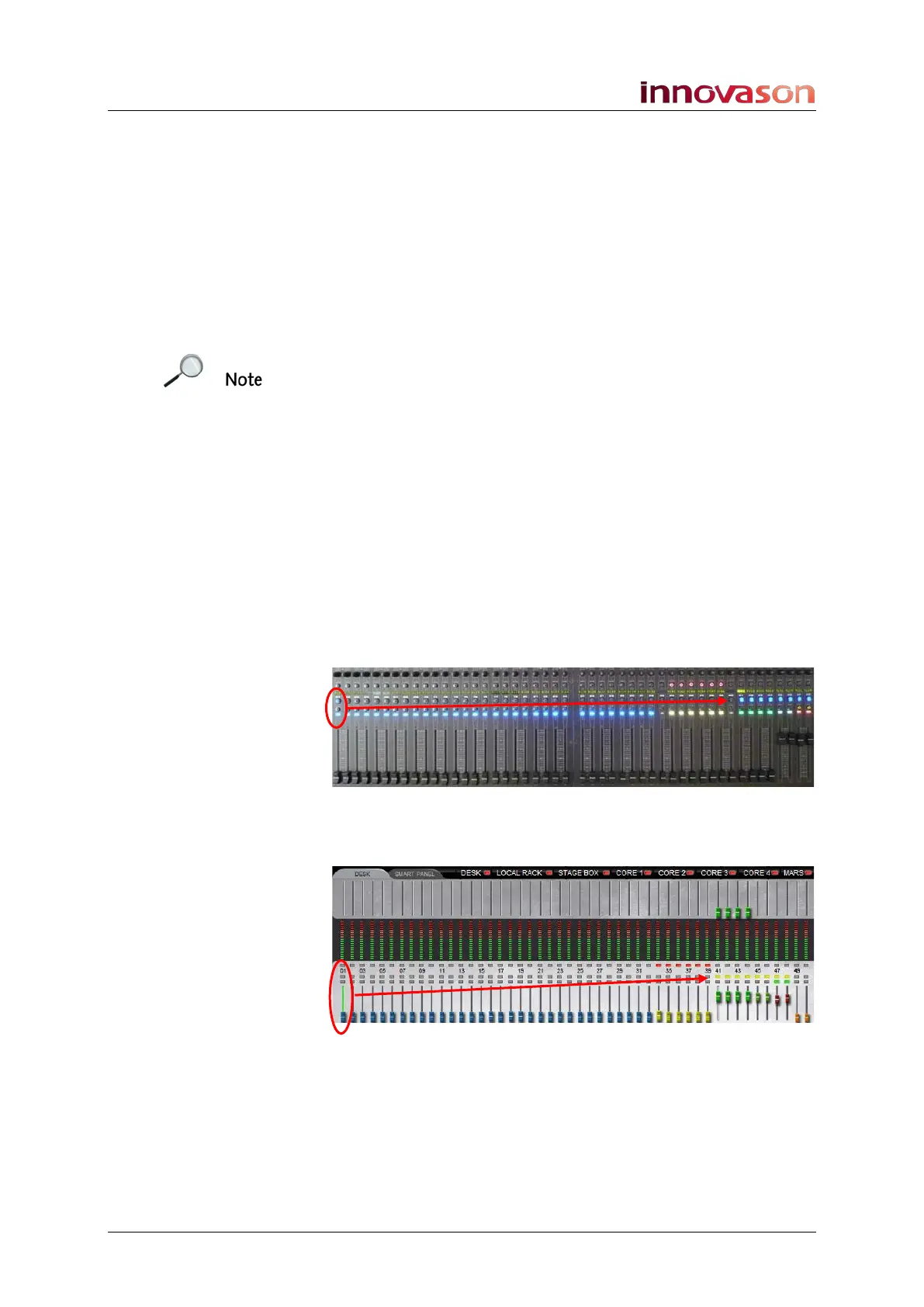
Routing from an Input (Forward Bus Assign)
1. Press SEL on an input fader (blue ID) – e.g. Fader 1.
The SEL button and Label should be flashing.
2. Look across the console at the status of the SEL buttons
on your output channels (Aux, Group, Master or Matrix):
Any steady state SEL buttons indicate bus assignments from
the selected channel - in our example, the input fader is routed
to some Auxes and the stereo Master:
3. Look at the DESK overview on the Main Mix display.
The same assignments are shown with yellow routing buttons:



 To Next Page