DACS-W Operation Manual 11 OPTION
11-25
11.6 WEIGHING ZONES
11.6.1Overview
Proper Weight is divided into 3 areas and 5 ranks when Over Weight and Under Weight are added.
Within Proper Weight there are subcategories of Ok-Upper Limit and Ok-Lower Limit for products
which are used for determining whether or not to reject products close to weight limits and re-examining
the manufacturing process. Range values of each zone are as listed below.
11.6.2Preset Parameters
Two items concerning weiging zones were added to Preset Parameters.
11.6.2.1 Ok-Upper Limit +
This sets the amount of deviation an item may have from the Reference Weight and still be recognized
as Proper. Regulated by Ok-Upper Limit and Upper Limit, this range becomes Ok-Over. Consequently,
Ok-Upper Limit is less than Upper Limit.
Example: when Reference Weight equals 100g, Upper Limit equals 10.0g, and Ok-Upper Limit is 5.0g,
an item weighing over 105g is Ok-Proper and an item weighing over 110g is overweight.
To set OK-Upper Limit + follow the procedures listed below.
2=No Metal: If no metal is detected in a product pack, a weight check is not performed,
and the pack is rejected as a No Metal item. When Metal is detected,
weight is checked as usual.
0
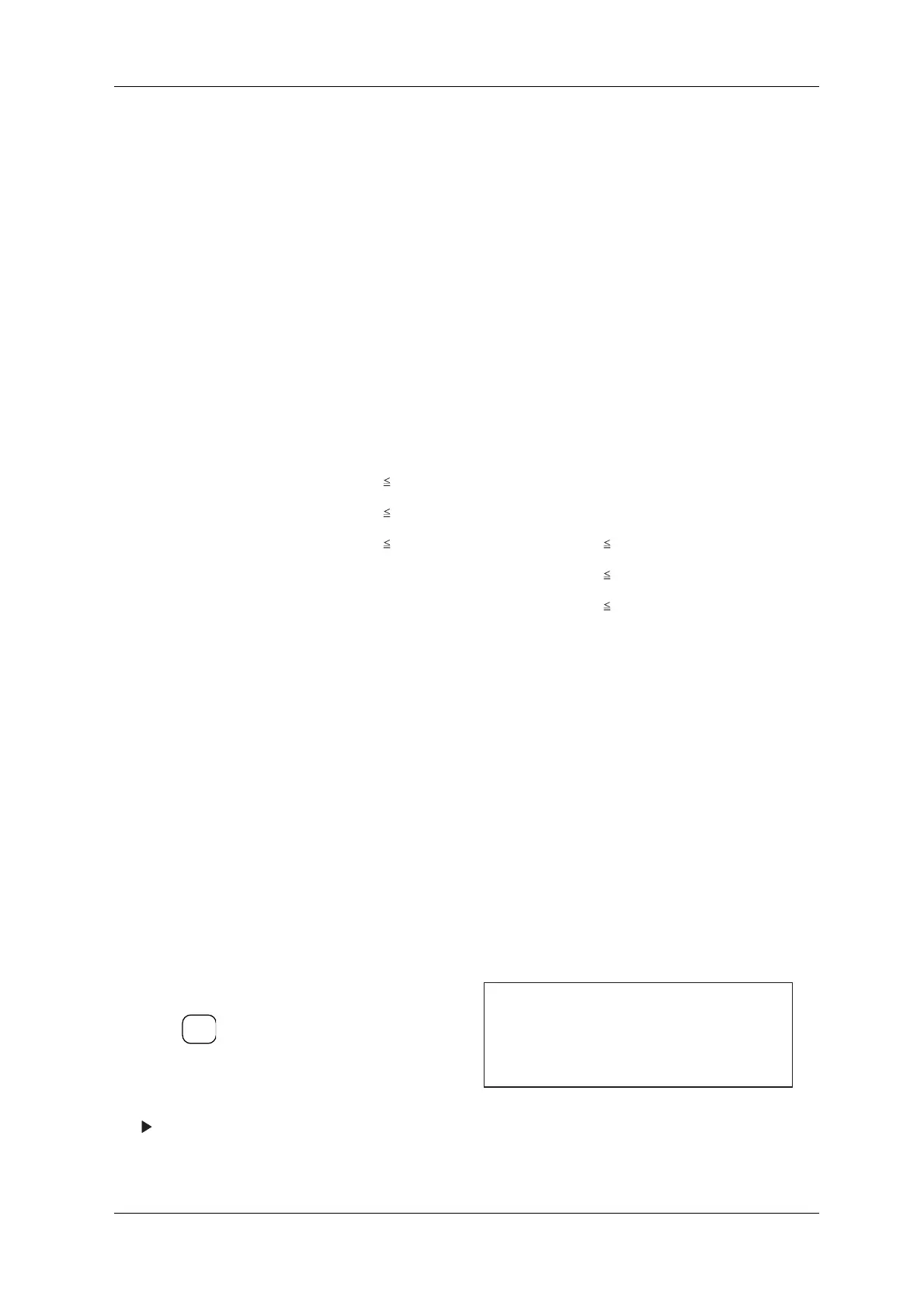
Zone1 Under
< Ref. Wt - Lower Limit
Ref. Wt. - Lower Limit
Zone2 Ok-Under
< Ref. Wt. - Ok-Lower Limit
Ref. Wt. - OK-Lower Limit
Zone3 Proper Ref. Wt. + Ok-Upper Limit
Ref. Wt. + Ok-Upper Limit < Zone4 Ok-Over
Ref. Wt. + Upper Limit
Ref. Wt. + Upper Limit < Zone5 Over
Max. Display Value
1. Call up the Preset Setting menu.
2. Press and move the cursor to Ok-Upper
Limit.
3. Set value via ten-keys.
The setting for Ok-Upper Limit+ is
complete.
Figure 11-62 Preset Setting Menu
ENTER
▼
[Preset Setting]
* Lower - 20.0 g
* Ok-Upper Limit + 10.0 g
* Ok-Lower Limit - 10.0 g
No 2



 To Next Page