2-4 Service Manual
5062
200 paper jam
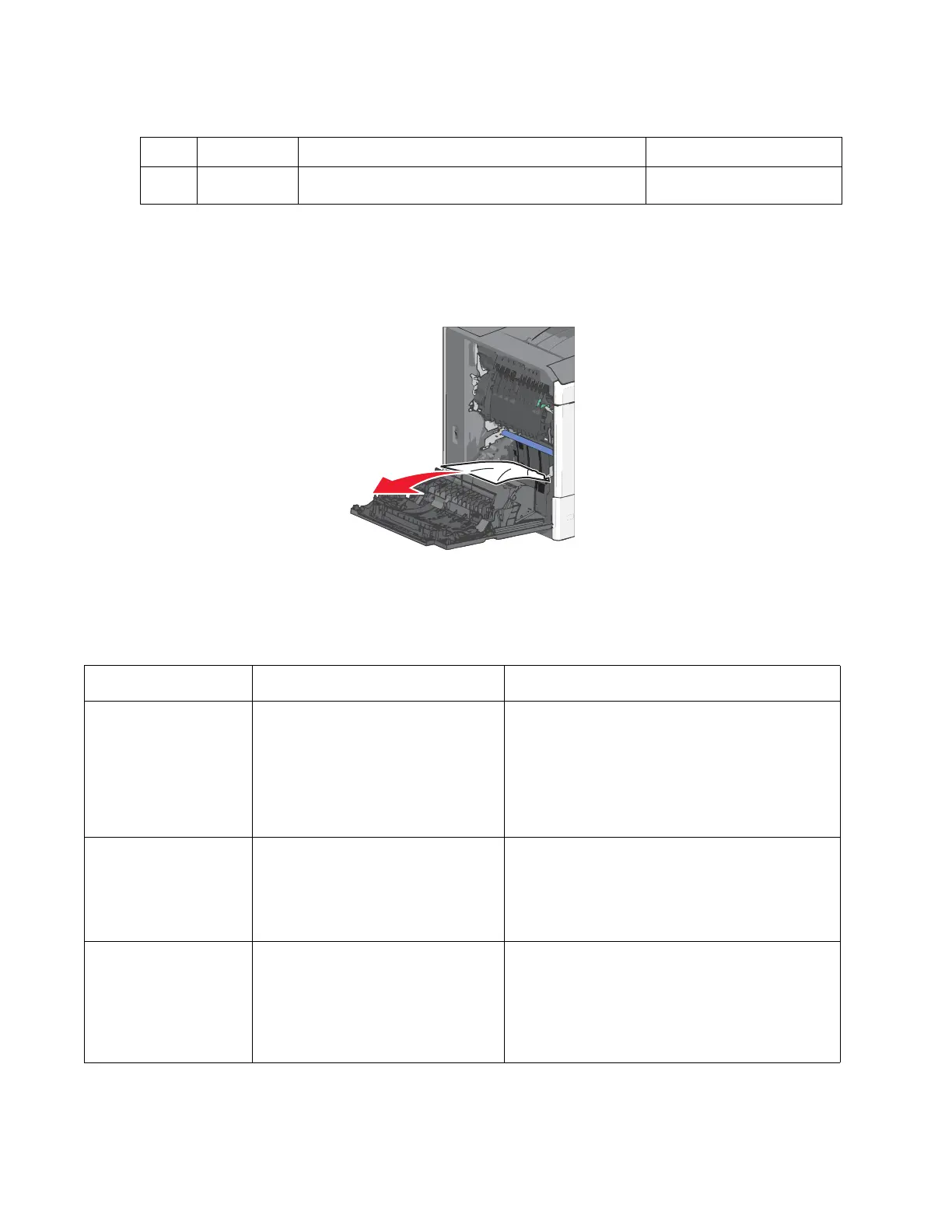
1. Open the left access door.
2. Firmly grasp the jammed paper, and then gently pull it out.
Note: Make sure all paper fragments are removed.
3. Close the door.
4. From the operator panel, touch Continue, jam cleared.
Additional checks—200 paper jam
3 250 Remove all paper from the multipurpose feeder, and
then remove the jammed paper.
“250 paper jam” on
page 2-19
Error code Description Action
200.01 Input sensor is made when printer
powers up or covers are closed.
Possible causes:
• Paper jam leaving page over
sensor
• Defective input sensor
• Faulty system board
• Clear away anything in the paper path that might
cause the paper to jam.
• If clearing a paper jam does not fix the problem,
go to “Input, S1, narrow media, and near
narrow media sensor service check” on
page 2-121.
200.02 Paper hit the input sensor too soon.
Possible causes:
• Damaged input sensor flag or
input sensor
• Loose input sensor
• Clear away anything in the paper path that might
cause the paper to jam.
• The input sensor may not be functioning
properly. Go to “200.02—Paper Jam error
service check” on page 2-79.
200.03 Input sensor is never made or made
late.
Possible causes:
• Faulty input sensor
• Faulty staging deflector assembly
• Faulty autocomp assembly
• Clear away anything in the paper path that might
cause the paper to jam.
• If clearing a paper jam does not fix the problem,
go to “200.03, 200.08—Paper Jam error
service check” on page 2-80.
Area Jam number What to do See


 To Next Page