2-14 Service Manual
5062
24x paper jam
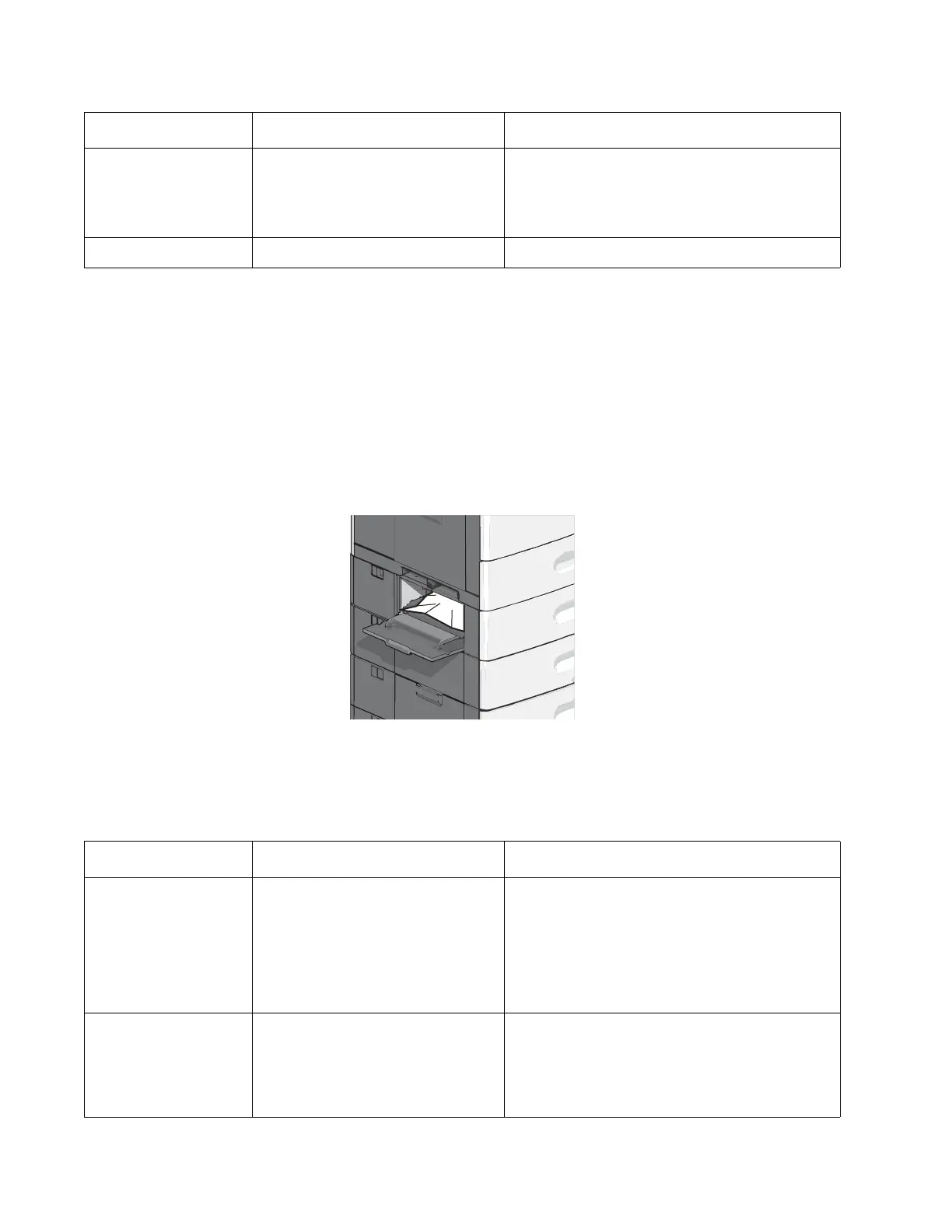
Paper jam in Tray 1:
1.
Open the left access door.
2. Grasp the jammed paper on each side, and then gently pull it out.
3. Close the door.
4. From the operator panel, touch Continue, jam cleared.
Paper jam in the optional trays:
1.
Open the side door of the specified optional tray.
2. Grasp the jammed paper on each side, and then gently pull it out.
3. Close the side door.
4. From the operator panel, touch Continue, jam cleared.
Additional checks—24x paper jam
232.05,
232.07
D2 sensor never broke.
Possible causes:
• Damaged D2 sensor Faulty fuser
• Faulty system board
• Check for anything in the paper path that might
cause the paper to jam.
• If clearing the jam does not solve the problem,
go to “D1 and D2 sensor service check” on
page 2-114.
232.08 D2 sensor is never made. See “232.03” on page 2-13.
Error code Description Action
241.01 S1 sensor is made when printer
powers up or covers are closed.
Possible causes:
• Paper jam leaving page over
sensor
• Defective S1 sensor
• Faulty system card
1. Clear away anything in the paper path that might
cause the paper to jam.
2. If clearing a paper jam does not fix the problem,
go to “Input, S1, narrow media, and near
narrow media sensor service check” on
page 2-121.
241.02 Paper hit S1 sensor too soon.
Possible causes:
• Damaged S1 sensor flag or S1
sensor
• Loose input sensor
1. Clear away anything in the paper path that might
cause the paper to jam.
2. The input sensor may not be functioning
properly. Go to “241.02—Paper Jam error
service check” on page 2-93.
Error code Description Action


 To Next Page