Page 101 of 182 TP1A002–1 English
Aug 2015
Linx 8900 Operating Manual —
Add other fields
Linx 8900
Prompted fields example sequence
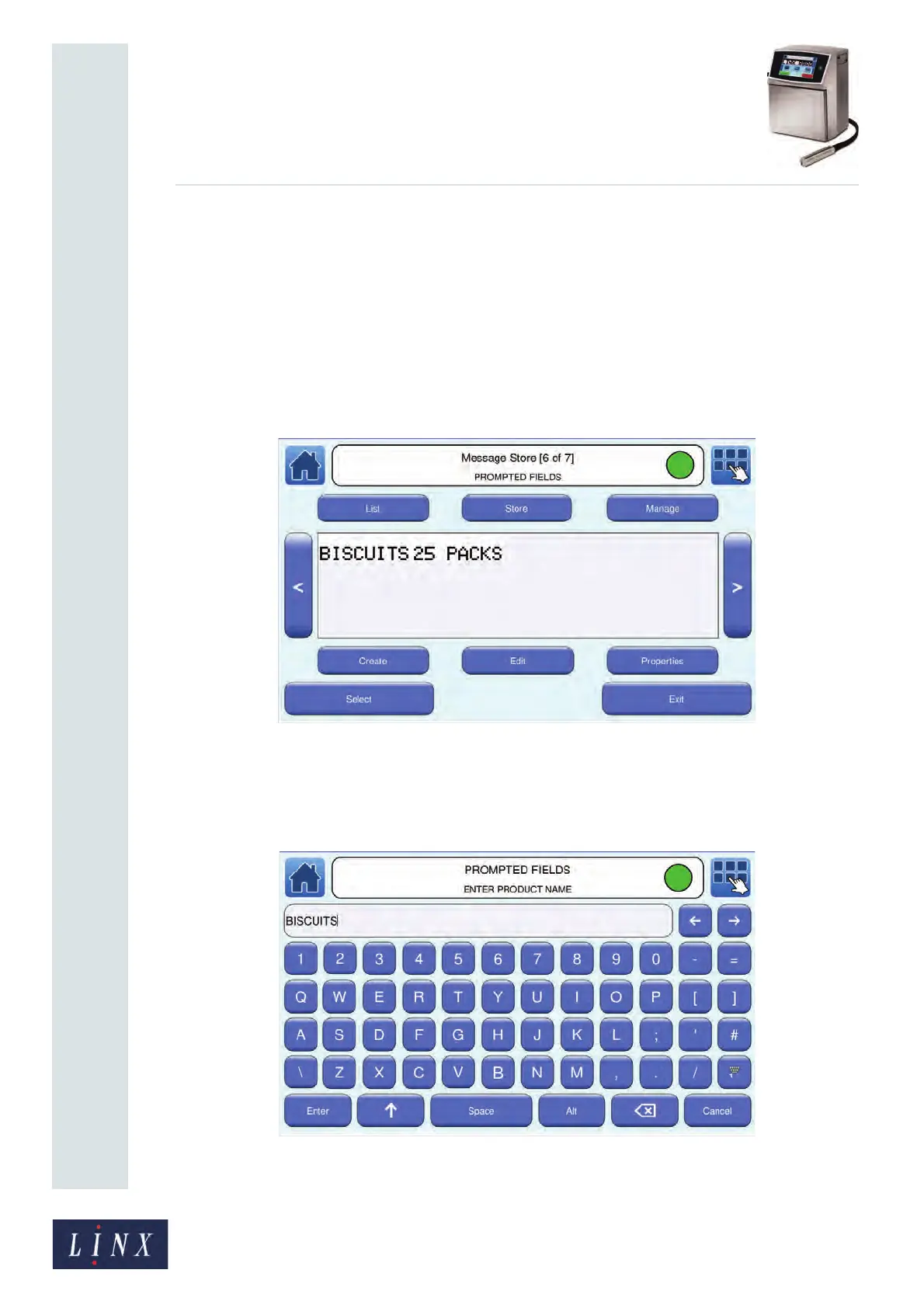
This example uses a message (message name “PROMPTED FIELDS”) that contains two
fields with the text “BISCUITS” and “25 PACKS”. The first field has a User Entry prompt
type with the Default option selected at the Prompt With screen. The second field has a
Select from List prompt type with the Empty option selected at the Prompt With screen.
1 At the Message Store screen, touch the Message List button to display the Select
Message screen.
2 Find the message “PROMPTED FIELDS” and touch the message name to preview
the message on the Message Store screen.
Figure 107. Message Store screen: “PROMPTED FIELDS” message preview
3 Touch the Select button to select the message for printing. The printer displays the
User Entry prompt-type screen with the message name and prompt text (“ENTER
PRODUCT NAME”) in the status bar.
Figure 108. User Entry prompt-type screen with default text
89186
89187


 To Next Page