57 / 374
SOCT User Manual Version 10.0 rev. A
3. Acquire - press to start acquisition of data.
4. Voice guidance language - click to open the list. It allows the user to change the language
of the voice guidance directly from the Acquire window. The language interface remains
unchanged. Open the list from the message area and select the desired language.
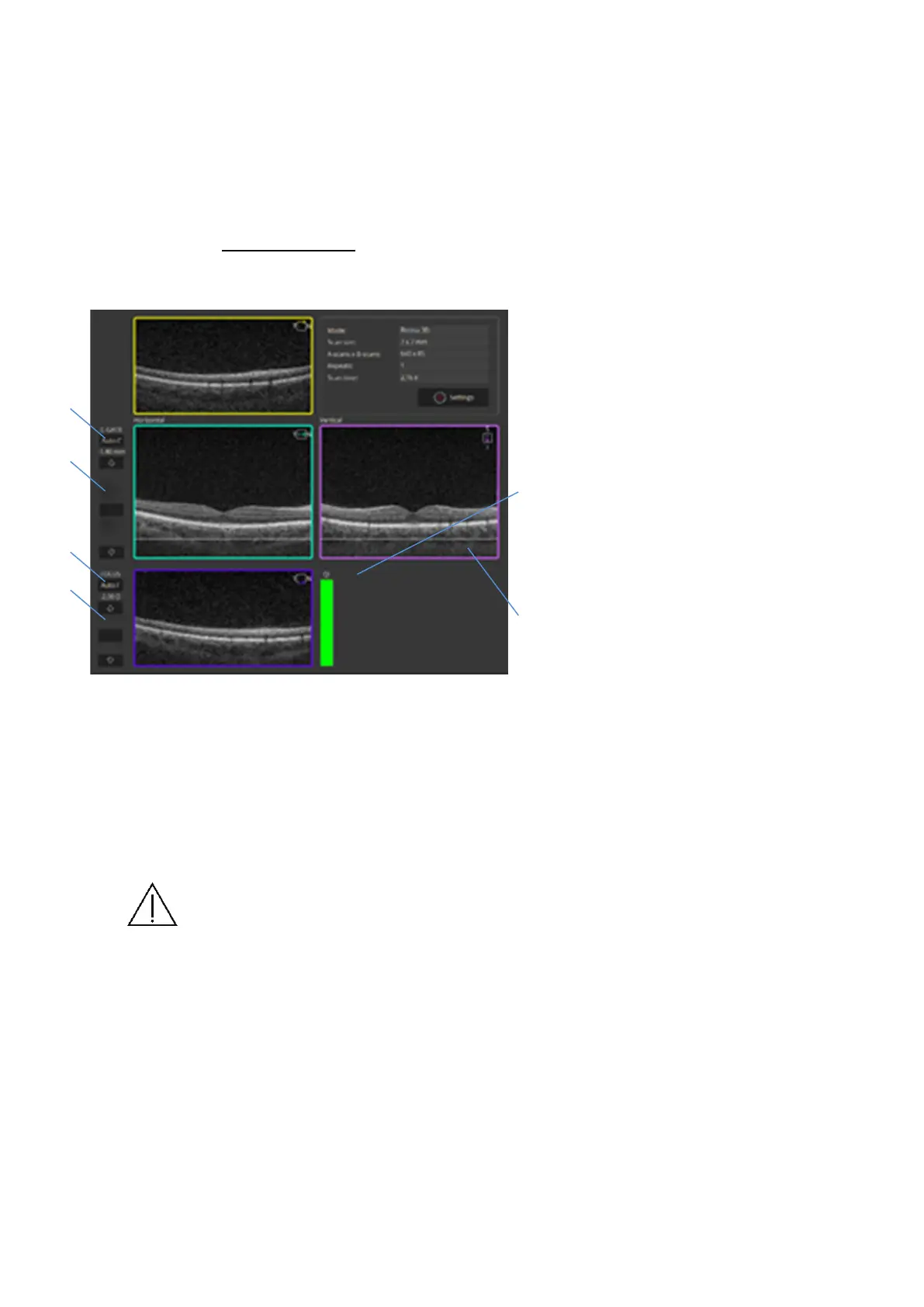
Live OCT preview
1. Live OCT preview - preview
window shows horizontal and
vertical live OCT images. The
tomograms correspond to the
color cross on the pSLO fundus
preview window. Note that
poorly aligned tomograms have
influence on quality of
tomograms and reliability of
analysis.
2. Focus slider - used to
compensate for patient
refraction.
3. Auto Focus - automatically
compensates the patient refraction values.
4. C – gate slider - adjusts position of object on the tomogram window.
5. Auto C - Auto C (coherence) gate button to automatically align the OCT image. For patients
with refraction error bigger than -/+ 5D it is recommended to fill refraction value during
adding patients to the system.
Note To call [Auto Focus] function OCT signal must be visible in tomogram live
preview (eye opened).
6. QI index bar - shows signal to noise ratio. Compensate focus to achieve highest saturation
of image – try to achieve QI value as high as possible.


 To Next Page