Chapter 6 Functions for Scanning
110
Functions for Scanning
■ Functions for setting basic information
■ Functions related to image processing
■ Functions related to layout
■ Other functions
For the details and setting procedure of each func-
tion, see the pages that are specified as a refer-
ence.
[File Name] (A 111)
You can set the storage data name that is to be dis-
played.
The name of the storage data is displayed in the
[Storage Selection] screen or the [USB Job List]
screen.
[Directory] (A 111)
You can specify the folder into which the data is to
be saved in [Storage] or [USB].
[Owner] (A 112)
You can set the name of the owner of the storage
data.
The name of the storage data is displayed in the
[Storage Selection] screen or the [USB Job List]
screen.
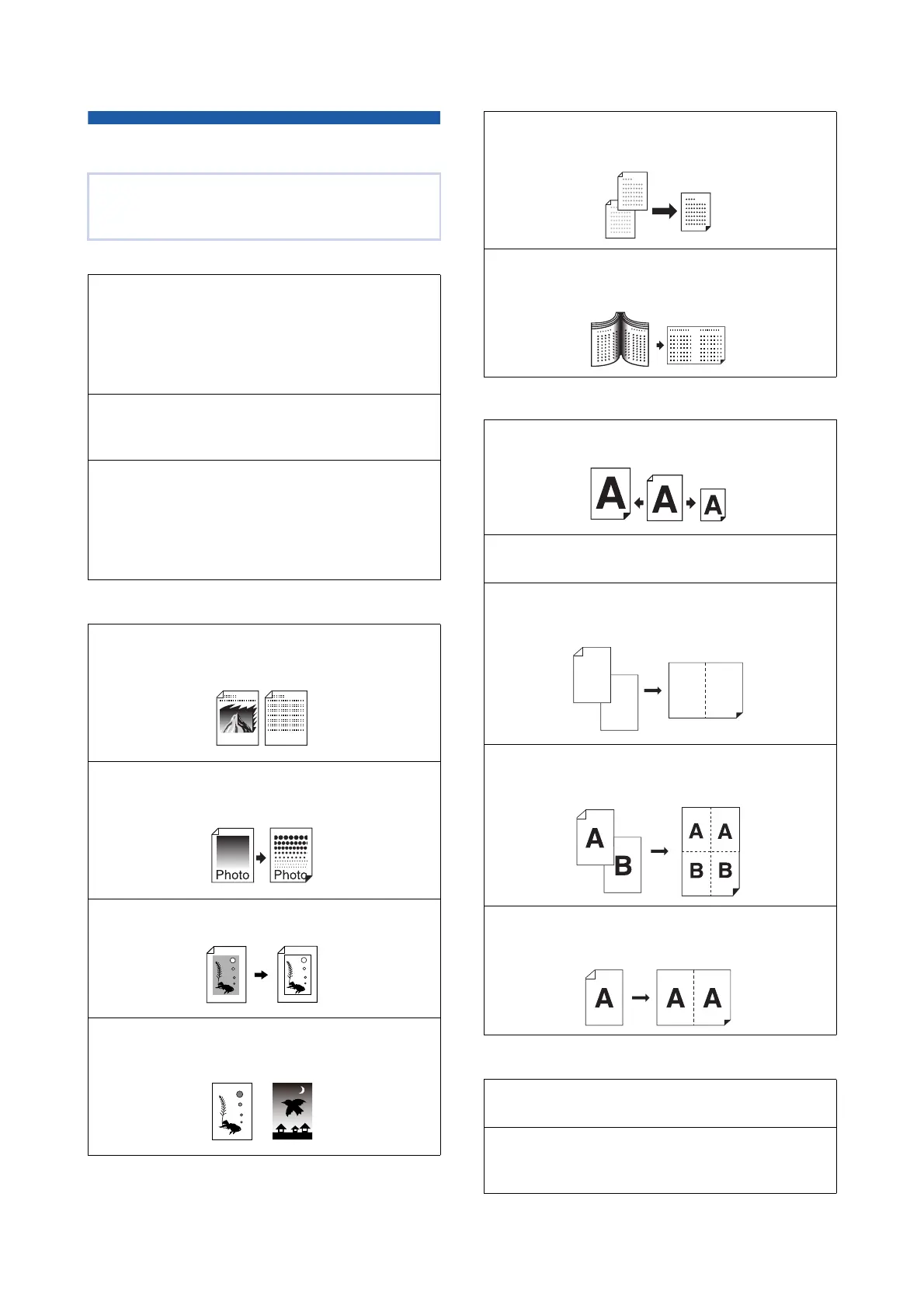
[Image] (A 51)
You can set the processing that is suitable for the
type of original.
[Dot Process] (A 53)
You can set the processing method to express the
gradation of a photo.
[Contrast Adj] (A 53)
You can change a blurry photo to a sharp final output.
[Tone Curve] (A 54)
You can adjust the tone of bright parts and dark
parts in originals such as a photo.
[Contrast] (A 54)
You can adjust the contrast according to the paper
color and the tint of the original.
[Book Shadow] (A 55)
You can erase or reduce the shadow in the binding
section of books.
[Size] (A 57)
You can enlarge or reduce the size of the original.
[Format] (A 113)
You can select the paper size of the storage data.
[Layout] (A 60)
You can lay out multiple pages on a single sheet of
paper.
[Multi-Up Print] (A 62)
You can lay out multiple originals on a single sheet
of paper.
[2 Up] (A 66)
You can lay out two copies of originals side by side
on a single sheet of paper.
[Preview] (A 69)
You can check the output image before saving.
[Scanning Side -ADF] (A 71)
You can specify which side of the original is scanned
when the optional auto document feeder is used.
1
2
1
2



 To Next Page