Chapter 8 RISO Console
141
8
■ [Download]
Click the job name of the original data that you want to
download onto a computer. The original data is high-
lighted. When you click [Download] and perform the
operation according to the instructions on the screen,
the highlighted original data is downloaded onto the
computer.
■ [Move to]
Click the job name of the original data that you want to
move. The original data is highlighted. When you
select the destination folder from the [Move to] menu,
the highlighted original data is moved to the folder.
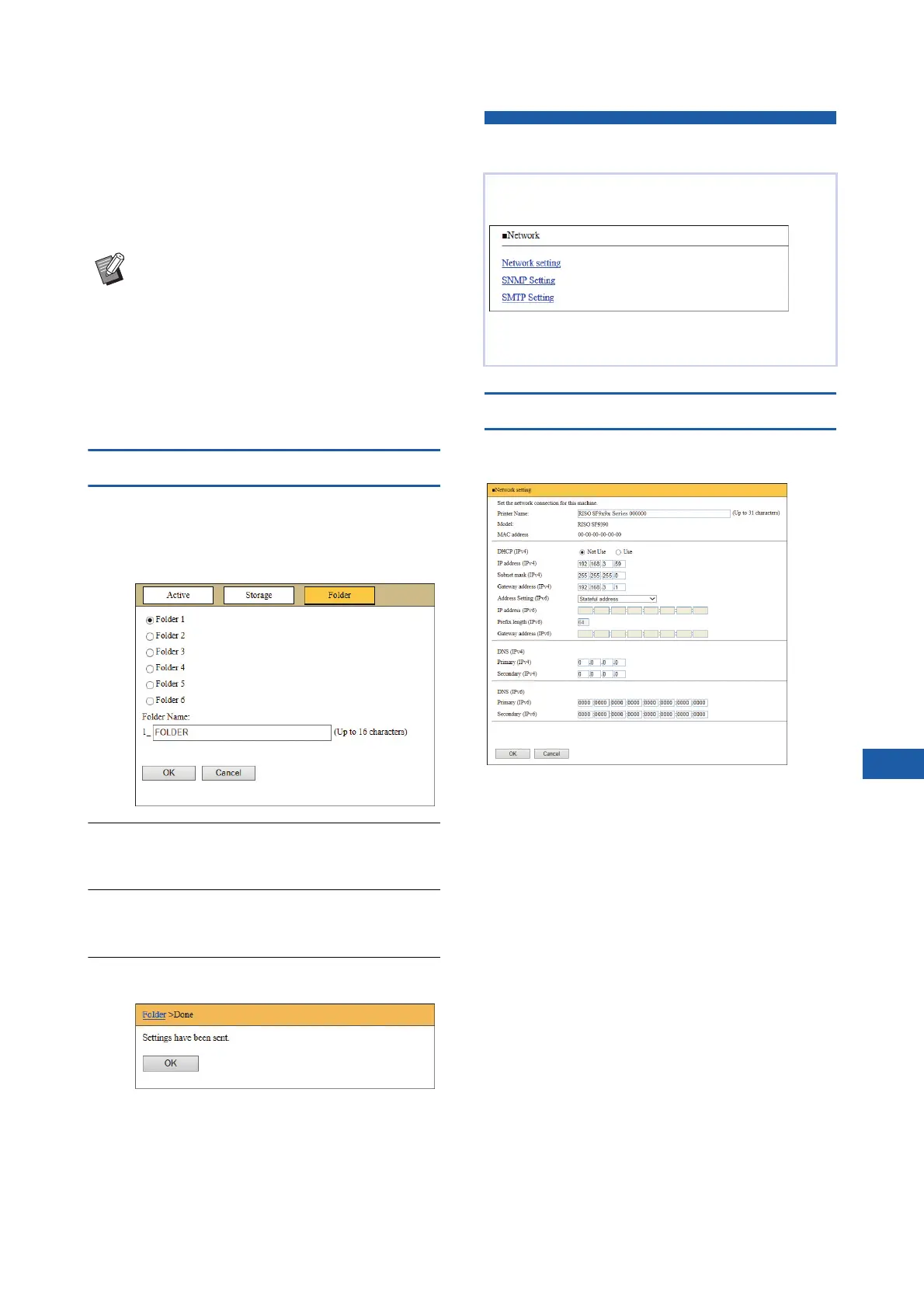
[Folder] tab screen
You can change the folder name of [Storage].
1
Click the folder whose name you
want to change.
2
Enter a new folder name in the
[Folder Name] field.
3
Click [OK].
The [Done] screen is displayed.
4
Click [OK].
[Network] Menu
[Network setting] screen
This screen is used for the connection settings of this
machine to the network.
Clicking [OK] updates the changes.
BYou can only download the original data
that is saved in the unique file format for
this machine.
You can check and change the settings that are
related to the network connection of this machine.
When you click an item, the setting screen for the
relevant item is displayed.



 To Next Page