Chapter 5 Useful Functions
93
5
2
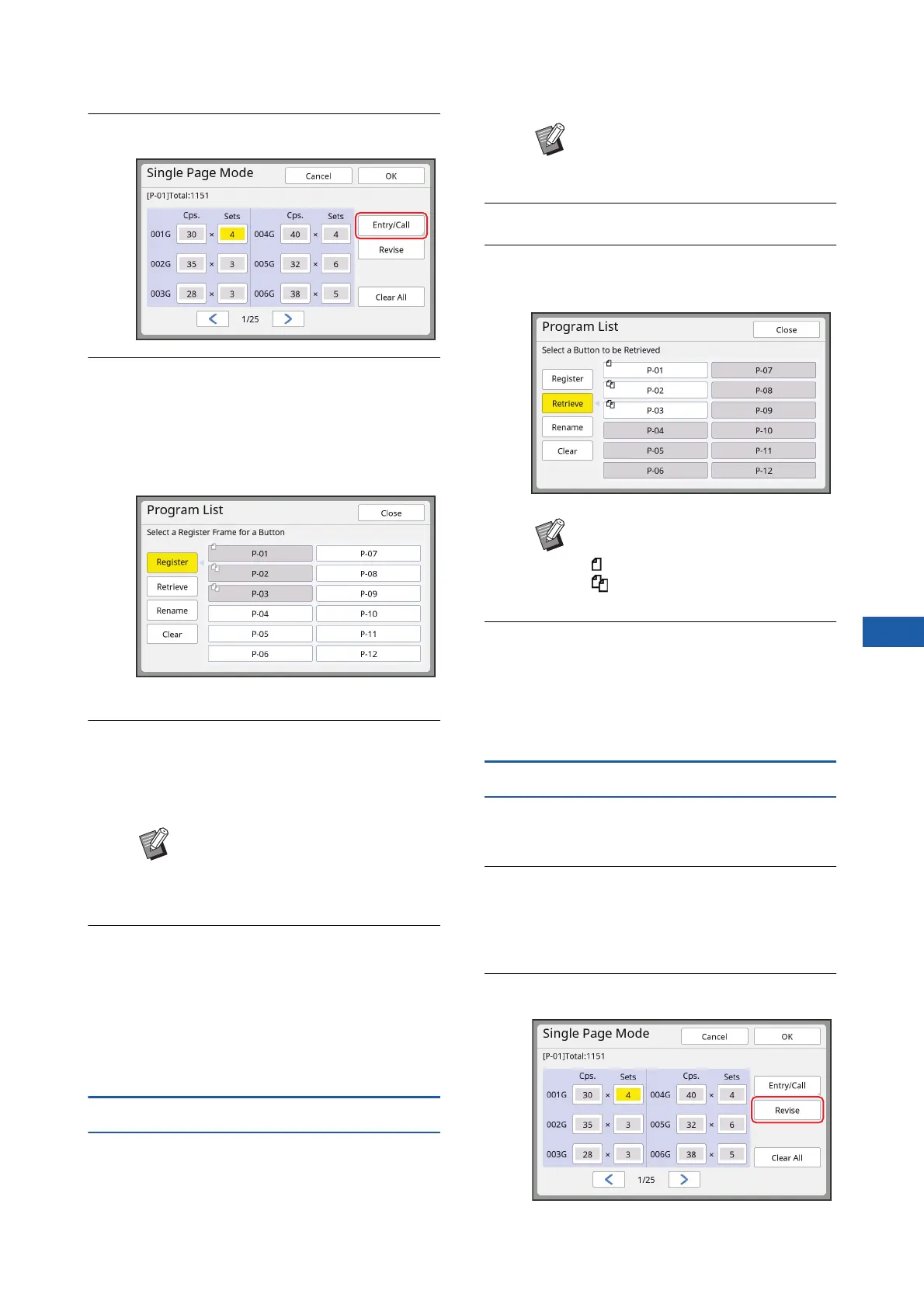
Touch [Entry/Call].
3
Touch a button for which nothing
has been registered.
The button for which nothing has been regis-
tered is outlined with a solid line. (You cannot
touch a grayed button as the settings have
already been registered.)
A confirmation screen is displayed.
4
Touch [OK] in the confirmation
screen.
The program that has been set is registered
and the [Program List] screen is displayed.
5
Touch [Close].
The [Program] setting screen is displayed.
• When you touch [OK], printing can be per-
formed according to the registered program
settings.
• When you touch [Cancel], the basic screen is
displayed with [Program] remaining off.
Retrieving [Program]
1
Touch [Program] in the [Functions]
tab screen.
The [Program Type] screen is displayed.
2
Touch [Program List].
3
Touch the button for the settings
that you want to retrieve.
4
Touch [OK] in the confirmation
screen.
The basic screen is displayed.
When you press the [START] key, printing is per-
formed according to the program that you set.
Changing the settings of [Program]
1
Retrieve a program.
Perform steps 1 to 3 in “Retrieving [Program]”.
2
Change the settings of the pro-
gram.
Change the number of copies and the number
of sets.
3
Touch [Revise].
BYou can change the name of the
registered program.
(A 94 “Changing the name of [Pro-
gram]”)
BYou can also display the [Program
Type] screen by pressing the [P]
key.
BThe icon on the button indicates the
type of program.
: [Single Page Mode]
: [Multi-Page Mode]



 To Next Page