Chapter 5 Useful Functions
96
Using the Registered Settings
[Job Memory]
Registering [Job Memory]
1
Set the required functions.
(A 50 “Functions for Master Making”)
(A 78 “Functions for Printing”)
(A 90 “Useful Functions”)
2
Touch [Job Memory] in the [Func-
tions] tab screen.
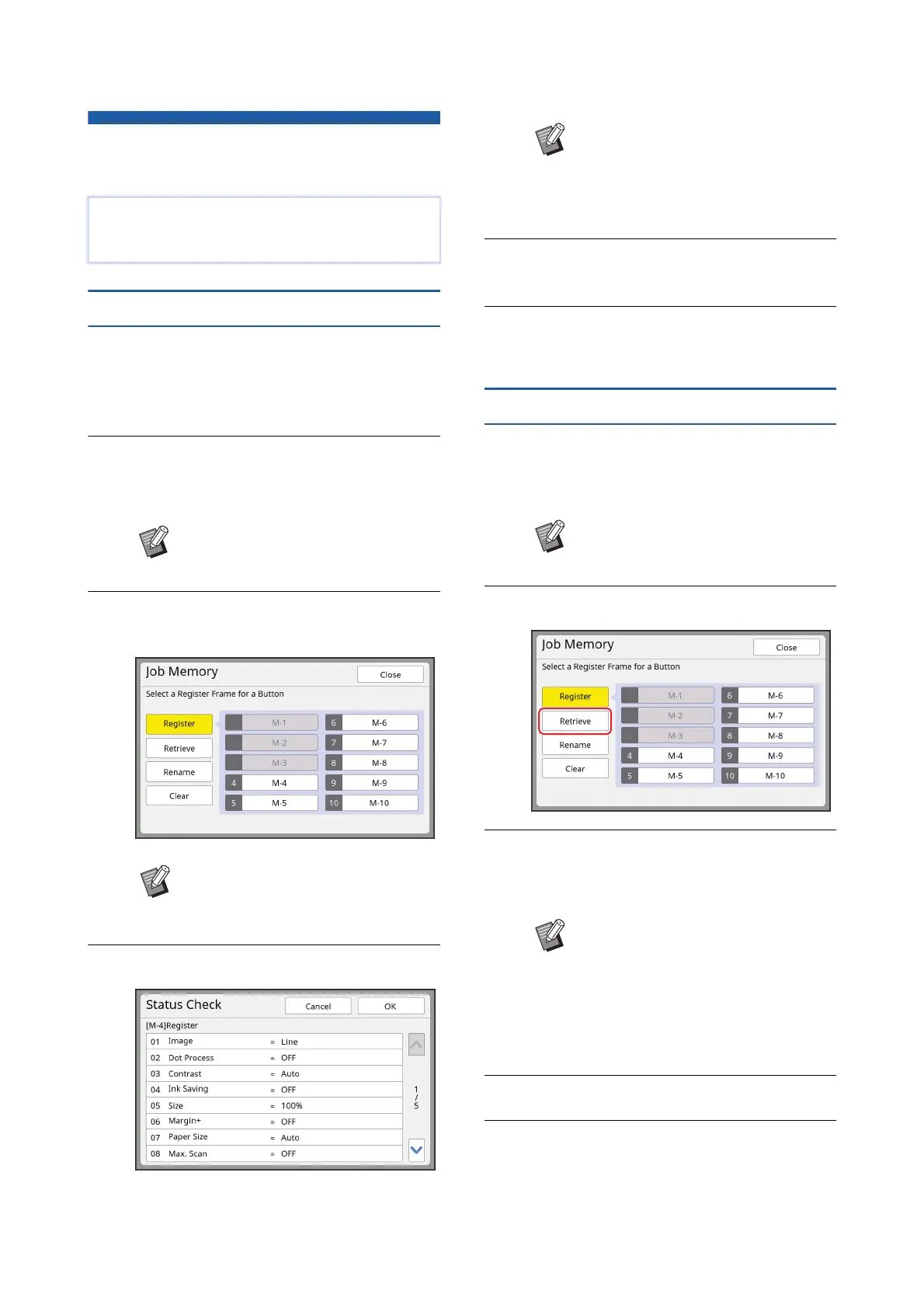
The [Job Memory] screen is displayed.
3
Touch a button for which nothing
has been registered.
4
Check the settings.
Touch [G] to check all items to the end of the
list.
5
Touch [OK].
The [Job Memory] screen is displayed.
6
Touch [Close].
The basic screen is displayed.
Retrieving [Job Memory]
1
Touch [Job Memory] in the [Func-
tions] tab screen.
The [Job Memory] screen is displayed.
2
Touch [Retrieve].
3
Touch the button for the settings
that you want to retrieve.
The [Status Check] screen is displayed.
4
Check the settings.
5
Touch [OK].
The settings are applied and then the basic
screen is displayed.
You can register a set of required settings.
This function is useful as the same settings can be
retrieved for use.
BYou can also display the [Job Mem-
ory] screen by pressing the [U] key.
BYou cannot touch a grayed button
as the settings have already been
registered.
BWhen you want to change the set-
ting of any function, touch [Cancel]
and then [Close] to go back to the
basic screen. Then revise the set-
ting of the function.
BYou can also display the [Job Mem-
ory] screen by pressing the [U] key.
BYou can also display the [Status
Check] screen by pressing the
numeric keys corresponding to the
relevant memory number.
CNumbers [1] to [9]: Press the cor-
responding key from “1” to “9”.
CNumber [10]: Press the “0” key.



 To Next Page