Chapter 7 Setting the Operation Conditions
131
7
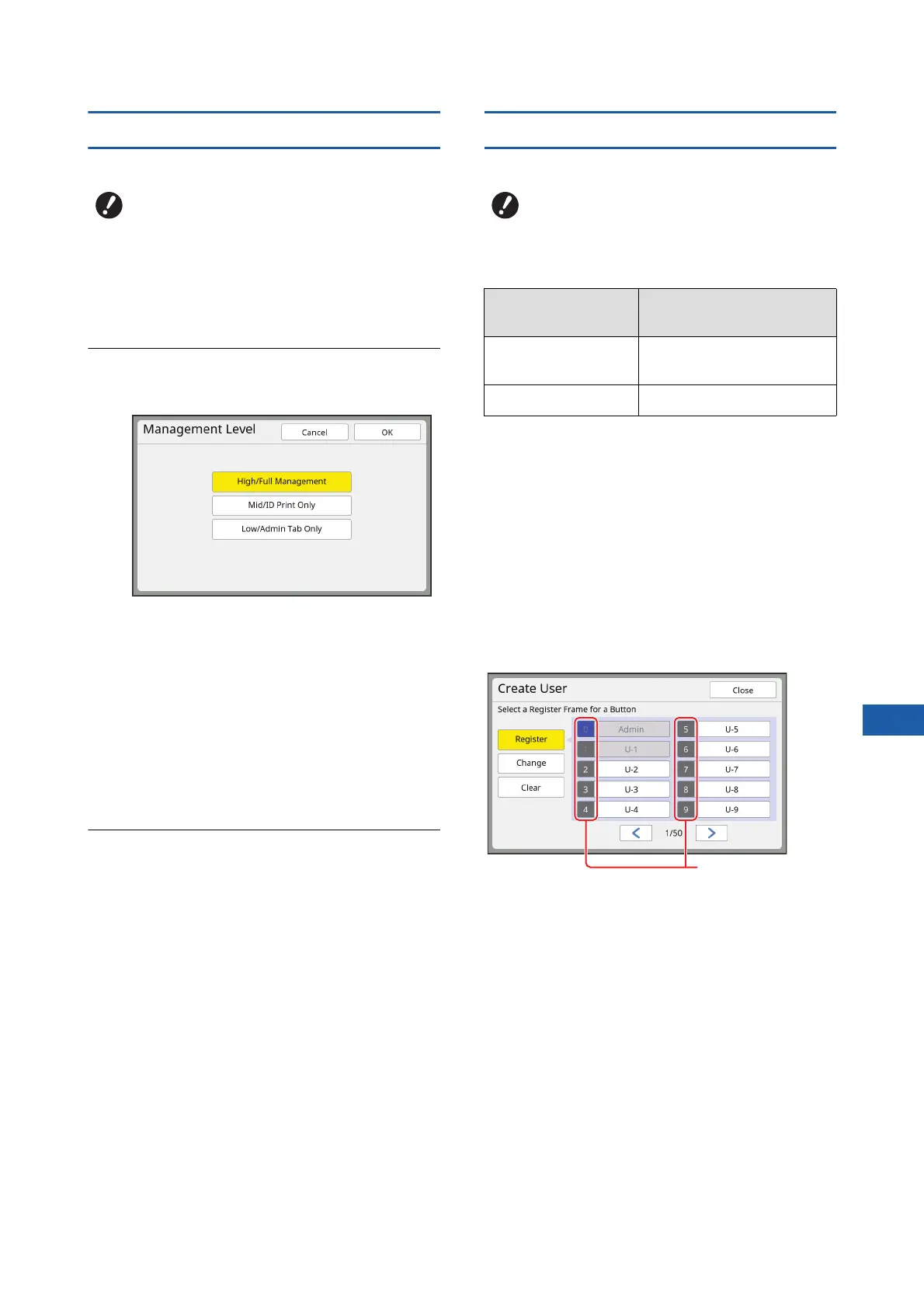
[Management Level]
Set the type of authentication.
1
Touch [Management Level] in the
[User Management] screen.
To display the [User Management] screen, per-
form steps 1 to 3 in [Recognized by] (A 130).
2
Touch the type of authentication
method to be used.
■ [High/Full Management]
Both “Machine authentication” and “ID print”
are available.
■ [Mid/ID Print Only]
Only “ID print” is available.
■ [Low/Admin Tab Only]
Neither “Machine authentication” nor “ID print”
is available.
The operation of [Admin.] is limited to only the
administrator.
3
Touch [OK].
[Create User]
Register the users who use this machine.
The number of users that can be registered varies
depending on the [Recognized by].
*
[ID print] (A 40) is available only for User No.0 to 99.
Those users are categorized into “administrator” and
“general user”.
■ What is “administrator”?
“Authentication registration numbers” are assigned to
the users who have been registered in this machine.
The user who has been registered for authentication
registration number 0 is called “administrator”.
The administrator can use all of the functions of this
machine.
Once the administrator is registered, the authentica-
tion function is enabled.
■ What is “general user”?
The users who have been registered for any numbers
from authentication registration number 1 are called
“general users”. General users cannot enter the
[Admin.] screen.
BSet [Recognized by] in advance.
BSet [Recognized by] in advance.
[Recognized by] Available "Authentication
registration numbers"
[PIN Code] or
[USB Flash Drive]
No.0 to 99
[IC Card] No.0 to 499
*
Authentication
registration
number



 To Next Page