Chapter 3 Functions for Master Making
74
Managing the Saved Original Data
[Storage], [USB Job List]
Changing the display style of the list
1
Touch [Storage] in the [Functions]
tab screen.
2
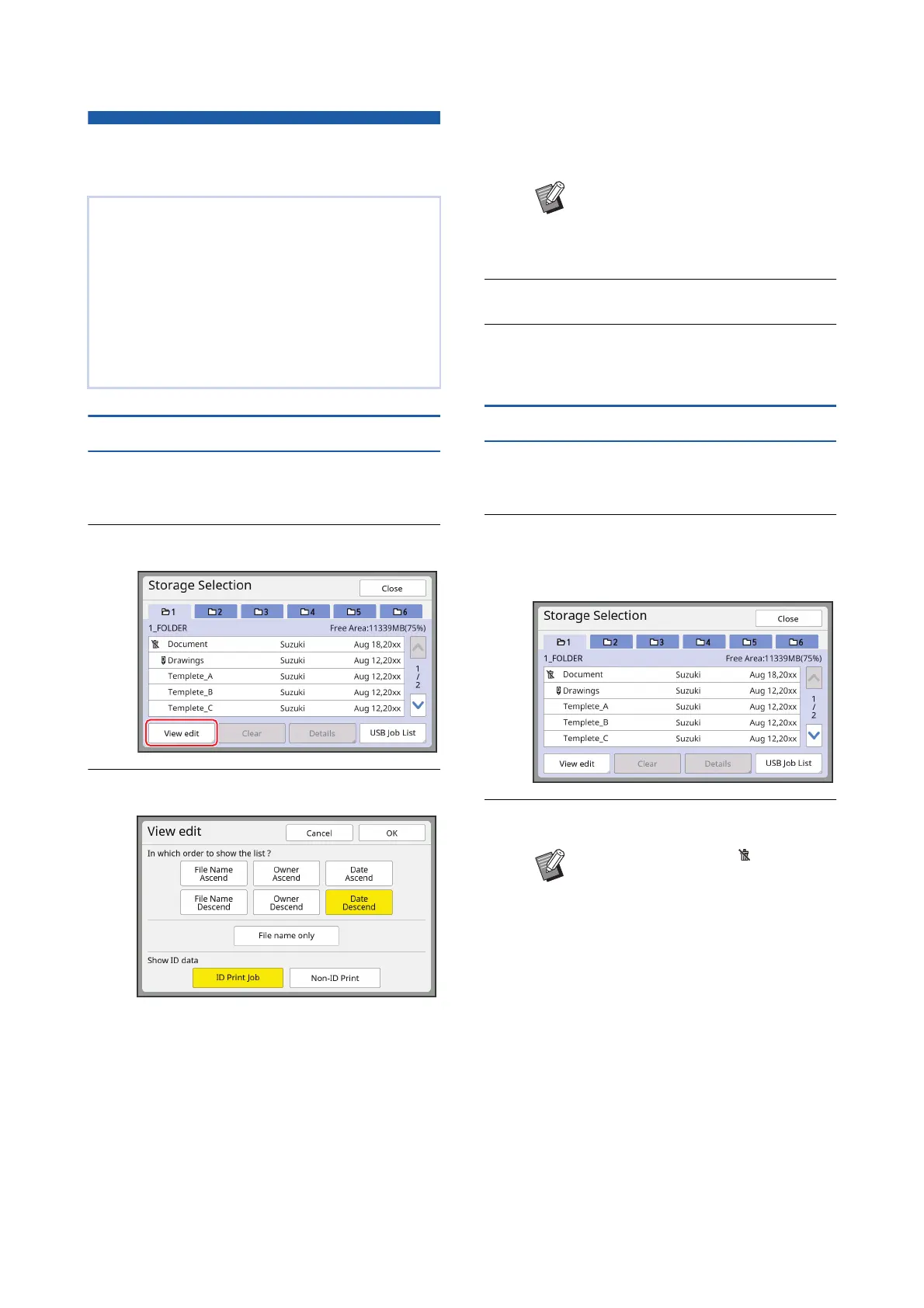
Touch [View edit].
3
Change the settings.
■ Order in which items are listed
You can select in which order the list is sorted.
■ [File name only]
You can change the items to be listed.
OFF: Data name + owner name + saved date
ON: Data name
■ [Show ID data]
[ID Print Job]: Lists only ID data.
[Non-ID Print]: Lists items other than ID data.
4
Touch [OK].
5
The [Storage Selection] screen is
displayed.
Deleting original data
1
Touch [Storage] in the [Functions]
tab screen.
2
Touch an original data item that
you want to delete.
You can also select multiple original data items.
3
Touch [Clear].
This section describes how to use the screen to
retrieve the saved original data.
Operation in the [Storage Selection] screen is
explained as an example.
The operation procedure is the same in the [USB
Job List] screen.
• For the saving method, see the page below.
(A 43 “Saving Paper Original as Data”)
• For the printing method, see the page below.
(A 45 “Printing the Saved Original Data”)
B[Show ID data] is displayed when
[High/Full Management] is set in
[User Management] (A 129) under
[Admin.].
BOriginal data with the [ ] icon dis-
played at the beginning is set to
[Display a message before deleting
data] in the printer driver.
When you select such original data
and touch [Clear], a confirmation
screen is displayed. Touch [OK] in
the confirmation screen to remove
protection and delete the data.



 To Next Page