Chapter 3 Functions for Master Making
56
■ [20mm] to [80mm] ([3/4"] to [3 1/8"])
You can select these buttons only when [Erase]
has been selected.
4
Select an original size.
If you selected a button other than [Auto] for
[Erasure Width], select a size with the original
book open.
The center part of the selected [Page Size] is
erased.
5
Touch [OK].
When [Page split] is set, place the paper in the
direction of a short edge paper feed.
Saving Ink [Ink Saving]
1
Touch [Ink Saving] in the [Func-
tions] tab screen.
BWhen you select [Auto], the fol-
lowing image parts are also
erased or processed in the half-
tone.
CA black image extending from
the area around the original
CA black image extending from
the binding section
BWhen you select a button other
than [Auto], the shadow gener-
ated around the original is not
erased.
BWhen [Page split] is set, the origi-
nal is scanned twice. Do not
move the original until the scan-
ning is complete.
Paper feeding direction
Short side
Long side
By turning on [Ink Saving] when making a master,
you can reduce the amount of ink consumption dur-
ing printing.
BWhen [Ink Saving] is turned on, the
print density becomes lower.
BEven if you change the [Ink Saving] set-
ting during the printing process, the
new setting is not applied to the master
that has already been made and loaded
on the print drum (cylinder). The
changed [Ink Saving] setting is used for
the next master making.
BWhen [Ink Saving] is on, the settings of the
following functions cannot be changed.
C[Contrast] (A 54)
C[Print Density] (A 79)
C[Book Shadow] (A 55)
C[Preview] (A 69)
C[Overlay] (A 76)
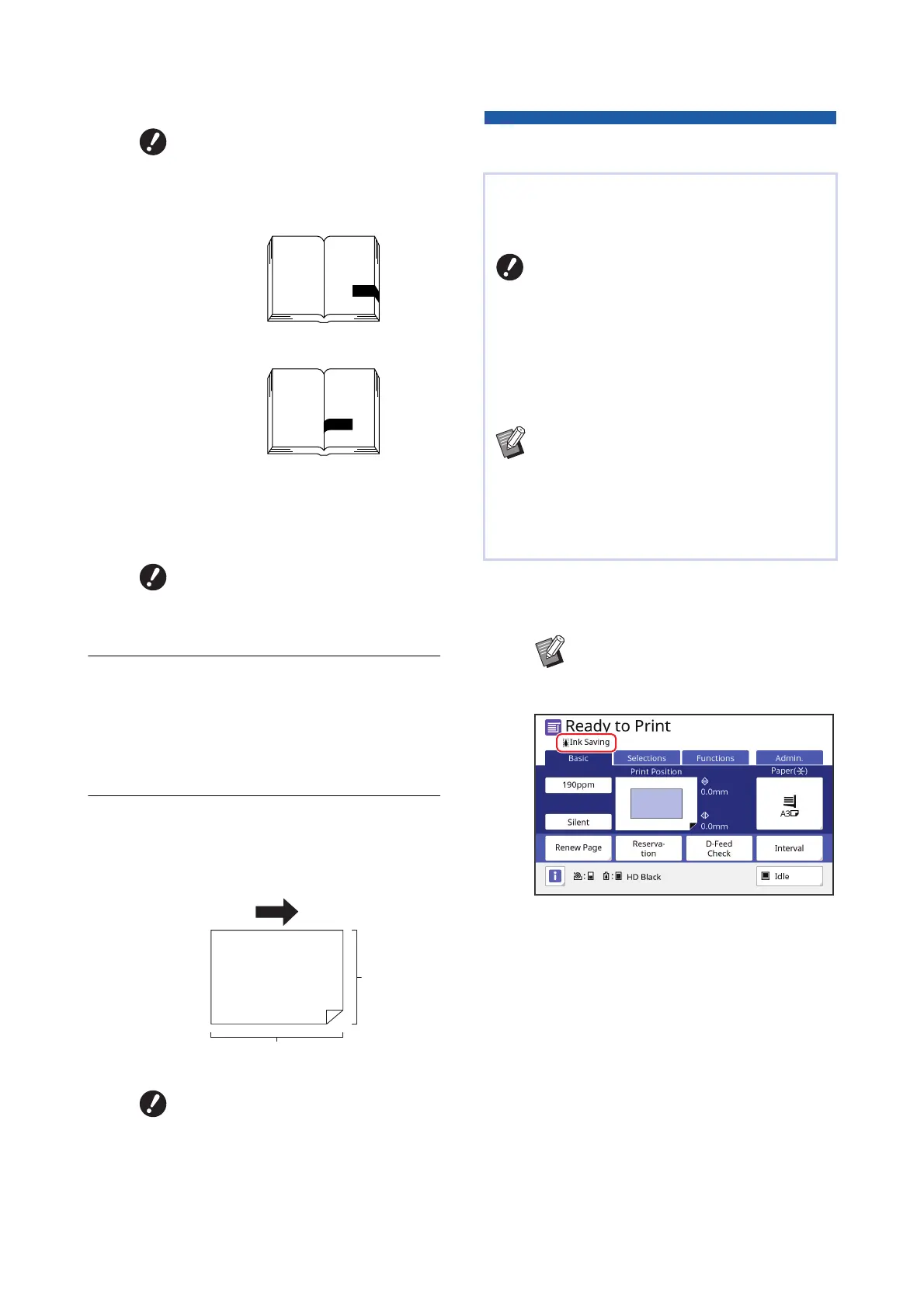
BWhen a master is made with [Ink
Saving] turned on, the [S] icon is
displayed in the message area.



 To Next Page