Chapter 5 Useful Functions
91
5
[Multi-Page Mode]:
You can set different numbers of copies for multiple
originals.
It is possible to set up to 9999 copies × 20 originals.
■ How to use [Program]
There are the following two methods.
• For printing without registering program settings
(A 91 “Setting [Single Page Mode]”)
(A 92 “Setting [Multi-Page Mode]”)
• For printing by retrieving a registered [Program] set-
ting
(A 93 “Retrieving [Program]”)
Setting [Single Page Mode]
1
Touch [Program] in the [Functions]
tab screen.
The [Program Type] screen is displayed.
2
Touch [Single].
3
Enter a value in [Cps.] using the
numeric keys.
You can enter a value into the active entry field.
4
Change the target for entry to
[Sets].
• You can change the target for entry by press-
ing the [×] key or the [U] key.
• It is also possible to select the entry field by
directly touching the target.
5
Enter a value in [Sets] using the
numeric keys.
6
Change the target for entry to the
next group.
• Press the [+] key or the [U] key.
• It is also possible to select the entry field by
directly touching the target.
Repeat steps 3 to 6 as necessary.
7
Touch [OK].
The basic screen is displayed.
When you press the [START] key, printing is
performed according to the program that you
set.
BYou can also display the [Program
Type] screen by pressing the [P]
key.
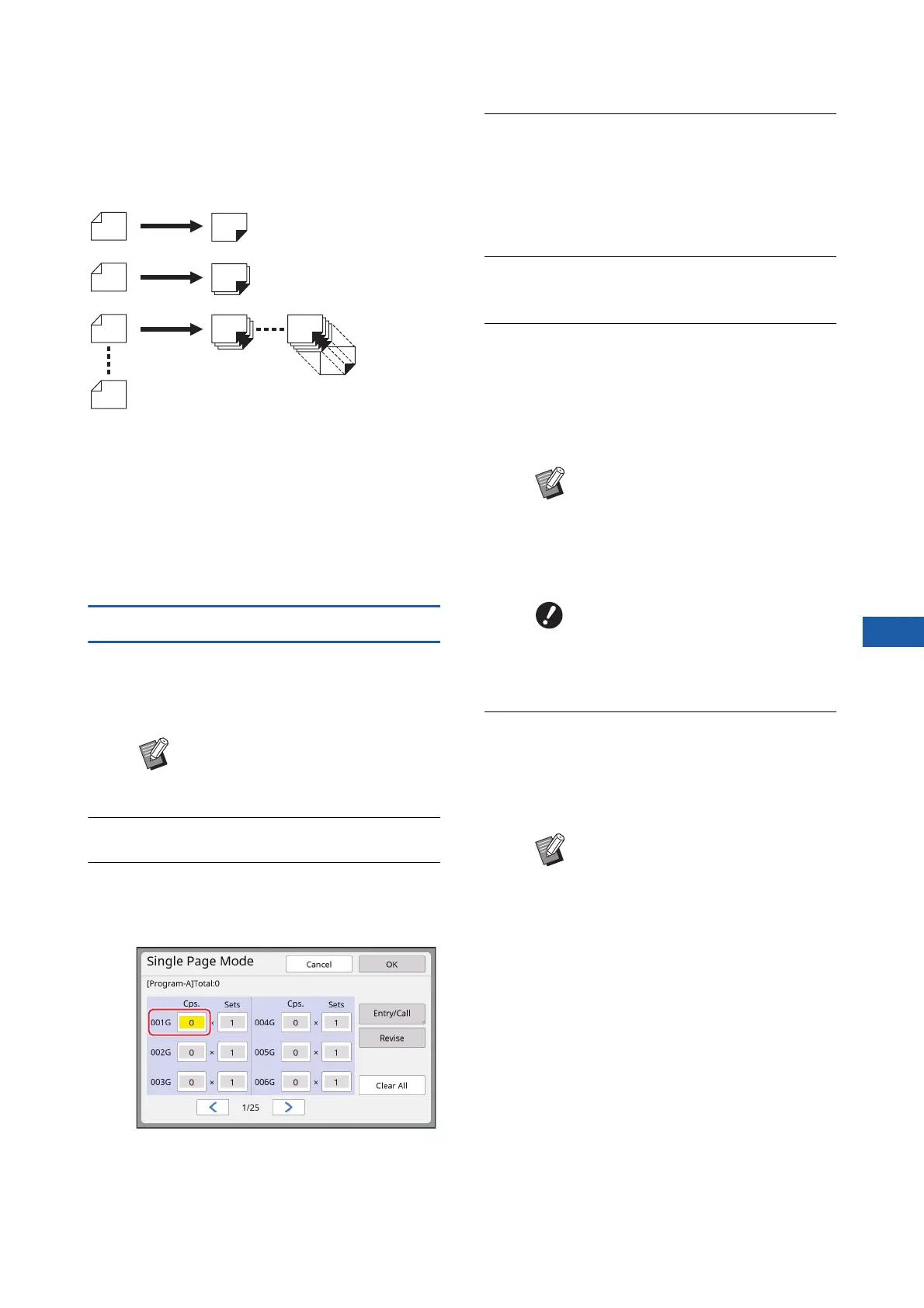
1st original
10 copies
20 copies
30 copies
Up to 9999 copies
2nd original
3rd original
Up to 20 originals
BTo clear all entered values, touch
[Clear All].
BThe total of the entered number of
copies is displayed at the top of the
screen.
BIf you want to register the pro-
grams that are set in this screen,
touch [Entry/Call] before [OK].
Then, go to step 3 in “Registering
[Program]” (A 92).
BPrinting is performed in the reverse
order of registration from the last
group. (Example: [003G] -> [002G]
-> [001G])
In this case, [001G] is output on the
top of the printed paper in the paper
receiving tray.



 To Next Page