Chapter 3 Functions for Master Making
55
3
Using a Book Type Original
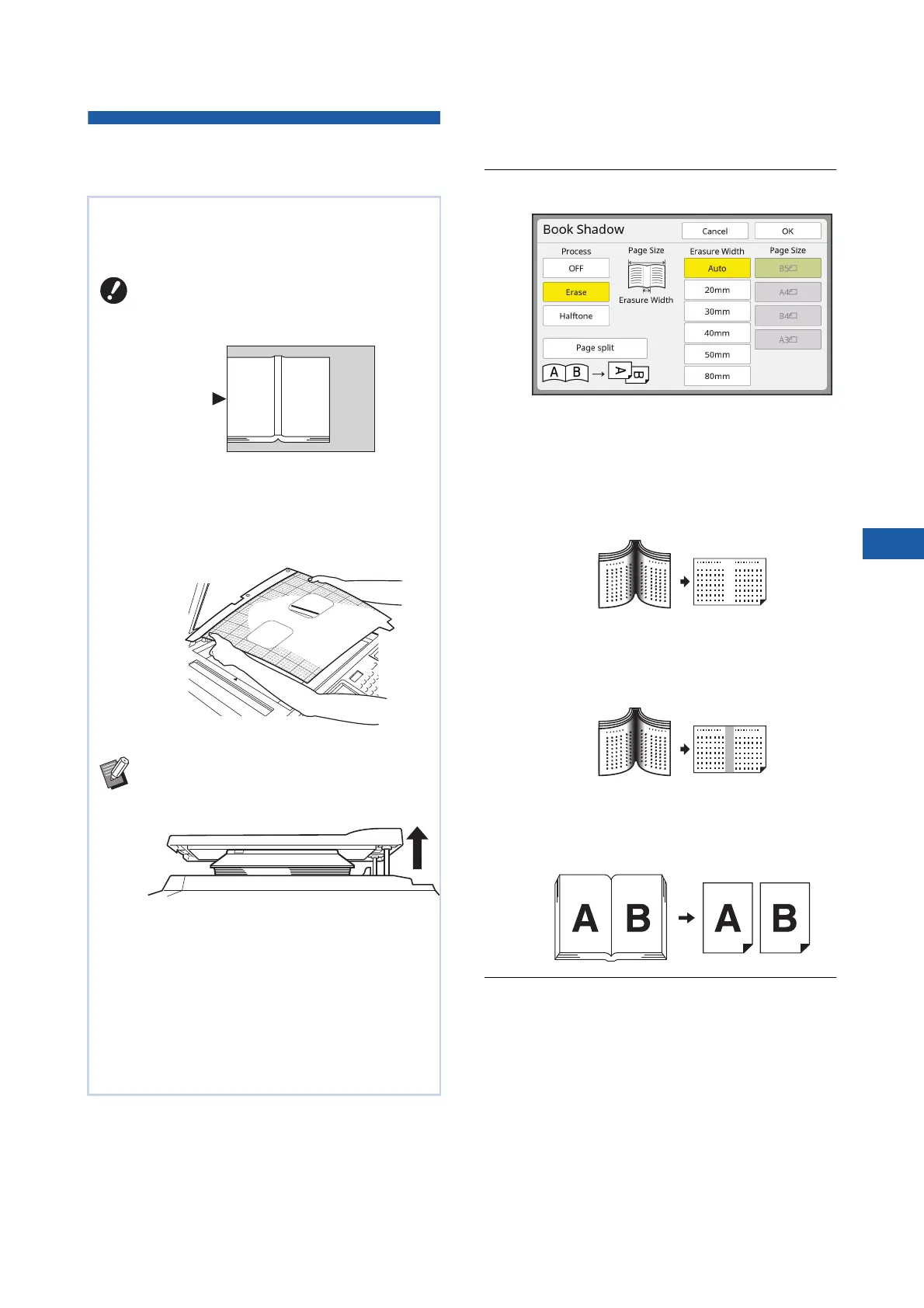
[Book Shadow]
1
Touch [Book Shadow] in the
[Functions] tab screen.
2
Select a processing method.
■ [OFF]
The [Book Shadow] processing is not per-
formed.
■ [Erase]
Erases the shadow of the binding section and
the shadow generated around the original.
■ [Halftone]
Reduces the shadow of binding section using
halftone processing and erases the shadow
generated around the original.
■ [Page split]
Splits a center-spread page into left and right
sections and then scans.
(In the example below, page [B] is printed first.)
3
Select an erasure width.
■ [Auto]
Detects the binding section automatically and
calculates an erasure width.
When you scan an original that is bound at the cen-
ter, such as a book, it is possible to erase or reduce
the shadow of the binding section.
BBe sure to align the original to the cen-
ter along the left side of the glass
platen and place the original in the
direction shown below.
BWhen a gauge cover is attached on the
glass platen, remove it. If you use
[Book Shadow] with the gauge cover
attached, the area around the original
will be black in the master that is made.
BWhen scanning a thick book, raise the
hinges of the platen cover so that you can
press the book evenly using the cover.
BYou cannot use this function with the fol-
lowing functions.
C[Binding Margin Adj.] (A 68)
C[Scanning Side -ADF] (A 71)
C[Ink Saving] (A 56)
C[Auto] under [Contrast] (A 54)
C[Layout] (A 60)
C[Multi-Up Print] (A 62)
C[2 Up] (A 66)
C[Quick Master Making] (A 57)



 To Next Page