Chapter 2 Basic Operations
46
10
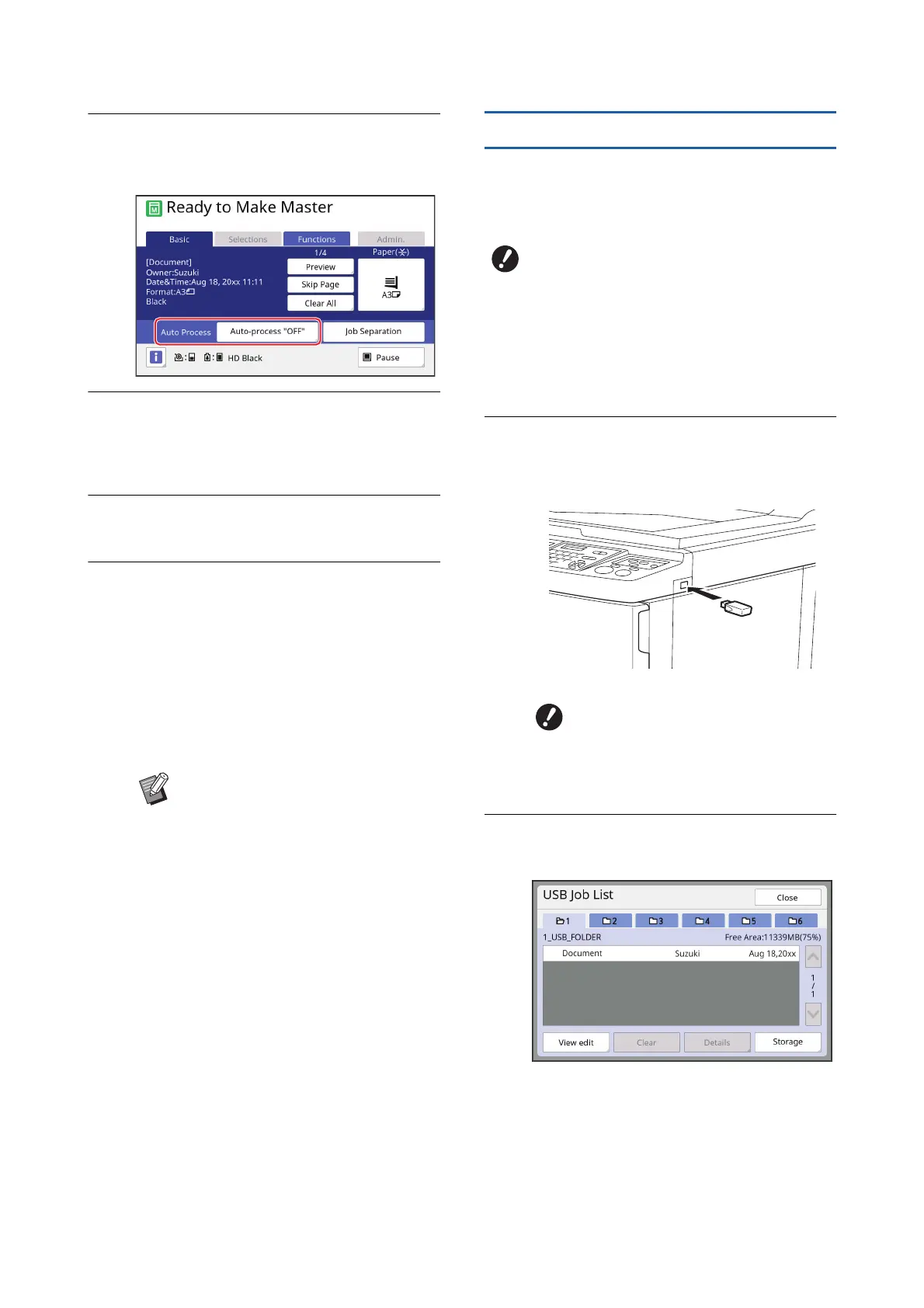
Check the [Auto Process] setting.
The settings that can be selected are the same
for “Printing from Computer” (A 39).
11
Perform other operations.
For the operation in the master making basic
screen, see the following page.
(A 25 “Touch Panel Displays”)
12
Enter the number of copies to be
printed using the numeric keys.
13
Press the [START] key.
• When [Auto Process] is [ON]:
Master making is followed by the printing pro-
cess.
• When [Auto Process] is set to other than
[ON]:
Perform the necessary operation according to
the settings.
(A 40 “When [Auto Process] is set to other
than [ON]”)
Printing from [USB Job List]
You can print the original data that is saved in the USB
flash drive by performing the settings shown below.
• In the printer driver dedicated for the USB flash drive
printing, set [USB print (Manual)] for [Output:].
1
Make preparations for this
machine.
Perform steps 1 to 4 in “Printing from [Storage]”
(A 45).
2
Insert the USB flash drive that con-
tains the original data into the USB
slot.
3
Touch the original data that you
want to print.
• To select original data that is saved in another
folder, touch the folder tab.
• When there are 6 or more original data files,
touch [F] or [G] to change the display.
BAn idling action (to ensure the ink
usability and stability) may be auto-
matically executed. You can change
the setting in [Auto Idling] (A 122)
under [Admin.].
BYou cannot print any original data (PDF
file, etc.) that is saved with another
method.
BDo not remove the USB flash
drive while the “Accessing to the
USB flash drive” message is dis-
played. It may cause a data loss
or damage the USB flash drive.



 To Next Page