Chapter 6 Functions for Scanning
111
6
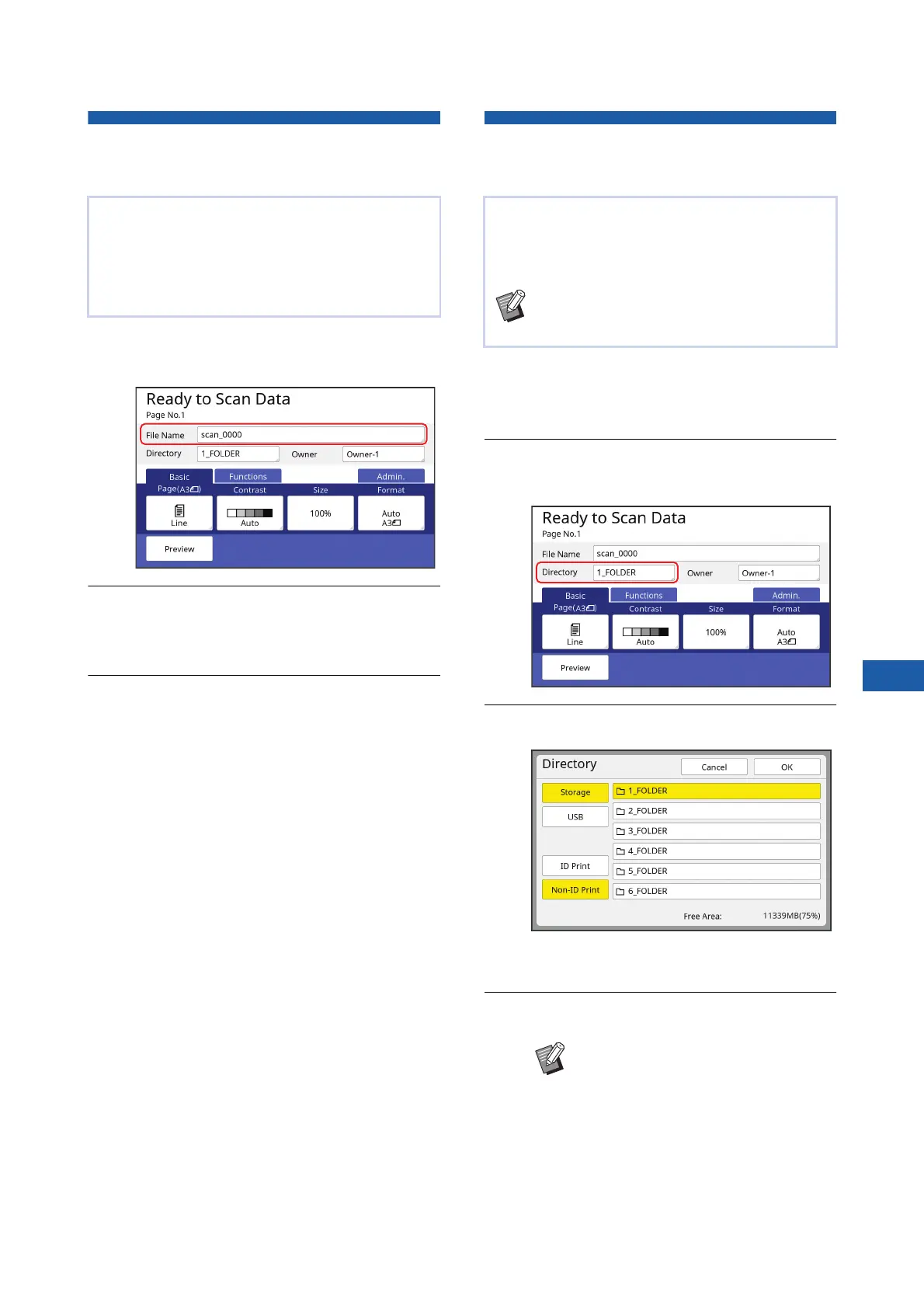
Setting the Name of the Original
Data to be Displayed [File Name]
1
Touch [File Name] in the scan
basic screen.
2
Change the data name in the
[Rename] screen.
(A 28 “[Rename] screen”)
3
Touch [OK].
Setting the Directory of the Origi-
nal Data [Directory]
1
When you want to save data on a
USB flash drive, insert the USB
flash drive into the USB slot.
2
Touch [Directory] in the scan basic
screen.
3
Touch [Storage] or [USB].
If no USB flash drive is inserted, you cannot
select [USB].
4
Touch [ID Print] or [Non-ID Print].
You can set the name of the original data that is to
be displayed.
The set [File Name] is displayed in the [Storage
Selection] screen or the [USB Job List] screen.
(A 74 “Managing the Saved Original Data [Stor-
age], [USB Job List]”)
Set the directory of the original data.
You can specify the folder into which the data is to
be saved in [Storage] or [USB].
(A 43 “Saving Paper Original as Data”)
BWhen the optional RISO Controller IS300
is connected, you cannot change [Direc-
tory].
BThese options are displayed when
[High/Full Management] is set in
[User Management] (A 129) under
[Admin.].



 To Next Page