Chapter 3 Functions for Master Making
70
Checking a Proof Copy of Each
Page [ADF Semi-Auto]
1
Set the originals on the auto docu-
ment feeder.
(A 36 “Placement of Originals”)
2
Turn off [Auto Process].
When [Auto Process] is on, press the [AUTO
PROCESS] key to turn [Auto Process] off.
3
Touch [ADF Semi-Auto] in the
[Functions] tab screen.
[ADF Semi-Auto] turns on.
Printing from the Last Page
[Output reversal]
1
Place an original.
(A 36 “Placement of Originals”)
2
Place the paper.
(A 32 “Setting up the paper feed tray and the
paper”)
3
Set the paper receiving tray.
(A 33 “Setting up the paper receiving tray”)
4
Touch [Output reversal] in the
[Functions] tab screen.
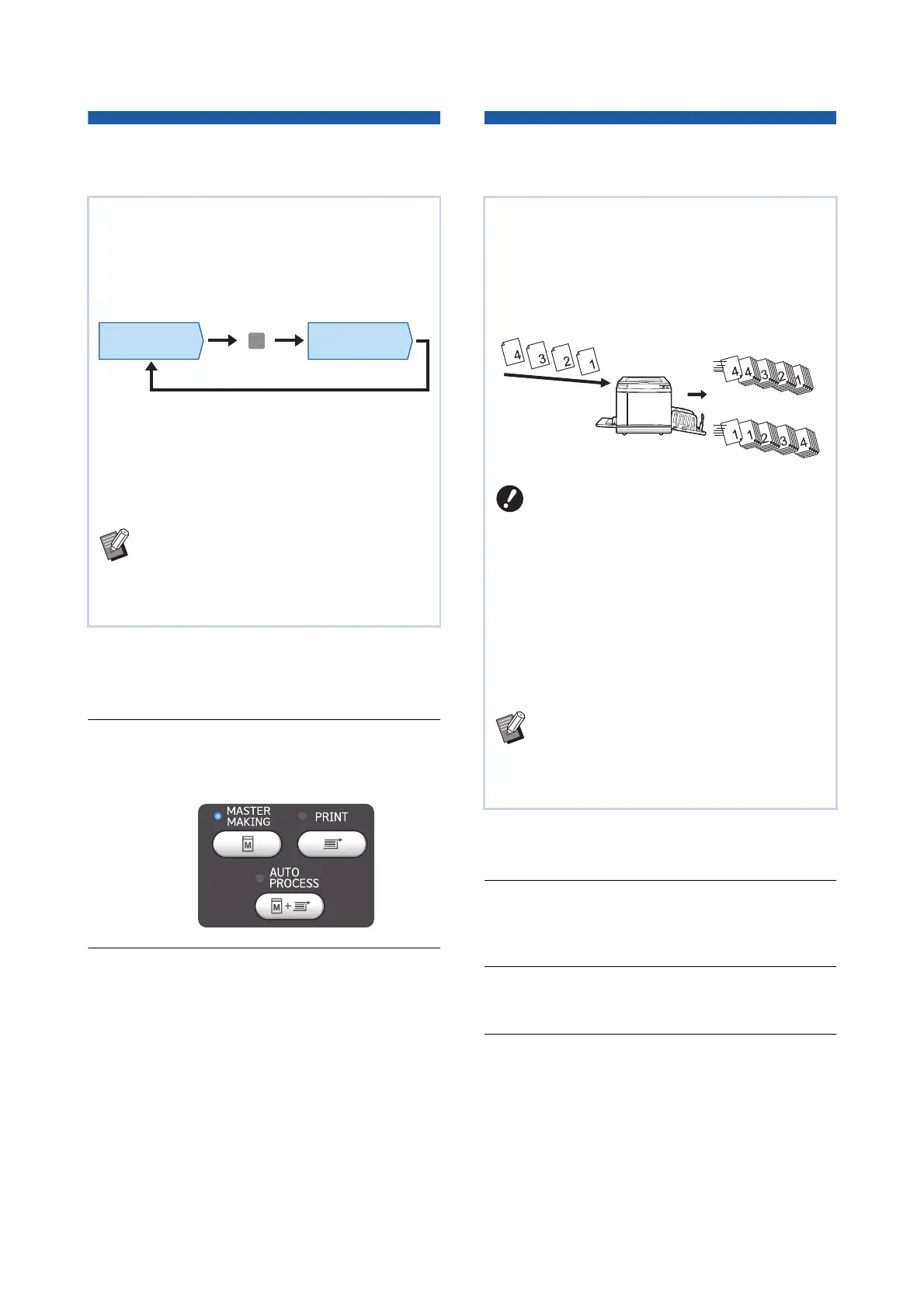
[ADF Semi-Auto] is displayed when the optional
auto document feeder has been installed.
When you place originals on the auto document
feeder and turn on [ADF Semi-Auto], the printing
flow will be as shown below.
• As the operation stops after master making is
complete, you can check a proof copy before a
large amount of printing.
• As master making for the next page starts auto-
matically after the printing process, you can effi-
ciently continue the operation.
BFor the printing flow when [ADF Semi-
Auto] is off, see the page below.
(A 29 “What is [Auto Process]?”)
BYou can change the default setting in [ADF
Semi-Auto] (A 118) under [Admin.].
Master making
process
Printing process
Stop
You can print in reverse order of the scanning order
of paper originals.
This option is useful when you want to place the
first page of the printed paper on the top in the
paper receiving tray.
BTo use [Output reversal], it is necessary
to install a memory card in this
machine.
B[Output reversal] is performed by tem-
porarily saving the scanned original
data in the [Storage] area. If the amount
of space in [Storage] becomes insuffi-
cient during scanning of the originals, a
message is displayed. In this case,
delete original data that is saved in
[Storage] to secure enough space, and
then retry scanning the originals.
BYou cannot use this function with the fol-
lowing functions:
C[Multi-Page Mode] (A 92)
C[Preview] (A 69)
C[Overlay] (A 76)
Flow of origi-
nals
Normal printing
Output reversal
Before scanning originals Order of output



 To Next Page