Chapter 3 Functions for Master Making
62
12
Press the [START] key.
Scanning of the original starts.
The rest of the procedure is the same as the
normal printing operation of paper originals.
(A 38 “Printing of Paper Originals”)
After scanning of an original is complete, place
the original that is to be scanned next, and then
press the [START] key.
If the number of pages of the original is less
than the number of copies, touch [Exit] and
then [Yes] after scanning all the pages of the
original. The part where the original pages are
missing is left blank.
Laying Out Multiple Originals on a
Single Sheet of Paper
[Multi-Up Print]
■ [Single-Original]
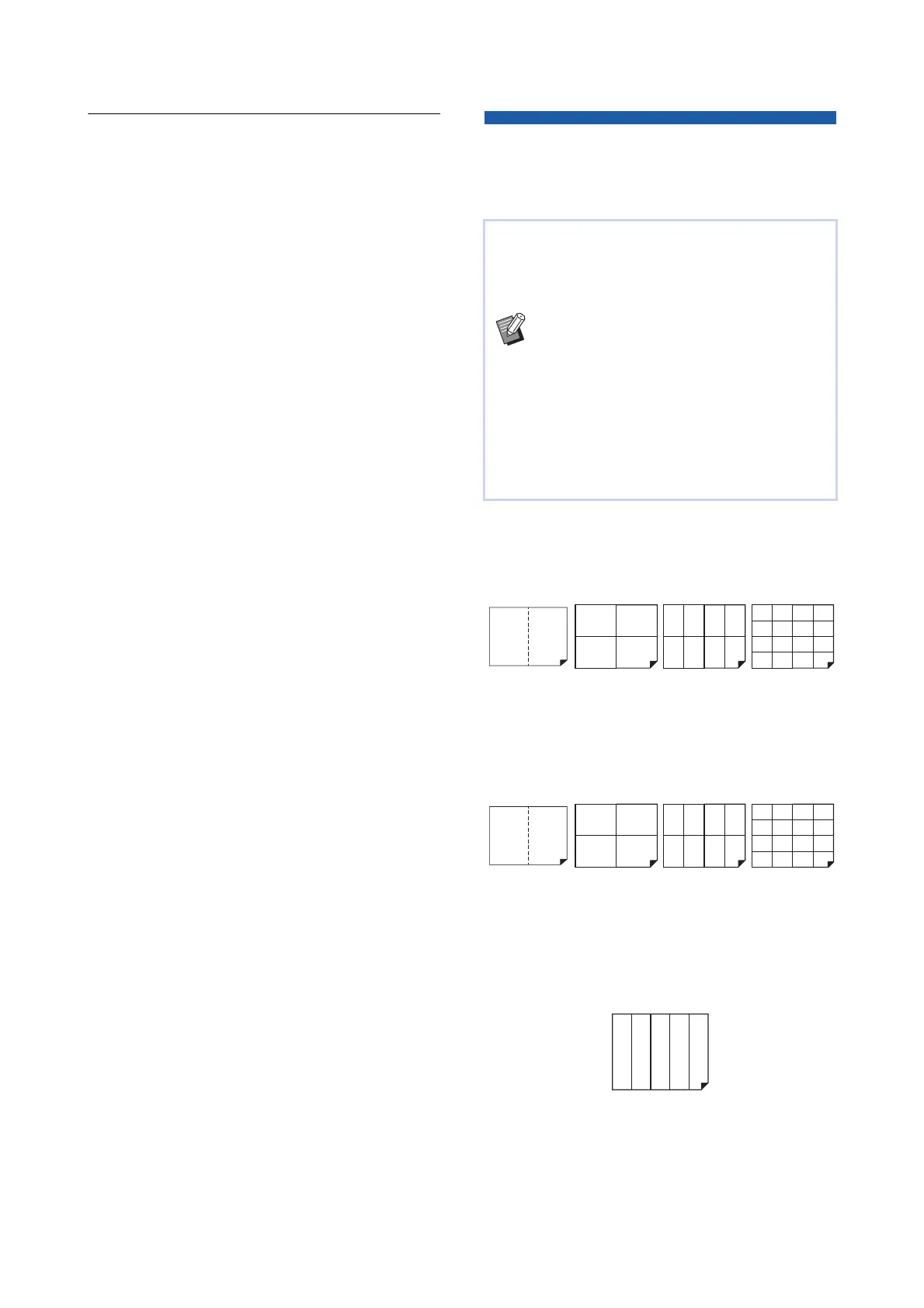
Lays out multiple copies of one original on a single
sheet of paper.
■ [Multiple-Original]
Lays out multiple copies of two or four originals on a
single sheet of paper.
1
Two originals can be laid out.
2
Four originals can be laid out.
■ [Multi-Up Tickets]
Lays out multiple copies of a thin original, such as a
ticket, on a single sheet of paper.
The process for laying out multiple originals on a
single sheet of paper is referred to as [Multi-Up
Print]. This feature is useful in a situation where you
want to save paper, or print messages and memos.
BYou cannot use this function with the fol-
lowing functions.
C[Book Shadow] (A 55)
C[Layout] (A 60)
C[Top Margin Adj.] (A 67)
C[Binding Margin Adj.] (A 68)
C[Quick Master Making] (A 57)
BWhen [Multi-Up Print] is set, [Auto
90°Rotation] (A 121) under [Admin.] can-
not be used.
2-up 4-up 8-up 16-up
2-up
1
4-up
1
8-up
2
16-up
2
11
11
11
1111
1111
1111
1111
1111
1111
21
11
22
4321
4321
1111
2222
3333
4444
11111



 To Next Page