Chapter 3 Functions for Master Making
75
3
Details of original data
1
Touch [Storage] in the [Functions]
tab screen.
2
Touch an original data item that
you want to check.
You can also select multiple original data items.
3
Touch [Details].
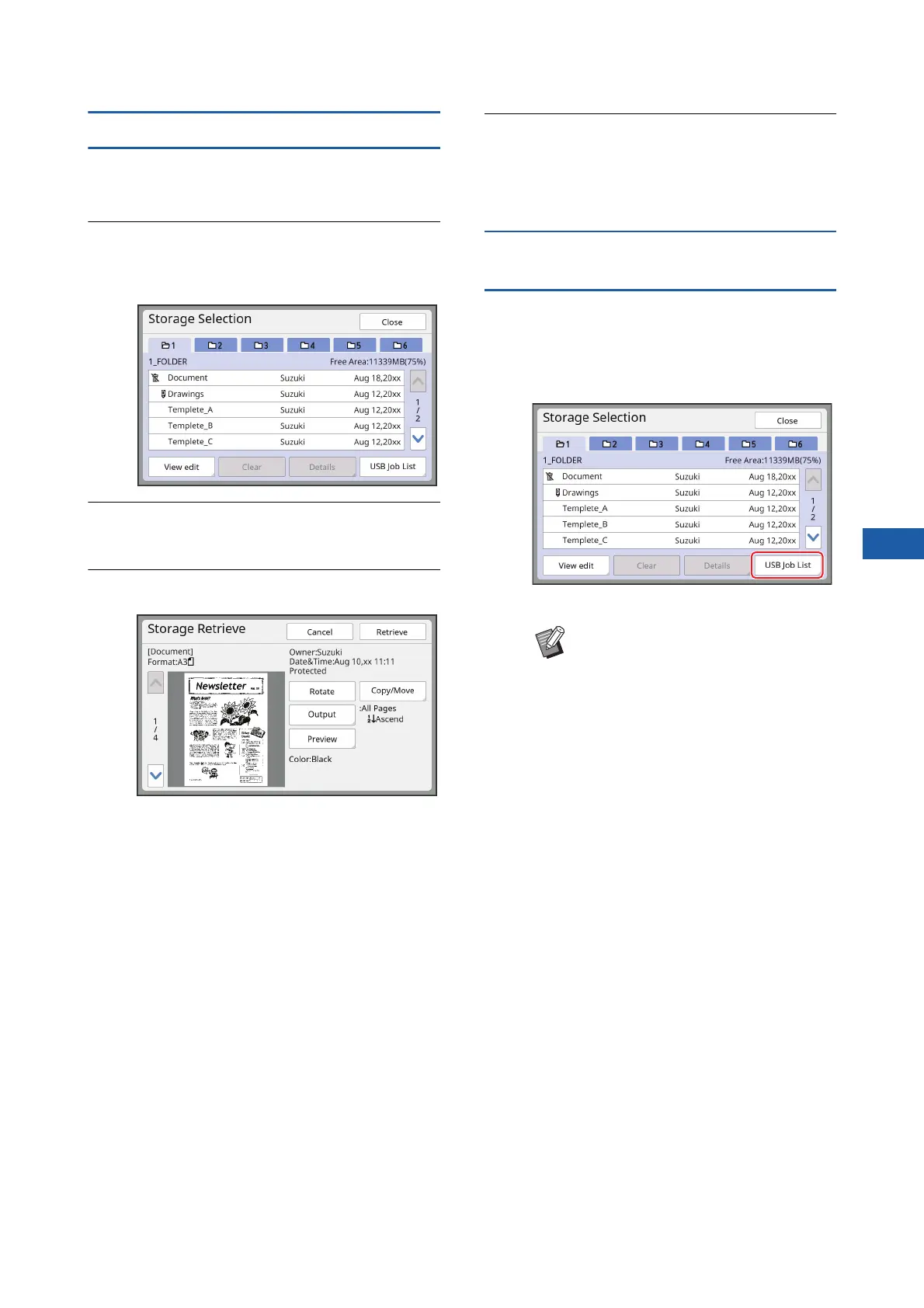
The [Storage Retrieve] screen is displayed.
4
Change the settings as necessary.
■ [Rotate]:
Touch this button to print with the original data
rotated 180 degrees.
■ [Copy/Move]:
Touch this button to display the [Copy/Move]
screen. You can copy or move the original data
between [Storage] and [USB Job List].
■ [Output]:
Touch this button to display the [Output]
screen. You can change the printing order
(ascending / descending) and limit the pages to
be printed (odd / even / specified pages).
■ [Preview]:
Touch this button to display the [Preview]
screen.
You can check the original data image.
(A 69 “Checking the Original Data Image [Pre-
view]”)
5
Touch [Retrieve].
Touch [Retrieve] to print the original data.
Touch [Cancel] to immediately close the
screen.
Changing to the [USB Job List]
screen
You can switch between the [Storage Selection]
screen and the [USB Job List] screen alternately.
1
Touch [USB Job List] in the [Stor-
age Selection] screen.
The [USB Job List] screen is displayed.
BWhen you touch [Storage] in the
[USB Job List] screen, the [Storage
Selection] screen is displayed.



 To Next Page