Chapter 3 Functions for Master Making
57
3
Shortening the Master Making
Time [Quick Master Making]
1
Touch [Quick Master Making] in
the [Functions] tab screen.
Enlarging or Reducing the Size of
the Original [Size]
[Standard ratio]
1
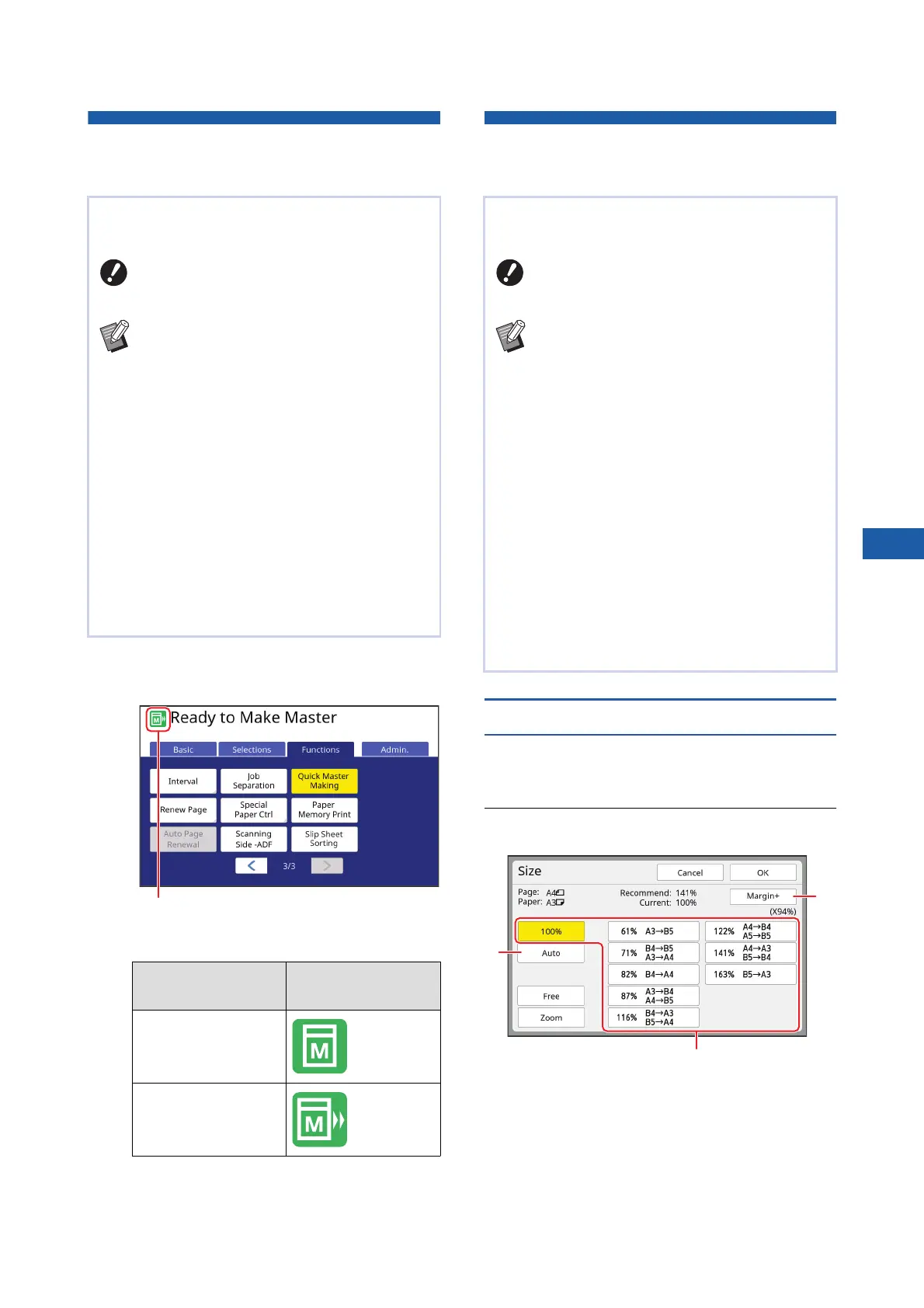
Touch [Size] in the [Basic] tab
screen.
2
Touch a target magnification rate.
1 [Auto]: The size of the original is automati-
cally enlarged or reduced according to the
size of the paper on the paper feed tray.
This option can be used only when both the
original and the paper are a standard size.
You can shorten the time required for master mak-
ing.
BWhen master making is performed with
[Quick Master Making] turned on, an
image is printed at 600 dpi × 400 dpi.
BYou can change the default setting in
[Quick Master Making] (A 119) under
[Admin.].
BYou cannot use this function with the fol-
lowing functions.
C[Size] (A 57)
C[Layout] (A 60)
C[Multi-Up Print] (A 62)
C[2 Up] (A 66)
C[Book Shadow] (A 55)
C[Binding Margin Adj.] (A 68)
C[Preview] (A 69)
C[Editor]
C[Paper Memory Print] (A 72)
C[Storage] (A 74)
C[USB Job List] (A 74)
C[Overlay] (A 76)
[Quick Master Mak-
ing]
Icon
OFF
ON
When [Quick Master Making] is turned on, the
icon in the message area is changed.
You can scan an original so that it is enlarged or
reduced in size.
BImage parts outside the range for mas-
ter making are not printed.
(A 17 “Master making area”)
BYou can change the default setting in
[Reproduction Size] (A 118) under
[Admin.].
BYou can change the reduction rate for
[Margin+] in [Margin-Plus Rate] (A 121)
under [Admin.].
BYou cannot use this function with the fol-
lowing function.
C[Quick Master Making] (A 57)
The size setting method can be selected from the
following three options.
• [Standard ratio]: You can set the size of the origi-
nal simply by selecting a magnification rate.
• [Free]: You can set any magnification rates in the
horizontal and vertical directions.
• [Zoom]: You can set any magnification rate with-
out changing the zoom ratio in both the vertical
and horizontal directions.
1
3
2



 To Next Page