Chapter 7 Setting the Operation Conditions
134
Changing the user information
1
Touch [Create User] in the [User
Management] screen.
To display the [User Management] screen, per-
form steps 1 to 3 in [Recognized by] (A 130).
2
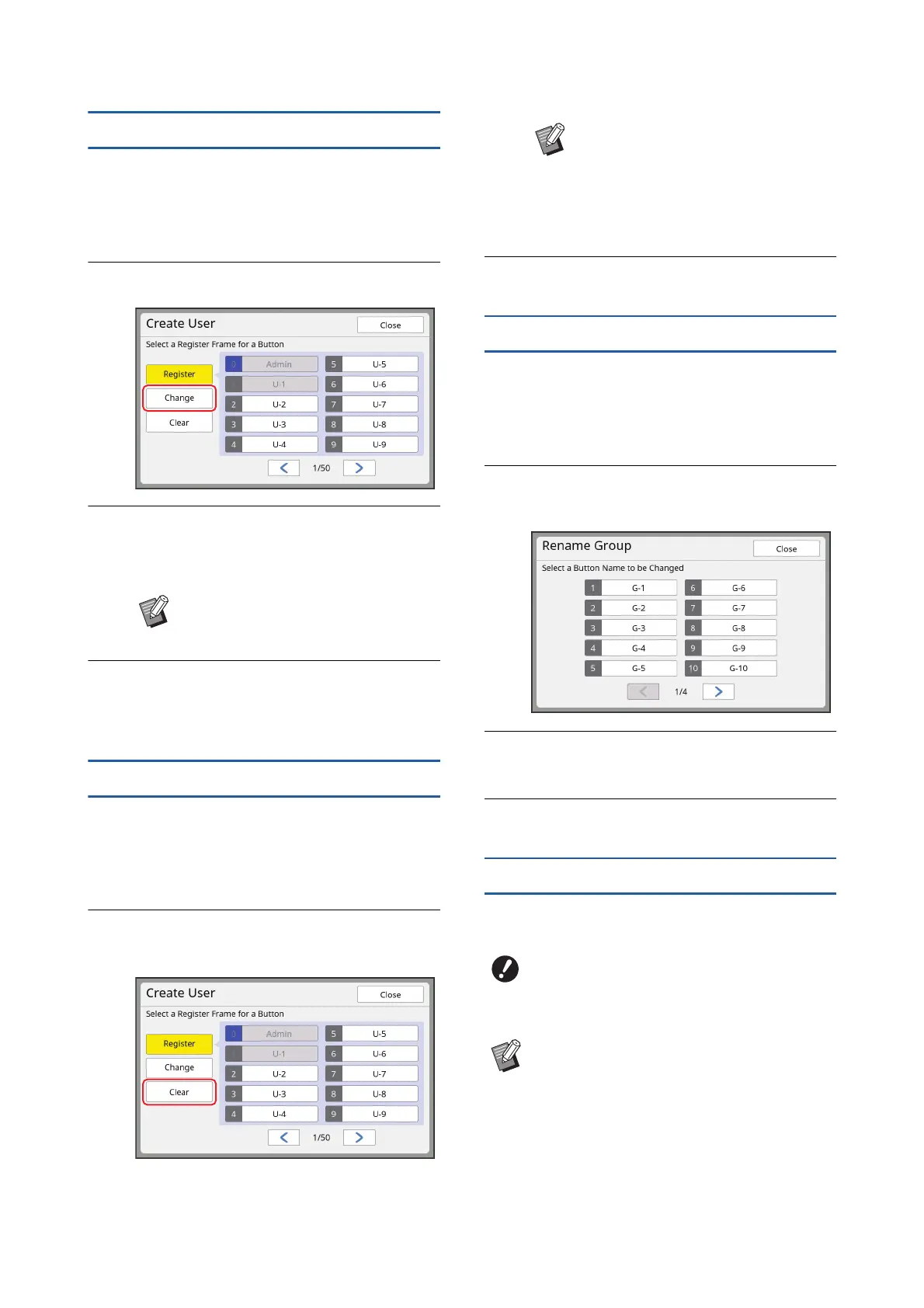
Touch [Change].
3
Touch the user that you want to
change.
The [Change] screen is displayed.
4
Change the registered information.
Perform step 3 and the subsequent steps in
[Create User] (A 131) as necessary.
Erasing the general users
1
Touch [Create User] in the [User
Management] screen.
To display the [User Management] screen, per-
form steps 1 to 3 in [Recognized by] (A 130).
2
Touch [Clear], and then touch the
user that you want to erase.
3
Touch [OK].
Changing the group name
1
Touch [Rename Group] in the
[User Management] screen.
To display the [User Management] screen, per-
form steps 1 to 3 in [Recognized by] (A 130).
2
Touch the group whose name you
want to change.
3
Enter the group name.
(A 28 “[Rename] screen”)
4
Touch [OK].
Clearing the counter for all users
You can clear [Present M/C] and [Present T/C] for all
users collectively.
BYou can also change the information
of the administrator.
BYou cannot erase the administrator
from this screen. To erase the
administrator, disable the authenti-
cation function.
(A 135 “Erasing the authentication
setting”)
BOnce you have cleared the counter, it is
not possible to return to the status
before the counter was cleared.
BTo clear only the counter for a specific user,
touch [T], as described in step 2 in “Set-
ting the upper limit number of copies that
can be used” (A 133).



 To Next Page