Chapter 8 RISO Console
140
3
Click [OK].
The [Done] screen is displayed.
4
Click [OK].
[Printer] Menu
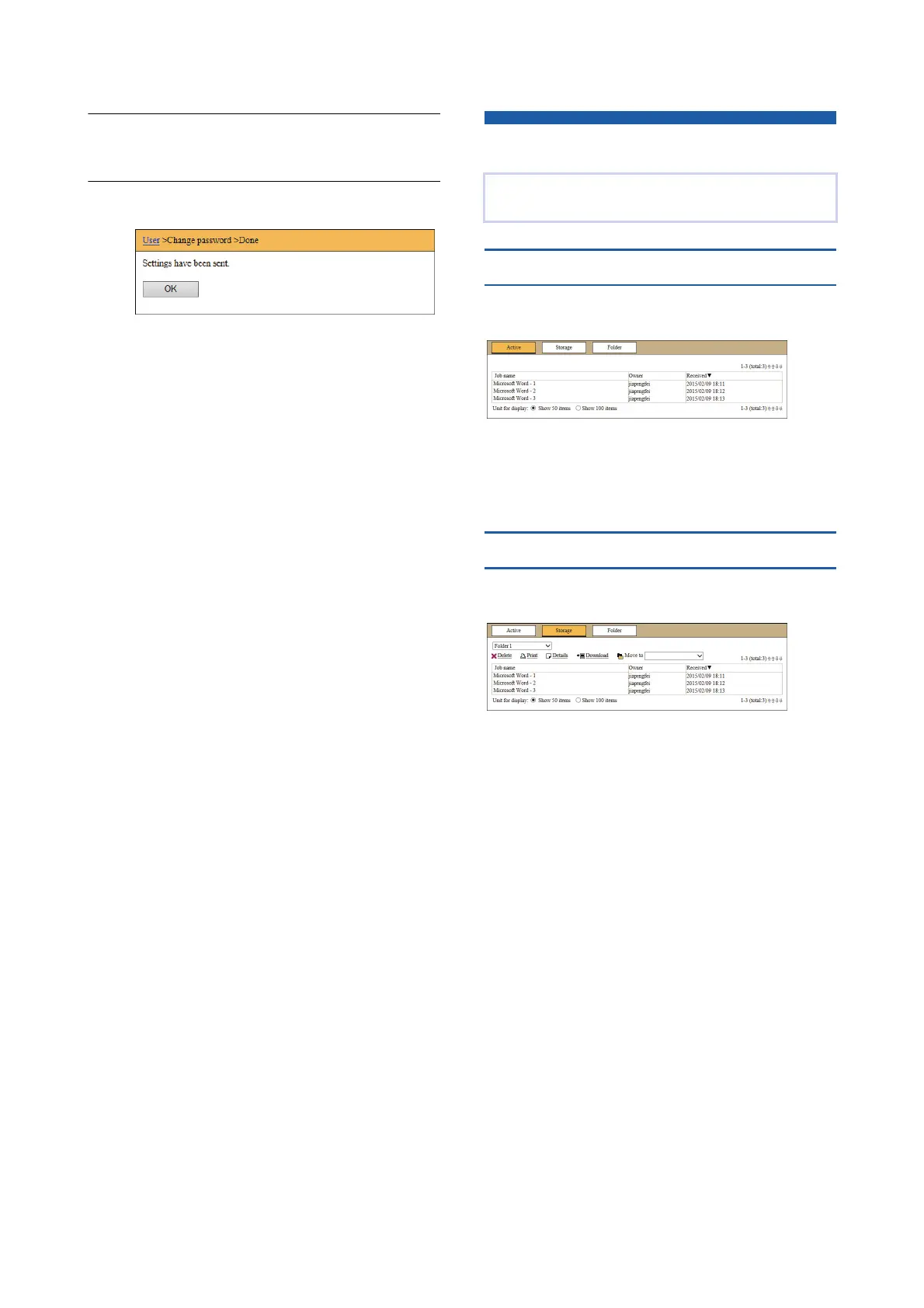
[Active] tab screen
You can check a list of the original data that is cur-
rently being processed in this machine.
• Clicking the heading line ([Job name] [Owner]
[Received]) changes the sorting order.
• You can select the number of items to be listed from
[Show 50 items] and [Show 100 items].
[Storage] tab screen
You can check the original data that is stored in [Stor-
age] on this machine.
• Clicking the heading line ([Job name] [Owner]
[Received]) changes the sorting order.
• You can select the number of items to be listed from
[Show 50 items] and [Show 100 items].
■ [Delete]
Click the job name of the original data that you want to
delete. The original data is highlighted. When you click
[Delete], the highlighted original data is deleted.
■ [Print]
Click the job name of the original data that you want to
print. The original data is highlighted. When you click
[Print], the highlighted original data is printed.
■ [Details]
Click the job name of the original data for which you
want to check the details. The original data is high-
lighted. When you click [Details], the detailed informa-
tion of the highlighted original data is displayed. You
can also change [Job name] and [Owner] of the origi-
nal data.
You can check the original data on this machine and
also change the folder name of [Storage].



 To Next Page