Chapter 3 Functions for Master Making
69
3
Checking the Original Data Image
[Preview]
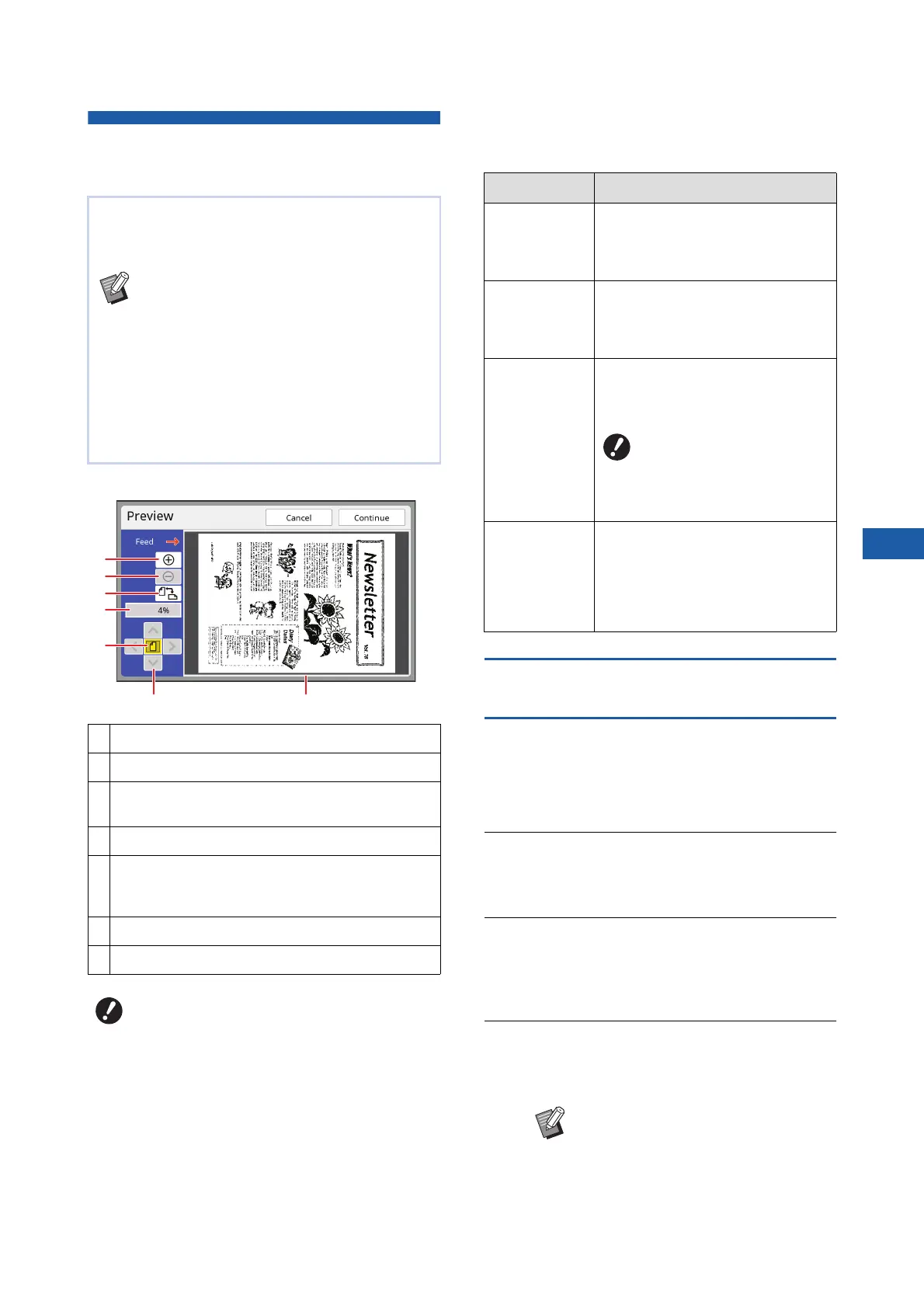
■ Description of the screen
■ How to display the preview
You can display the [Preview] screen in the following
situations.
Operation procedure in the [Preview]
screen
This section describes the operation procedure to
make a master from a paper original as an example.
1
Touch [Preview] in the [Functions]
tab screen.
2
Set the master making conditions.
(A 50 “Functions for Master Making”)
(A 90 “Useful Functions”)
3
Press the [START] key.
Scanning of the original starts.
After the original has been scanned, the [Pre-
view] screen is displayed.
4
Check the preview.
• Touch [Continue] to start master making.
• Touch [Cancel] to stop master making.
You can check the scan image of the original and
the original data image that is retrieved from [Stor-
age] or [USB Job List].
BYou cannot use this function with the fol-
lowing functions.
C[Ink Saving] (A 56)
C[Quick Master Making] (A 57)
C[Output reversal] (A 70)
B[Preview] is turned [ON] automatically
when the following functions are set:
C[Layout] (A 60)
C[Multi-Up Print] (A 62)
C[2 Up] (A 66)
1
Touch this button to enlarge the view by one level.
2
Touch this button to reduce the view by one level.
3
Touch this button to switch between [R (vertical)] and
[Q (horizontal)] alternately.
4
Shows the current magnification rate.
5
Touch this button to change the magnification rate so
that the whole view of the original data image fits in the
display area.
6
Use these buttons to move the display position.
7
Shows the original data image.
BEven when the image is fully displayed
in the [Preview] screen, the image parts
outside the range for master making are
not printed. Check that the margins are
sufficient.
(A 17 “Master making area”)
1
2
3
4
5
76
Situation Display method
Making a master
for a paper origi-
nal
Touch [Preview] in the [Functions] tab
screen of the master making basic
screen. After scanning of an original,
the [Preview] screen is displayed.
Saving a paper
original as data
Touch [Preview] in the [Functions] tab
screen of the scan basic screen. After
scanning an original, the [Preview]
screen is displayed.
Printing original
data received
from the com-
puter
Touch [Preview] in the [Basic] tab
screen of the master making basic
screen for the original data.
B[Preview] is not avail-
able when [Auto Pro-
cess] is turned on as the
operation does not stop
before master making.
Printing the
saved original
data
There are the following two methods.
• Touch [Preview] in the [Storage
Retrieve] or [USB Job List] screen.
• Touch [Preview] in the [Basic] tab
screen of the master making basic
screen for the original data.
BIf [Close] is displayed, touch [Close].



 To Next Page